
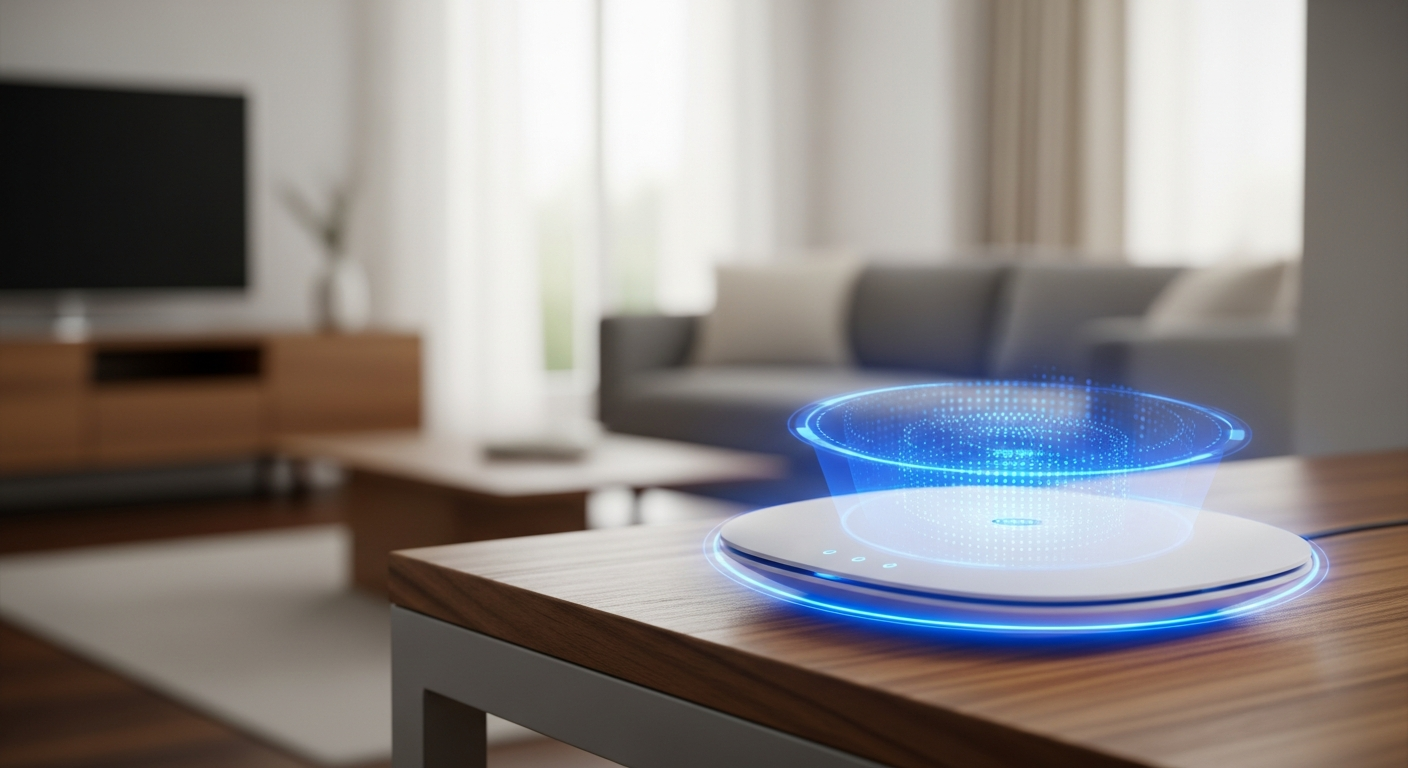
Keeping your home Wi-Fi secure is crucial in today's digital world. This guide will walk you through essential steps to protect your network, even if you have zero tech knowledge.
1. Why is Wi-Fi security important?
Your Wi-Fi network is the gateway to all your internet-connected devices, like your phone, computer, and smart TV. If it's not secure, unauthorized people could access your personal information, spy on your online activities, or even use your internet connection for illegal purposes. Protecting your Wi-Fi keeps your data private and your devices safe.
2. What is WPA2/WPA3 encryption?
WPA2 and WPA3 are like secret codes that scramble your Wi-Fi data, making it unreadable to anyone without the correct password. WPA3 is the newest and most secure version, offering stronger protection than WPA2. Always choose WPA3 if your router and devices support it, otherwise WPA2 is still a good option.
3. How do I choose a strong Wi-Fi password?
A strong Wi-Fi password is long, unique, and complex. Aim for at least 12-16 characters using a mix of uppercase and lowercase letters, numbers, and symbols. Avoid personal information like birthdays or pet names. Think of a memorable phrase and turn it into a password, like "MyDogSparkyLovesBones!2026".
Weak Password
- Short (e.g., "password123")
- Common words
- Personal info (e.g., "JohnsWifi2026")
- Easy to guess
Strong Password
- Long (12+ characters)
- Mix of letters, numbers, symbols
- Unique and complex
- Hard to guess
4. Should I hide my Wi-Fi network name (SSID)?
Hiding your Wi-Fi network name (SSID) makes it invisible to casual scanners, but it's not a strong security measure. Determined attackers can still find it. It can also make connecting new devices more difficult. Focus on strong encryption and a complex password instead for better protection.
5. What is a guest Wi-Fi network?
A guest Wi-Fi network is a separate, isolated Wi-Fi connection on your router. It allows visitors to access the internet without gaining access to your main network and all your personal devices. This keeps your smart home devices, computers, and files safe from guests' devices, which might carry viruses or be less secure.
6. How can I see who is connected to my Wi-Fi?
Most routers have a management page you can access through a web browser. Log in using your router's admin username and password (often found on a sticker on the router). Look for a section like "Connected Devices," "Device List," or "DHCP Clients" to see all currently connected devices. If you see unfamiliar devices, you can usually block them.
7. What is a firewall?
A firewall acts like a security guard for your network, monitoring incoming and outgoing internet traffic. It blocks suspicious activity and prevents unauthorized access to your devices from the internet. Your router usually has a built-in firewall, and your computer's operating system also has one. Keep them active for essential protection.
How a Firewall Works
8. Should I change my router's admin password?
Absolutely! Your router comes with a default admin username and password (like "admin" and "password"). These are widely known and a major security risk. Change them immediately to a strong, unique password, similar to how you'd protect your Wi-Fi. This prevents anyone from logging into your router and changing its settings.
9. What is a VPN and do I need one for Wi-Fi?
A VPN (Virtual Private Network) creates a secure, encrypted tunnel for your internet traffic. While your home Wi-Fi is generally safe with WPA3, a VPN adds an extra layer of privacy, especially when you're on public Wi-Fi. It hides your online activity from your internet provider and makes it harder for others to track you online.
10. How do I know if my Wi-Fi has been hacked?
Signs of a hacked Wi-Fi include unusually slow internet speeds, new or unknown devices appearing on your network list, strange pop-ups or redirects when browsing, or your router settings being changed without your knowledge. If you suspect a hack, change your Wi-Fi password, router admin password, and consider a factory reset of your router.