
My WiFi Isn't Connecting: What Should I Do First?
Having trouble getting online? It can be frustrating when your WiFi won't connect, but often the fix is simpler than you think. This guide will walk you through easy steps to troubleshoot common WiFi problems and get you back online quickly.
1. Why won't my device connect to WiFi?
Your device might not connect for several reasons, like a wrong password, a temporary glitch with your router, or a problem with your device's settings. Sometimes, your device is just too far away from the WiFi signal. We'll cover how to check these common issues.
2. Is my WiFi password correct?
A common mistake is typing the wrong password. WiFi passwords are case-sensitive, meaning "Password" is different from "password." Double-check for typos, especially if you've recently changed it. Look for the password on a sticker on your router or in your internet provider's setup guide.
3. How do I restart my router?
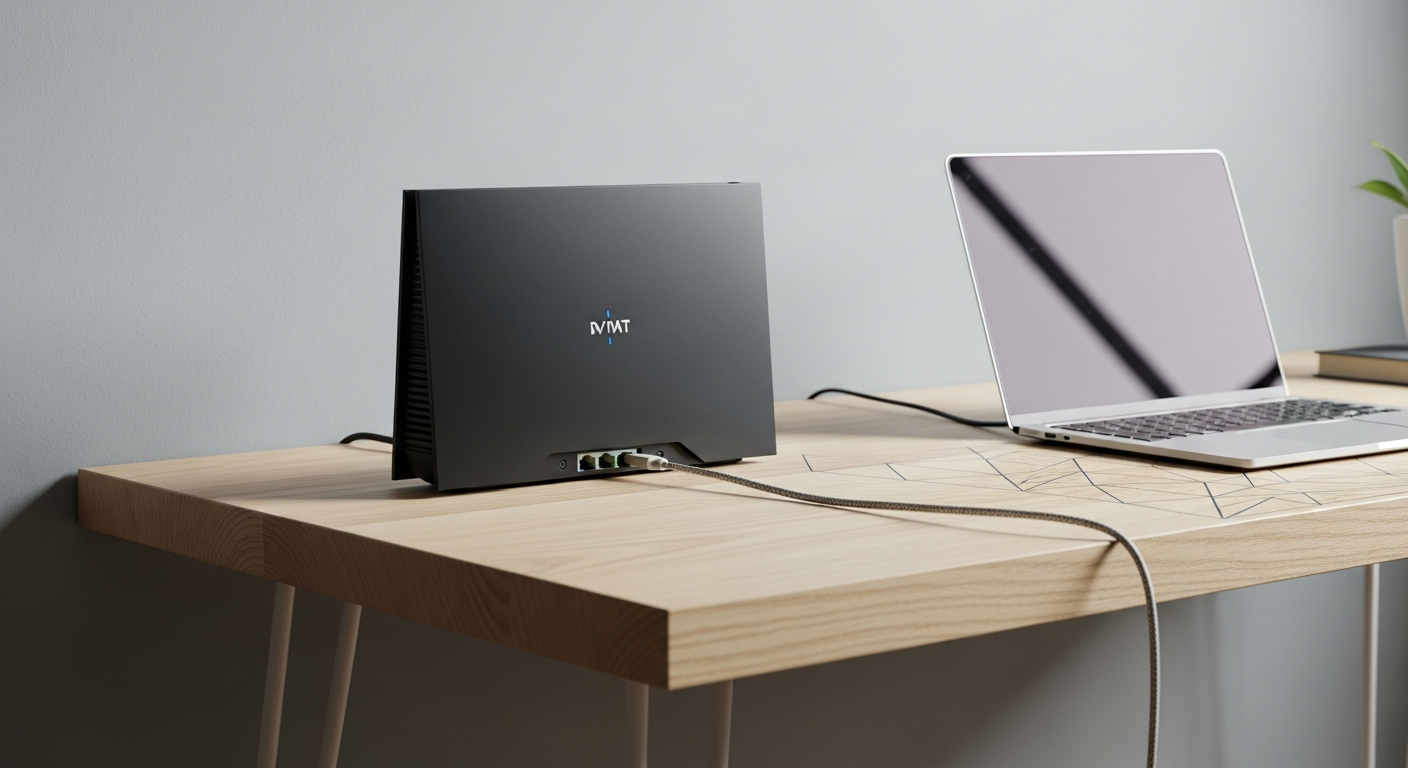
Restarting your router is like giving it a fresh start and often fixes many problems. Find your router (the box that gives you WiFi) and unplug its power cable from the wall outlet. Wait about 30 seconds, then plug it back in. Give it a few minutes to fully start up again, and then try connecting.
Router Restart Flow
4. What if my router lights are off?
If your router's lights are completely off, it means it's not getting power. First, check that the power cable is securely plugged into both the router and the wall outlet. Try plugging it into a different outlet to rule out a faulty wall socket. If lights remain off, the router itself might have an issue.
5. How do I forget a WiFi network on my phone?
Sometimes your device remembers old, incorrect settings for a WiFi network. To "forget" it: On Android, go to Settings > Network & internet > Internet, tap the gear icon next to your network, then "Forget." On iPhone, go to Settings > Wi-Fi, tap the "i" icon next to your network, then "Forget This Network." After forgetting, try to reconnect and enter the password again.
6. Can my device be too far from the router?
Yes, WiFi signals get weaker the further you are from the router, or if there are walls and furniture in the way. Try moving your device closer to your router to see if the connection improves. Thick walls or large distances can block the signal completely, making it impossible to connect.
7. What is Airplane Mode?
Airplane Mode is a setting on your device that quickly turns off all wireless communication, including WiFi, cellular data, and Bluetooth. It's designed for use on airplanes. Sometimes, turning Airplane Mode on for a few seconds and then off again can reset your device's wireless connections and fix minor glitches.
WiFi vs. Cellular Data
WiFi
- Uses your home internet connection
- Typically faster at home
- No extra cost for data usage
- Limited range (near router)
Cellular Data
- Uses your phone's mobile network
- Works almost anywhere with signal
- Uses up your monthly data plan
- Can be slower indoors or rural areas
8. Should I check my internet cable?
If your router is connected to a modem (another box that brings internet into your home), check the cable connecting them. Make sure it's securely plugged into both devices. Also, check the cable from your modem to the wall outlet (often a coaxial cable, like for TV). Loose cables can interrupt your internet service.
9. What if only one device won't connect?
If other devices are connecting to WiFi just fine, the problem is likely with the specific device that won't connect. Try restarting that device (phone, laptop, tablet). Also, try "forgetting" the network on that device and reconnecting, as described in Question 5. Make sure its WiFi is turned on and not in Airplane Mode.
10. When should I call my internet provider?
You should call your internet provider if you've tried all the basic troubleshooting steps (restarting router, checking cables, forgetting network) and still can't get online with any device. They can check if there's an outage in your area or if there's a problem with your internet service coming into your home.