
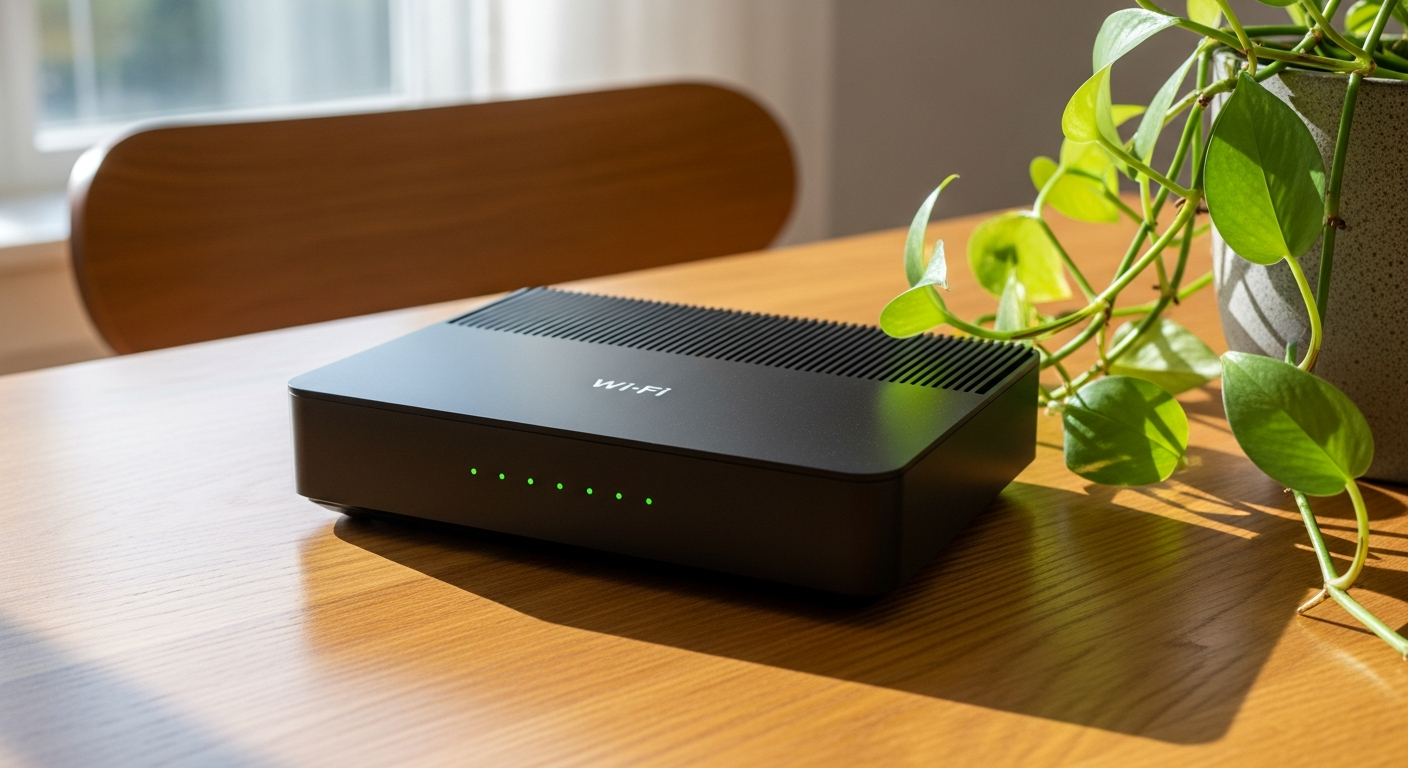
It's frustrating when your Wi-Fi stops working, especially when you need to get online. This guide will help you understand common Wi-Fi issues and provide simple steps to get you back connected.
1. What does 'no internet access' mean?
'No internet access' means your device (like your phone or computer) is connected to your Wi-Fi network, but that network isn't able to reach the internet. Think of it like a road: your car is on the road (Wi-Fi), but the road itself is blocked from reaching the city (internet).
2. How do I restart my router?
To restart your router, find the power cable plugged into the back of it. Unplug it completely from the wall outlet or the router itself. Wait about 30 seconds, then plug it back in. Give your router a few minutes to fully start up and reconnect before checking your Wi-Fi.
3. What's the difference between Wi-Fi and internet?
Wi-Fi is a wireless signal that connects your devices to your router. The internet is the vast global network of computers and information that your router connects to. Wi-Fi is like the pathway in your home, and the internet is the highway system outside your home.
Wi-Fi
- Local wireless connection
- Connects your devices to your router
- Works even if internet is down (e.g., for local file sharing)
- Like your home's internal road network
Internet
- Global network of information
- Your router connects to it via your ISP
- Required for browsing websites, streaming, online gaming
- Like the global highway system
4. Why is my Wi-Fi slow?
Slow Wi-Fi can be caused by many things. Too many devices using the network at once, your router being too far away, obstacles like thick walls, or interference from other electronics can all reduce speed. An outdated router or a problem with your internet service provider (ISP) can also be culprits.
5. How do I check if my internet is down?
First, try restarting your router. If that doesn't work, check if the internet is working on another device in your home. If no devices can get online, it's likely an internet outage. You can also visit your ISP's website (using mobile data) or call them to check for known local outages.
6. Can I fix Wi-Fi problems myself?
Absolutely! Many common Wi-Fi problems can be fixed with simple steps. Restarting your router, moving closer to it, or checking your device's Wi-Fi settings are often enough. This guide covers the most frequent issues you can troubleshoot on your own.
7. What if my device won't connect to Wi-Fi?
First, ensure Wi-Fi is turned on for your device. Try forgetting the network and reconnecting, entering your password again. Restart both your device and your router. If it's just one device, there might be a problem with its Wi-Fi adapter or settings.
Troubleshooting Wi-Fi Connection
8. How do I find my Wi-Fi password?
Your Wi-Fi password (also called a network key or security key) is usually printed on a sticker on the bottom or side of your router. If you changed it, you might find it in your router's settings (accessed via a web browser) or in your device's saved Wi-Fi networks if it's connected.
9. What's a good Wi-Fi signal strength?
Wi-Fi signal strength is measured in dBm, with numbers closer to zero being stronger. For reliable internet, aim for -50 dBm to -60 dBm. Anything weaker than -70 dBm will likely cause slow speeds or dropped connections. Most devices show signal strength with bars or a Wi-Fi icon.
10. When should I call my internet service provider (ISP)?
You should call your ISP if you've tried all the basic troubleshooting steps (like restarting your router and devices) and still have no internet access on any device. Also, contact them if you suspect a widespread outage in your area or if your internet is consistently much slower than what you pay for.