
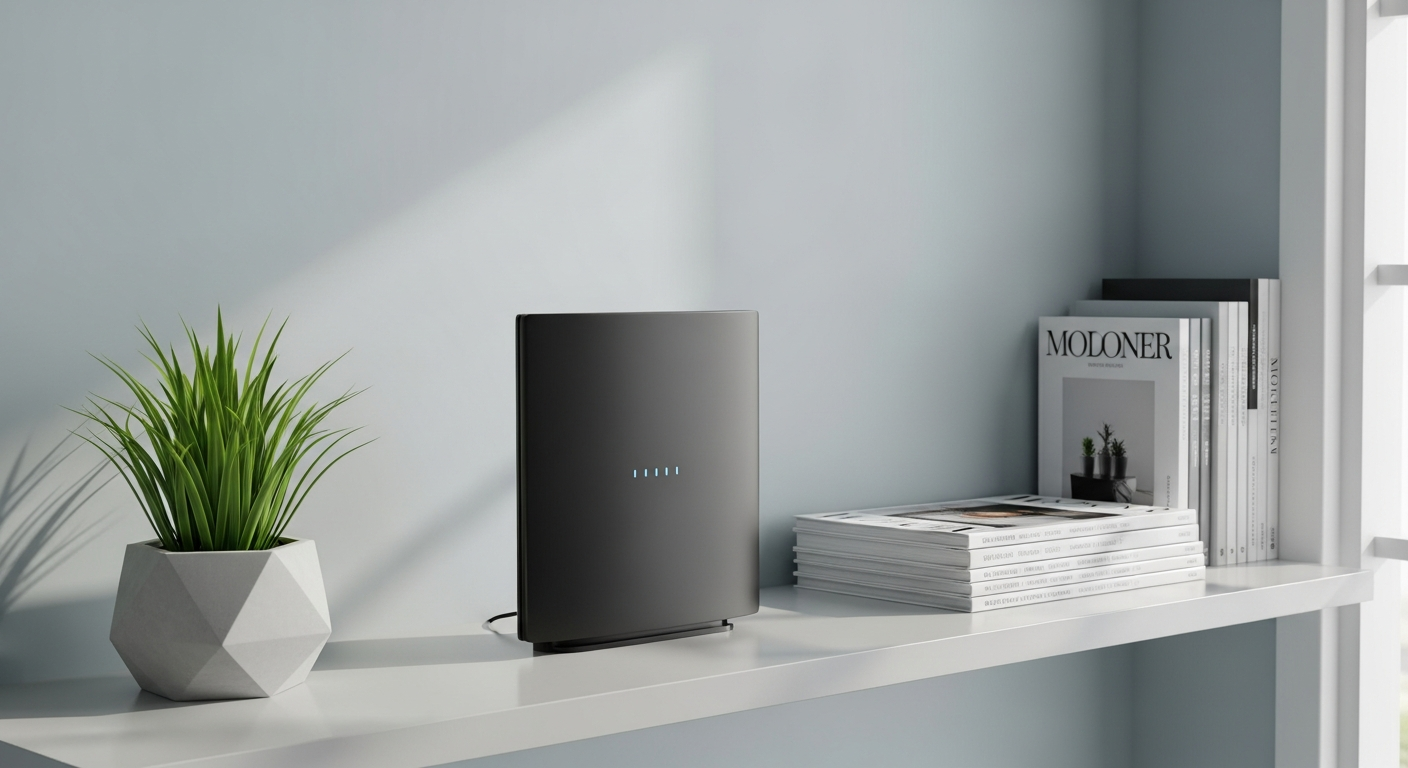
Is your internet dragging its feet? It's frustrating when your Wi-Fi feels sluggish, especially when you're trying to stream, work, or just browse.
This guide will help you understand why your Wi-Fi might be slow and offer simple steps to get it back up to speed.
1. Why is my internet speed not matching my plan?
Your internet service provider (ISP) advertises "up to" certain speeds. This means you might not always get the absolute maximum speed due to various factors like network congestion, your equipment, or how many devices are using the internet at once.
Think of it like a highway: your plan tells you the maximum speed limit, but traffic (other users, devices) can slow you down. We'll explore these factors and how to minimize their impact.
2. What causes slow Wi-Fi?
Many things can slow down your Wi-Fi. Common culprits include your Wi-Fi router being too far away, obstacles like walls blocking the signal, too many devices connected at once, or interference from other electronics.
Outdated equipment, a weak signal from your internet provider, or even issues with the device you're using can also contribute to a frustratingly slow experience.
3. How can I test my internet speed?
To check your current internet speed, open a web browser on a computer or phone and search for "internet speed test." Websites like Speedtest.net or Fast.com will measure your download and upload speeds.
For the most accurate result, try to connect your computer directly to your router with an Ethernet cable and run the test. This helps rule out Wi-Fi signal issues as the cause of slowness.
Download Speed
How fast your device can pull data from the internet. Important for streaming, browsing, and downloading files.
Upload Speed
How fast your device can send data to the internet. Important for video calls, online gaming, and sending large files.
4. Should I restart my router?
Yes, restarting your router is often the first and simplest fix for slow Wi-Fi. Just like a computer, routers can get bogged down and benefit from a fresh start.
To restart, unplug your router from its power source, wait about 10-15 seconds, and then plug it back in. Give it a few minutes to fully power up and reconnect before testing your speed again.
5. How do I improve Wi-Fi signal strength?
Place your router in a central location in your home, away from walls, large metal objects, and other electronics. Elevating it can also help.
If your home is large, consider a Wi-Fi extender (which boosts the signal) or a mesh Wi-Fi system (multiple devices working together) to cover dead zones and improve overall signal strength.
6. What is Wi-Fi interference?
Wi-Fi interference happens when other devices or signals disrupt your Wi-Fi signal, making it weaker or slower. Common sources include microwaves, cordless phones, Bluetooth devices, and even your neighbor's Wi-Fi network.
These devices often use similar radio frequencies, causing "traffic jams" for your Wi-Fi signal. Moving your router or changing its Wi-Fi channel can help reduce this interference.
7. How do I check for too many connected devices?
Many routers have a management page you can access through a web browser (check your router's manual for the address, often 192.168.1.1). This page usually lists all connected devices.
Alternatively, consider disconnecting devices you're not actively using, especially those that stream video or play games. Too many devices simultaneously demanding bandwidth can slow down the entire network.
Too Many Devices?
Identify
Check router settings or app for connected devices.
Prioritize
Decide which devices need fast internet most.
Disconnect
Turn off Wi-Fi on unused phones, tablets, smart devices.
Upgrade?
Consider a router with better capacity if problem persists.
8. Can my device be the problem?
Absolutely! An old computer, phone, or tablet with outdated Wi-Fi hardware or software can struggle to keep up, even if your Wi-Fi network is fast. Try testing your internet speed on different devices to see if the problem is specific to one.
Ensure your device's operating system and Wi-Fi drivers are updated. Sometimes, a simple device restart can also resolve temporary performance hiccups.
9. What's the difference between 2.4GHz and 5GHz Wi-Fi?
These are two different "bands" your Wi-Fi router can use. 2.4GHz offers a wider range and better penetration through walls but is generally slower and more prone to interference.
5GHz offers faster speeds and less interference but has a shorter range and struggles more with obstacles. Most modern routers support both, allowing you to choose the best band for each device.
10. When should I contact my internet provider?
If you've tried all the above steps and your Wi-Fi is still consistently slow, it's time to contact your internet service provider (ISP). They can check for outages in your area, test the signal coming into your home, or suggest upgrading your modem or router.
Be prepared to tell them what steps you've already taken, such as restarting your router and testing speeds on different devices, to help them diagnose the issue faster.