
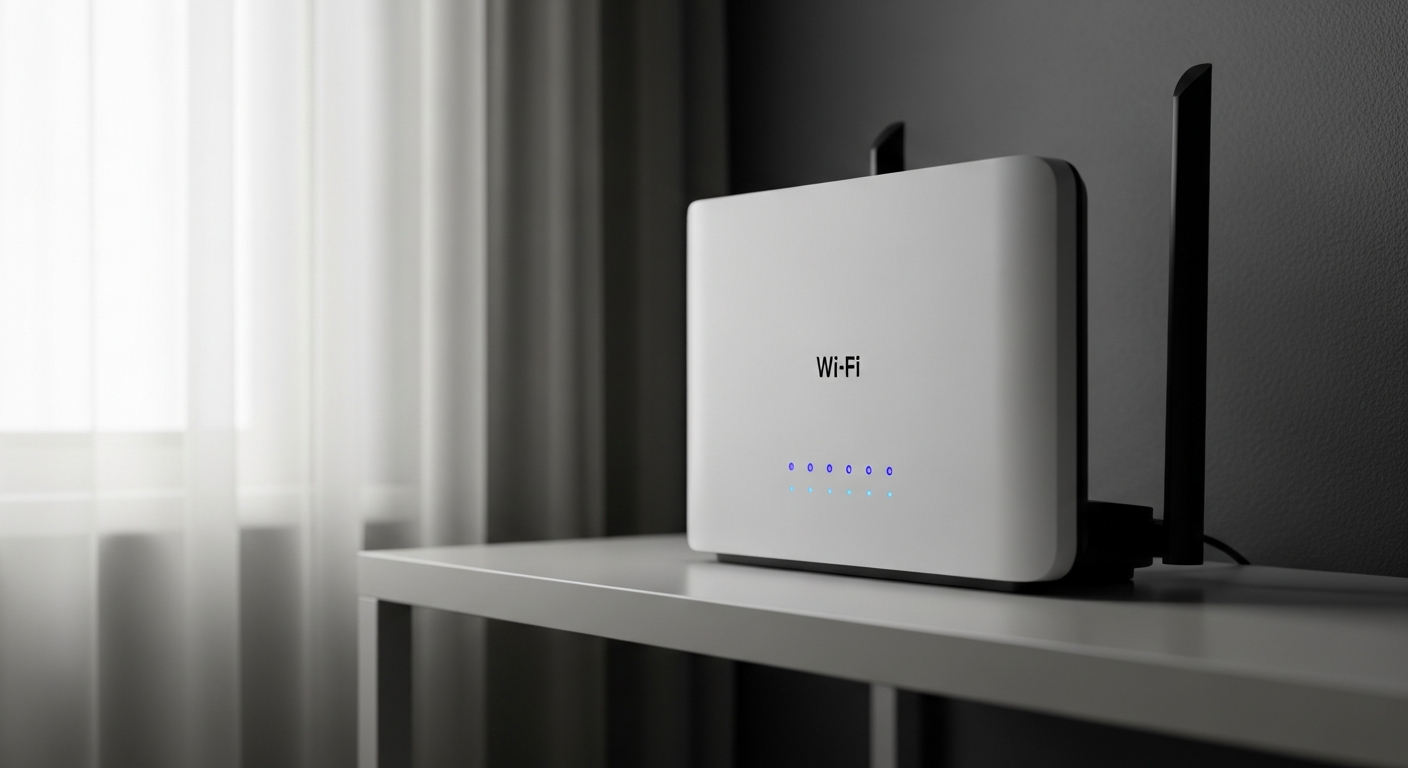
Is your Wi-Fi acting up, leaving you disconnected and frustrated? Don't worry, you're not alone, and many common Wi-Fi problems have simple solutions you can try yourself.
This guide will help you understand why your Wi-Fi might not be working and walk you through easy steps to get back online.
1. What is Wi-Fi?
Wi-Fi is like an invisible radio signal that connects your devices (like phones, laptops, and smart TVs) to the internet without needing cables. It lets you browse websites, stream videos, and send messages wirelessly from almost anywhere in your home or office.
2. How do I know if my Wi-Fi is down?
You'll usually see a specific icon on your device (like a phone or computer) indicating no Wi-Fi connection, or a globe icon with a line through it. Websites won't load, apps won't refresh, and you won't be able to send messages that require an internet connection.
3. What's the first thing to check when Wi-Fi isn't working?
The very first step is to restart your Wi-Fi router. Think of it like giving your Wi-Fi a fresh start. This simple action can often clear up minor glitches and restore your connection quickly.
Router Restart Flow
4. How do I restart my router?
To restart your router, find its power cable and unplug it from the wall outlet. Wait for about 30 seconds, then plug it back in. Give the router a few minutes (usually 2-3) to fully power up and reconnect before checking your devices.
5. What's the difference between a modem and a router?
A modem is the device that connects your home to the internet service provider's network, bringing the internet "into" your house. A router then takes that internet connection from the modem and shares it wirelessly (Wi-Fi) or through cables to all your devices within your home.
6. Why do I have Wi-Fi but no internet?
This often means your devices are connected to your router (you see the Wi-Fi icon), but the router itself isn't receiving internet from your modem or your internet provider. Check the lights on both your modem and router; if the internet light on your modem is off or red, the problem is likely with your internet service coming into your home.
7. What does "no internet access" mean?
"No internet access" means your device can connect to your Wi-Fi network, but that network isn't successfully connecting to the wider internet. You might be able to see other devices on your local network, but you can't visit websites or use online apps. This usually points to an issue with your modem, router, or your internet provider.
Wi-Fi Connected vs. Internet Connected
Wi-Fi Connected
- Your device is talking to your router.
- You see the Wi-Fi symbol on your device.
- You can access local network devices (e.g., printer).
Internet Connected
- Your router is talking to the internet.
- You can browse websites and use online apps.
- Requires both Wi-Fi and modem to be working.
8. How can I check my internet speed?
You can check your internet speed using free online speed test websites. Simply search for "internet speed test" on a working device, and click on one of the reputable results (like Ookla Speedtest or Google's own test). These tools measure how fast data travels to and from your device.
9. Why is my Wi-Fi signal weak?
A weak Wi-Fi signal can be caused by distance from the router, physical obstacles like thick walls or large furniture, or interference from other electronic devices. Try moving closer to your router, repositioning it to a central location, or ensuring it's not blocked by large objects.
10. When should I call my internet provider?
You should call your internet provider if you've tried restarting both your router and modem, checked all cables, and still have no internet access. Also, contact them if your modem's internet light remains off or red, or if your internet speed is consistently much slower than what you pay for.