
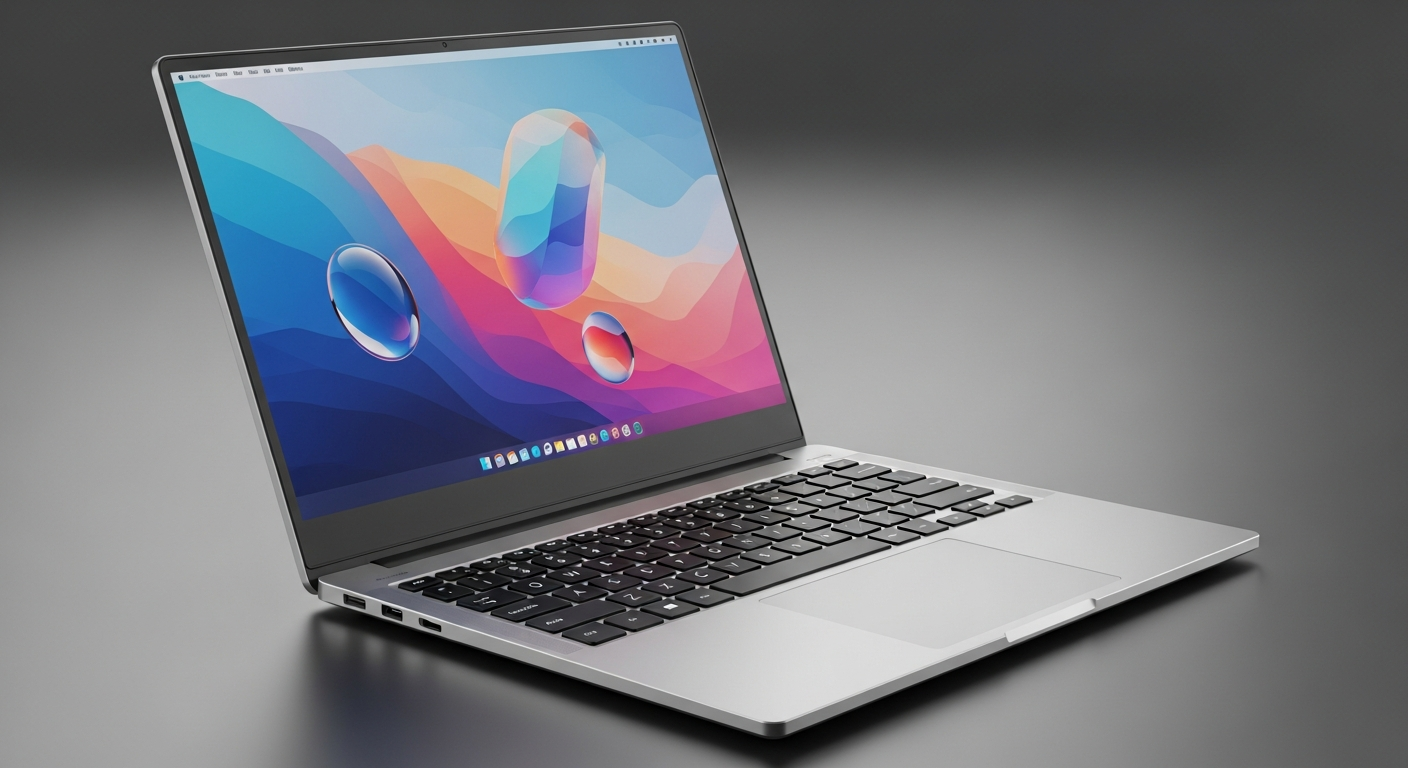
A web browser is your essential tool for exploring the internet, like a special app that lets you see websites. It's how you access all the amazing information, videos, and shopping available online.
1. What exactly is a web browser?
Think of a web browser as a window to the internet. It's a software program on your computer, phone, or tablet that lets you view web pages. When you click a link or type an address, the browser fetches that information from the internet and displays it for you in an easy-to-read format.
2. What's the difference between a browser and a search engine?
A browser is the application you use to get online (like Chrome or Safari). A search engine (like Google or Bing) is a website you visit *inside* your browser to find other websites. You use your browser to go to the search engine, and then the search engine helps you find what you're looking for.
3. How do I open a web browser on my computer?
You can open a web browser just like any other program. Look for its icon on your desktop, in your Start menu (Windows), or in your Applications folder (Mac). Common icons include a colorful circle (Chrome), a blue 'e' (Edge), or a compass (Safari). Just click or tap the icon to launch it.
Web Browser
- The "car" you use to travel the internet.
- Software program installed on your device.
- Displays websites and online content.
- Examples: Chrome, Safari, Edge, Firefox.
Search Engine
- The "map" or "directory" inside the car.
- A website you visit to find other sites.
- Indexes billions of web pages to help you search.
- Examples: Google, Bing, DuckDuckGo.
4. What are the most common web browsers?
The most popular web browsers you'll likely encounter are Google Chrome, Mozilla Firefox, Microsoft Edge, and Apple Safari. Each has slightly different features and looks, but they all do the same basic job of letting you browse the internet. Many people stick with the one that came pre-installed on their device.
5. How do I type a website address?
At the very top of your browser window, you'll see a long bar called the "address bar" or "URL bar." This is where you type website addresses, like "bytecurate.com." After typing, press the Enter key on your keyboard, and the browser will take you to that website.
6. What do the back and forward buttons do?
These are usually arrows located in the top-left corner of your browser. The "back" arrow takes you to the previous page you visited. The "forward" arrow takes you to the page you were on *before* you pressed back. They help you navigate easily through your browsing history in a session.
7. How do I open a new tab?
To open a new tab, look for a small plus sign (+) next to your current open tabs, usually near the top of the browser window. Clicking this will open a fresh, blank page without closing the one you're currently viewing. This lets you visit multiple websites at once in the same browser window.
Opening a New Tab
8. What is a homepage in a browser?
Your browser's homepage is the first page that loads automatically when you open the browser or click the "home" icon (often a small house). Many people set it to a favorite website, a search engine, or a page with frequently visited links. You can usually customize this in your browser's settings.
9. How do I close a browser window?
To close an entire browser window, look for an 'X' button in the very top-right corner (Windows) or top-left corner (Mac). Clicking this 'X' will close all open tabs within that window. If you only want to close a single tab, click the 'X' on that specific tab itself.
10. Do I need more than one browser?
For most everyday internet use, one browser is perfectly sufficient. However, some people like to have a second browser for specific tasks, like testing a website, using different accounts, or if one browser is having issues. It's entirely up to your personal preference and needs.