
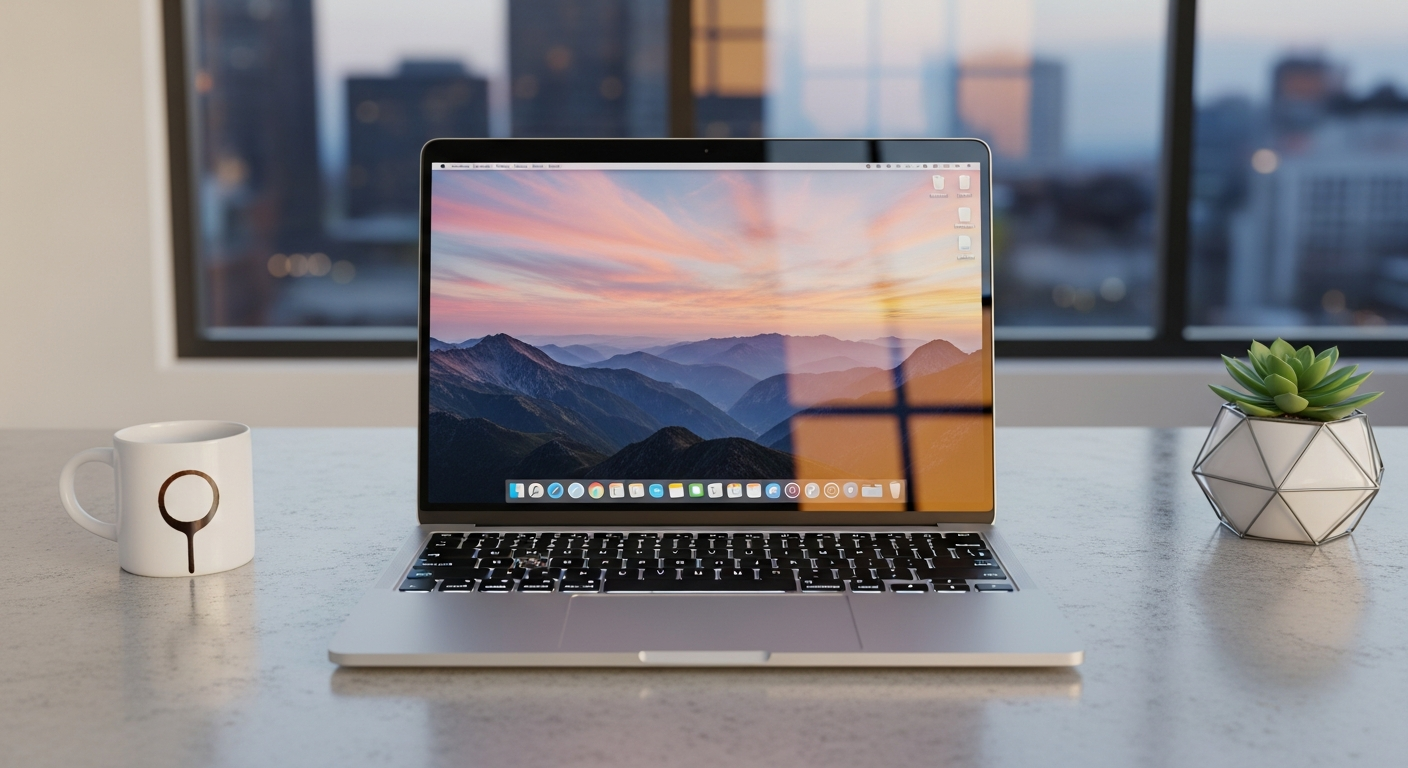
Ever wonder how you get to see websites like ByteCurate.com? That's where a web browser comes in! It's the special app that lets you explore the internet.
1. What exactly is a web browser?
A web browser is a software application that lets you access and view information on the internet. Think of it as your car for the digital highway. When you type a website address or click a link, the browser fetches that page from the internet and displays it on your screen.
It translates the complex code of websites into the text, images, and videos you see. Without a browser, you wouldn't be able to visit any websites or use online services.
2. What are the most popular web browsers available?
In 2026, the most popular web browsers include Google Chrome, Mozilla Firefox, Microsoft Edge, and Apple Safari. There are also others like Opera and Brave, which offer unique features.
These browsers are used by billions of people worldwide to access websites, watch videos, send emails, and much more. Each has its own strengths and user base.
3. What's the difference between Chrome, Firefox, Edge, and Safari?
While all browsers let you access the internet, they differ in speed, privacy features, and how they work with your computer. Chrome is known for speed and its connection to Google services. Firefox focuses on user privacy and open-source development.
Microsoft Edge is built into Windows and offers good performance, often with integration into Microsoft services. Safari is Apple's browser, optimized for Apple devices like Macs and iPhones, emphasizing energy efficiency and privacy.
Chrome & Edge
- Often faster loading
- Good for Google/Microsoft services
- Many extensions available
- Can use more computer memory
Firefox & Safari
- Strong focus on user privacy
- Often better for battery life (Safari)
- Open-source (Firefox)
- May have fewer extensions
4. How do I set a default web browser on my computer?
Setting a default browser means that whenever you click a link from an email or another app, it will automatically open in your chosen browser. On Windows, go to "Settings," then "Apps," then "Default apps," and choose "Web browser."
On a Mac, open "System Settings" (or "System Preferences"), then "Desktop & Dock" (or "General"), and look for the "Default web browser" option. Select your preferred browser from the list.
5. What are browser extensions and how do they work?
Browser extensions are small programs you can add to your browser to give it new features or change how it works. Think of them as mini-apps for your browser. They can block ads, check your grammar, or help you save money when shopping online.
You usually find and install extensions from your browser's "store" or "add-ons" page. Be careful only to install extensions from trusted sources, as some can be harmful or track your online activity.
6. How do I clear my browser history and cache?
Clearing your browser history removes the list of websites you've visited. Clearing your cache removes temporary files (like images or parts of websites) stored on your computer to make pages load faster. To do this, look for "History," "Privacy," or "Settings" in your browser's menu.
There, you'll usually find options like "Clear browsing data," "Clear history," or "Clear cache." You can often choose a time range, like the last hour, day, or all time, for what you want to clear.
7. Is one web browser more secure than another?
All major web browsers have strong security features built-in to protect you from common threats. They regularly receive updates to fix security holes. However, some browsers, like Firefox and Brave, often emphasize privacy and security more in their design and marketing.
Your online safety largely depends on your browsing habits, like avoiding suspicious links and using strong passwords, rather than just the browser itself. Keeping your browser updated is key for security.
8. What is "incognito mode" or "private browsing"?
Incognito mode (Chrome) or private browsing (Firefox, Edge, Safari) is a special browser window that doesn't save your browsing history, cookies, or information you type into forms after you close it. It's like taking a temporary, anonymous trip on the internet.
It's useful if you're using a shared computer, shopping for a surprise gift, or don't want your activity saved locally. However, it doesn't make you invisible online; your internet provider and the websites you visit can still see your activity.
9. How do I update my web browser?
Most modern web browsers update themselves automatically in the background. This is important for security and getting the latest features. You usually don't need to do anything manually.
If you want to check or force an update, look in your browser's menu (often represented by three dots or lines) for "Help," "About [Browser Name]," or "Settings." There, you'll usually see an option to check for updates or it will tell you if it's up to date.
10. Can I have multiple web browsers installed on my computer?
Yes, absolutely! You can have as many different web browsers installed on your computer as you like. Many people use one browser for personal use and another for work, or one for general browsing and another for specific tasks that require different features.
Having multiple browsers doesn't typically slow down your computer unless you have many open at once. You can easily switch between them whenever you need to.