
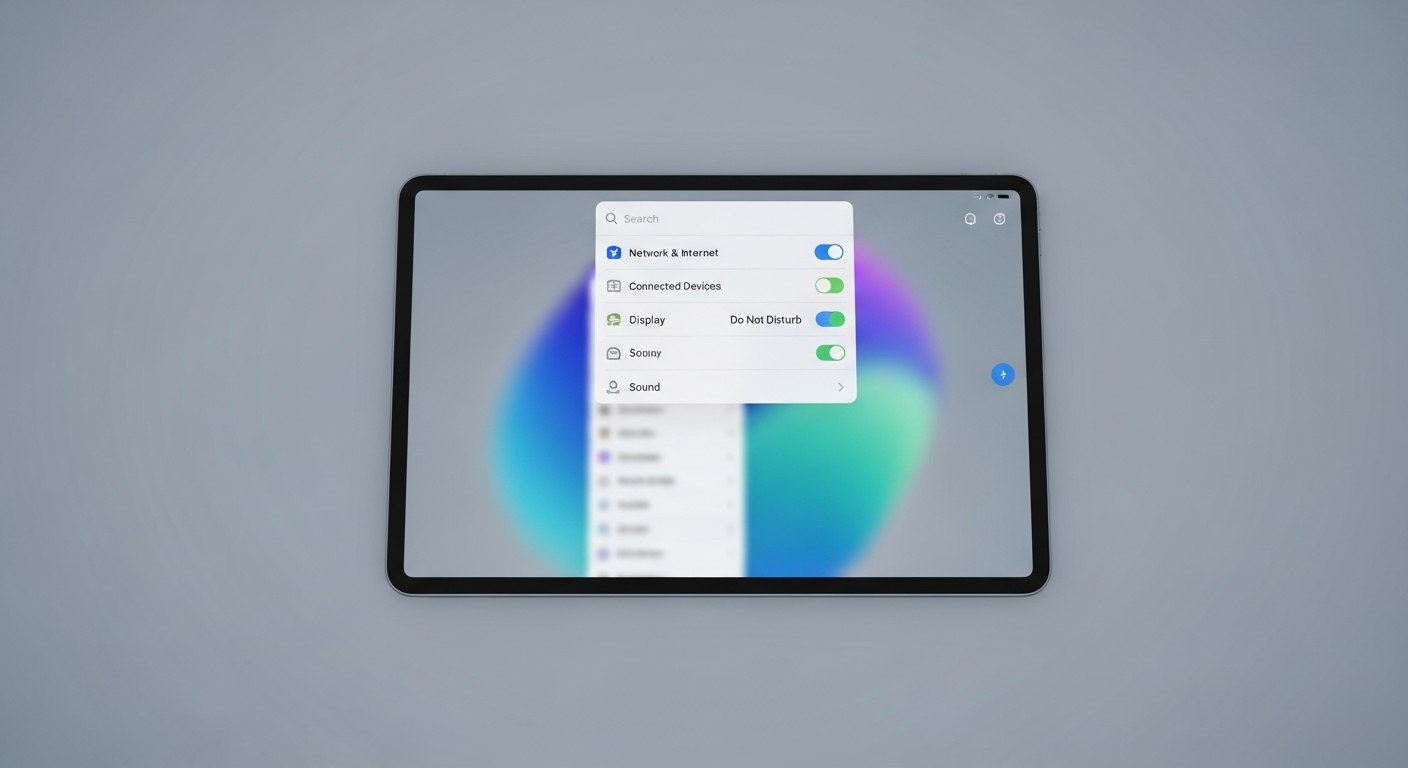
Parental controls are special tools that help you manage and monitor your child's online activities and device usage. They give you peace of mind by creating a safer digital environment for them.
1. What are parental controls?
Parental controls are features or software that allow parents to set rules for how their children use digital devices and access online content. Think of them as digital guardrails for your child's online adventures.
These controls can limit screen time, block inappropriate websites, restrict app downloads, and even track location. They help you tailor the digital world to be age-appropriate and safe for your child.
2. Why should I use parental controls?
Using parental controls helps protect your child from harmful content, online predators, and excessive screen time. The internet can be a wonderful place, but it also has risks that young children might not recognize.
They also encourage healthy digital habits by setting boundaries. This can prevent issues like sleep deprivation or addiction to screens, ensuring your child has a balanced life both online and offline.
3. Where can I find parental control settings?
Parental control settings are usually built directly into devices like smartphones, tablets, and gaming consoles. You can often find them within the main "Settings" app under sections like "Digital Wellbeing," "Screen Time," or "Family Link."
Many internet routers also have basic parental controls to manage network access. Additionally, specific apps like YouTube Kids or streaming services often have their own content filters you can adjust.
Device-Built Controls
- Integrated into iOS (Screen Time), Android (Family Link), Windows (Family Safety)
- Often free and easy to access
- Controls specific device features
- Might require individual setup per device
Third-Party Apps
- Dedicated apps like Qustodio, Bark, Net Nanny
- Often offer more advanced features (e.g., social media monitoring)
- Usually require a subscription fee
- Can offer centralized management for multiple devices
4. How do I set up parental controls on a smartphone?
For iPhones, go to "Settings," then "Screen Time," and tap "Turn On Screen Time." You'll then set a passcode and can configure content restrictions, app limits, and communication safety. Make sure to choose "This is My Child's iPhone."
For Android phones, download the "Google Family Link" app on your device and your child's. Follow the prompts to create a Google account for your child (if they don't have one) and link their device. This allows you to manage apps, screen time, and location.
5. How do I set up parental controls on a tablet?
Setting up controls on tablets is very similar to smartphones. For iPads, use "Screen Time" in "Settings" just like an iPhone. For Android tablets, use "Google Family Link" to connect and manage your child's device.
Many tablets also offer a "Kids Mode" or "Child Profile" feature. This creates a separate, restricted environment on the tablet where only approved apps and content are accessible, often with a fun, child-friendly interface.
6. Can I set controls on a computer?
Yes, both Windows and Apple computers have built-in parental control features. For Windows, search for "Family Options" or "Family Safety" in the settings. You can create child accounts and manage screen time, app usage, and web filtering.
For Apple Macs, go to "System Settings," then "Screen Time." Here you can set up a child's account, limit app usage, and restrict content. These controls help ensure your child uses the computer safely and productively.
7. What kind of content can parental controls block?
Parental controls can block access to specific websites or entire categories of websites, like adult content, gambling, or violence. They can also filter search results to prevent inappropriate images or videos from appearing.
Beyond websites, controls can restrict app downloads based on age ratings, block in-app purchases, and even filter explicit language in music or podcasts. This gives you broad control over what your child encounters online.
Common Parental Control Features
8. Do parental controls work on all apps?
Most system-level parental controls (like Screen Time or Family Link) can manage access to nearly all apps installed on the device. You can set time limits for individual apps or block them entirely.
However, some apps, especially messaging or social media apps, might have their own internal settings that need to be adjusted separately. It’s always a good idea to explore the settings within popular apps your child uses.
9. How do I manage multiple devices?
Many built-in systems, like Apple's Screen Time Family Sharing or Google Family Link, allow you to manage multiple devices from a single parent account. This means you can set rules for all your children's devices from your own phone or computer.
If you use a third-party parental control app, they almost always offer a centralized dashboard. This lets you see reports and adjust settings for all linked devices in one convenient place, simplifying management.
10. What if my child bypasses them?
Children are often tech-savvy and might try to find ways around controls. It's crucial to use strong, unique passcodes that your child doesn't know for any parental control settings. Avoid obvious choices like birthdates.
Regularly check the settings on their devices to ensure they haven't been changed. Most importantly, have open conversations with your child about online safety and why these controls are in place. Education and trust are key.