
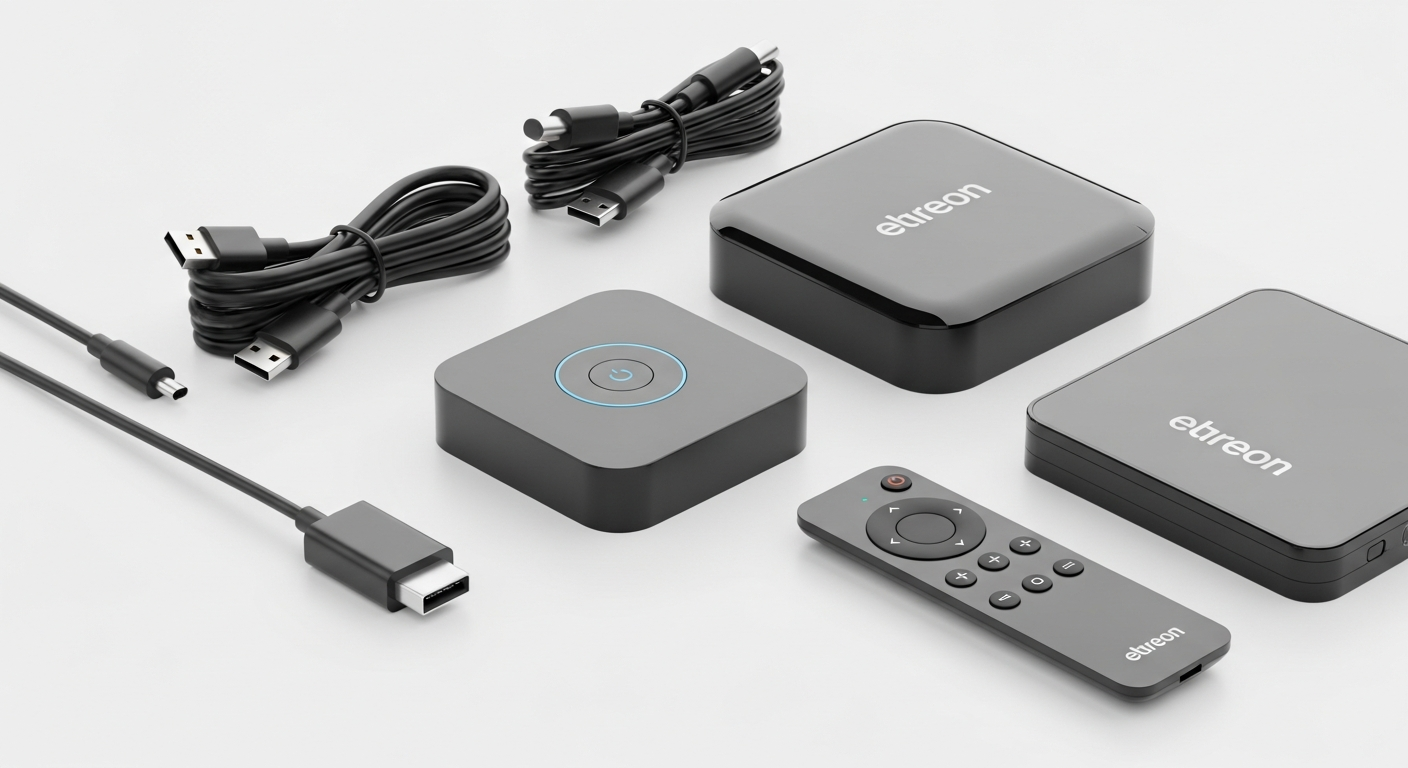
Streaming devices are small gadgets that bring your favorite movies, shows, and music from the internet right to your TV screen. They turn any TV into a smart TV, giving you endless entertainment options.
1. What is a streaming device?
A streaming device is a small piece of hardware that plugs into your TV. It connects to your home internet and lets you watch content from services like Netflix, Disney+, YouTube, and Spotify directly on your television. Think of it as a special key that unlocks a world of online entertainment for your big screen.
2. Do I need a streaming device if I have a smart TV?
Not always, but often it's a good idea. While smart TVs have built-in apps, streaming devices often offer a faster, smoother experience with more apps and features. They also get updates more frequently, keeping your entertainment options fresh and secure, even if your smart TV is a few years old.
3. What are the main types of streaming devices?
The two main types are "sticks" and "boxes." Streaming sticks are small, USB-drive-sized devices that plug directly into an HDMI port on your TV. Streaming boxes are slightly larger, sit near your TV, and connect with an HDMI cable. Both do the same job, but boxes sometimes offer more power or extra features.
Streaming Stick
- Plugs directly into TV's HDMI port
- Very compact and portable
- Often more budget-friendly
- Good for basic streaming needs
Streaming Box
- Connects via HDMI cable
- Usually more powerful processor
- May offer extra ports (Ethernet)
- Better for advanced features like gaming
4. What's the difference between Roku, Fire Stick, and Apple TV?
These are different brands, each with its own operating system and features. Roku is known for its simple interface and wide app selection. Amazon Fire Stick integrates deeply with Amazon services and Alexa voice control. Apple TV works best if you're already in the Apple ecosystem, offering premium features and tight integration with iPhones/iPads.
5. How do I set up a streaming stick or box?
It's quite easy! First, plug the device into an HDMI port on your TV and connect it to power. Then, switch your TV to the correct HDMI input. Follow the on-screen instructions to connect to your home Wi-Fi network and log in to your favorite streaming apps. Most setups take less than 15 minutes.
6. Can I use a streaming device on an older TV?
Yes, as long as your older TV has an HDMI port, you can use most modern streaming devices. If your TV is very old and only has red, white, and yellow (RCA) ports, you might need a special adapter, which is sold separately. However, for the best picture quality, an HDMI connection is always recommended.
7. What features should I look for in a streaming device?
Consider 4K resolution support if you have a 4K TV, as it offers a much clearer picture. Voice control can make searching easier. Look for a wide range of apps for your preferred services. Also, check for a fast processor for smooth navigation and quick loading times, especially if you plan on gaming or using many apps.
Choosing Your Streaming Device
Check Your TV
Does it have HDMI? Is it 4K?
Consider Your Ecosystem
Apple user? Amazon Prime member? Roku fan?
Think About Features
Voice remote? Gaming? Specific apps?
Set Your Budget
Sticks are cheaper, boxes offer more.
8. How do streaming devices connect to the internet?
Most streaming devices connect to your home internet wirelessly using Wi-Fi. You'll simply select your Wi-Fi network and enter your password during setup. Some streaming boxes also have an Ethernet port, allowing you to connect directly to your router with a cable for a more stable and often faster internet connection.
9. Can I control a streaming device with my phone?
Absolutely! Most popular streaming devices, like Roku, Fire Stick, and Apple TV, have free companion apps for your smartphone. These apps can act as a remote control, let you type search terms easily, and even cast content from your phone directly to your TV. It's a very convenient feature.
10. Are there any hidden costs with streaming devices?
The main cost is the device itself. After that, any "costs" are for the streaming services you choose to subscribe to, like Netflix, Hulu, or Disney+. Many devices also offer free content apps. There are no monthly fees just for owning the device, but your internet bill is essential for them to work.