
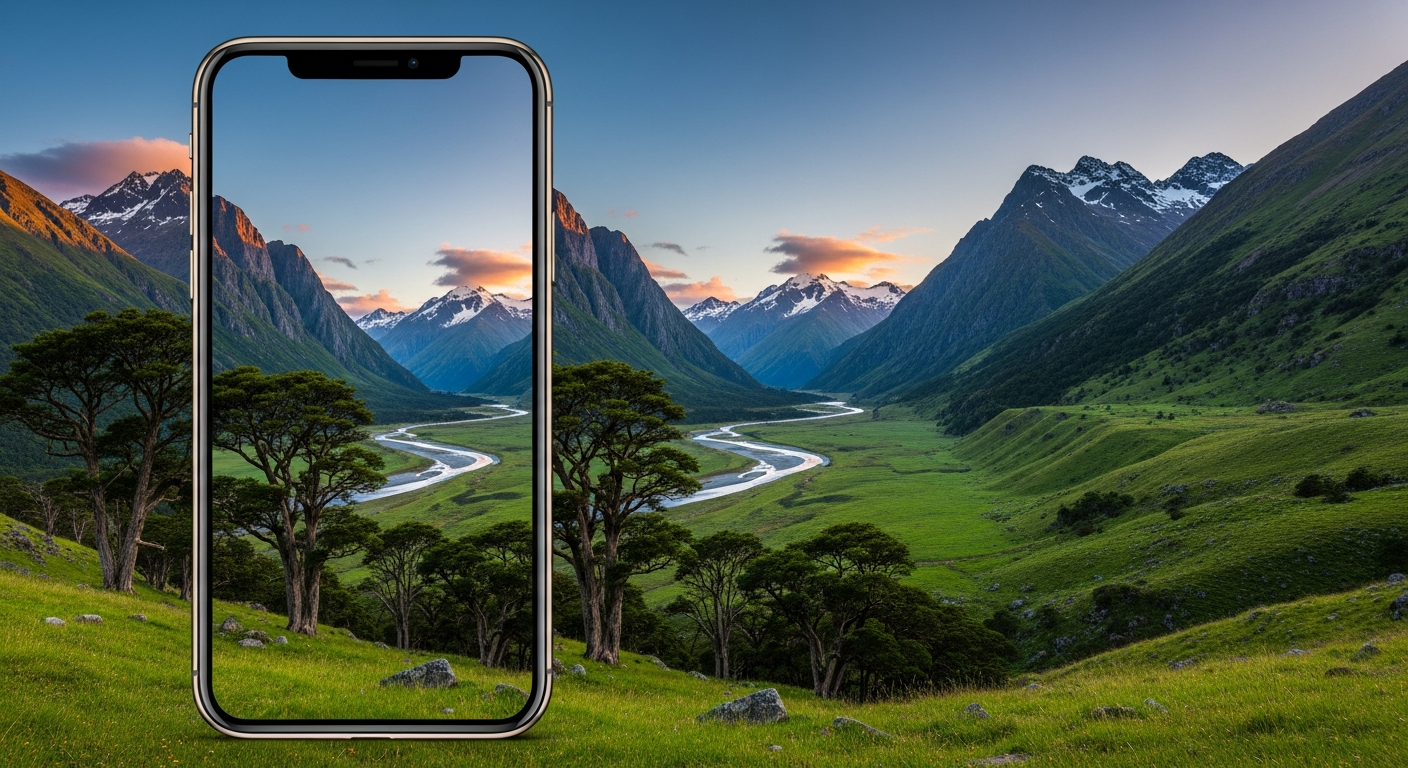
Want to take amazing photos without buying a fancy camera? Your smartphone is a powerful tool, and with a few simple tricks, you can capture stunning pictures.
This guide will help you unlock your phone's full potential, even if you've never thought about photography before.
1. What's the best way to hold my phone for a steady shot?
Hold your phone with both hands, like you're texting, but turn it sideways (landscape mode) for most photos. Keep your elbows tucked into your body for extra stability. This simple grip helps prevent blurry pictures caused by shaky hands.
2. Should I use the flash on my phone?
Generally, no. Your phone's built-in flash can make photos look harsh, flat, and often gives people "red-eye." It's usually better to find natural light sources, like a window or outdoors, if possible. Save the flash for emergencies when there's absolutely no other light.
3. What is portrait mode and when should I use it?
Portrait mode makes your subject (like a person or pet) look sharp and clear, while blurring the background. This "bokeh" effect makes your subject pop. Use it when you want to focus on one specific thing and make the background less distracting, creating a professional-looking photo.
Normal Photo
- Everything in focus
- Background can be busy
- Good for landscapes, groups
Portrait Mode
- Subject sharp, background blurry
- Highlights one main thing
- Great for people, pets, close-ups
4. How do I zoom without losing quality?
Most smartphone zooms are "digital zooms," which just crop and enlarge a part of your photo, making it look pixelated or blurry. Instead of pinching to zoom, try to physically move closer to your subject. If you can't get closer, take the photo without zooming and crop it later using your phone's editing tools.
5. What are basic composition rules for phone photos?
A great starting point is the "Rule of Thirds." Imagine your screen has two horizontal and two vertical lines, dividing it into nine boxes. Place your subject where these lines intersect, or along one of the lines, instead of dead center. This creates a more balanced and interesting picture.
6. How can I take good photos in low light?
Low light is tricky for phones. First, find any available light source and move closer to it. Hold your phone very still, or prop it against something stable. Many phones also have a "Night Mode" feature – use it! It takes multiple photos and combines them to create a brighter, clearer image.
7. What's the difference between photo and video modes?
Photo mode captures a single still image, perfect for moments you want to freeze in time. Video mode records a series of images over time, creating a moving picture with sound. Use photo mode for snapshots and video mode for capturing action, events, or conversations.
Choosing Your Mode
Want a still image?
Capture a single moment.
Use Photo Mode
Perfect for pictures.
Want moving pictures & sound?
Record action or events.
Use Video Mode
Great for memories in motion.
8. How do I clean my phone camera lens?
Your phone lens gets dirty easily from fingers and pockets. Use a soft, clean microfiber cloth (like the one for cleaning glasses) to gently wipe the lens. Don't use harsh cleaners or rough materials, as they can scratch the glass. A clean lens means clearer, sharper photos.
9. Are there any good free photo apps for my phone?
Yes! Many free apps can improve your photos. Google Photos offers basic editing and storage. Snapseed (by Google) provides more advanced editing tools for free. Your phone's built-in photo app also has great editing features like cropping, adjusting brightness, and adding filters. Explore them!
10. How do I back up my phone photos?
Backing up your photos is crucial so you don't lose them! Cloud services like Google Photos, Apple iCloud, or Dropbox automatically upload your pictures to the internet. You can also connect your phone to a computer and manually transfer them. Set up automatic backups for peace of mind.