
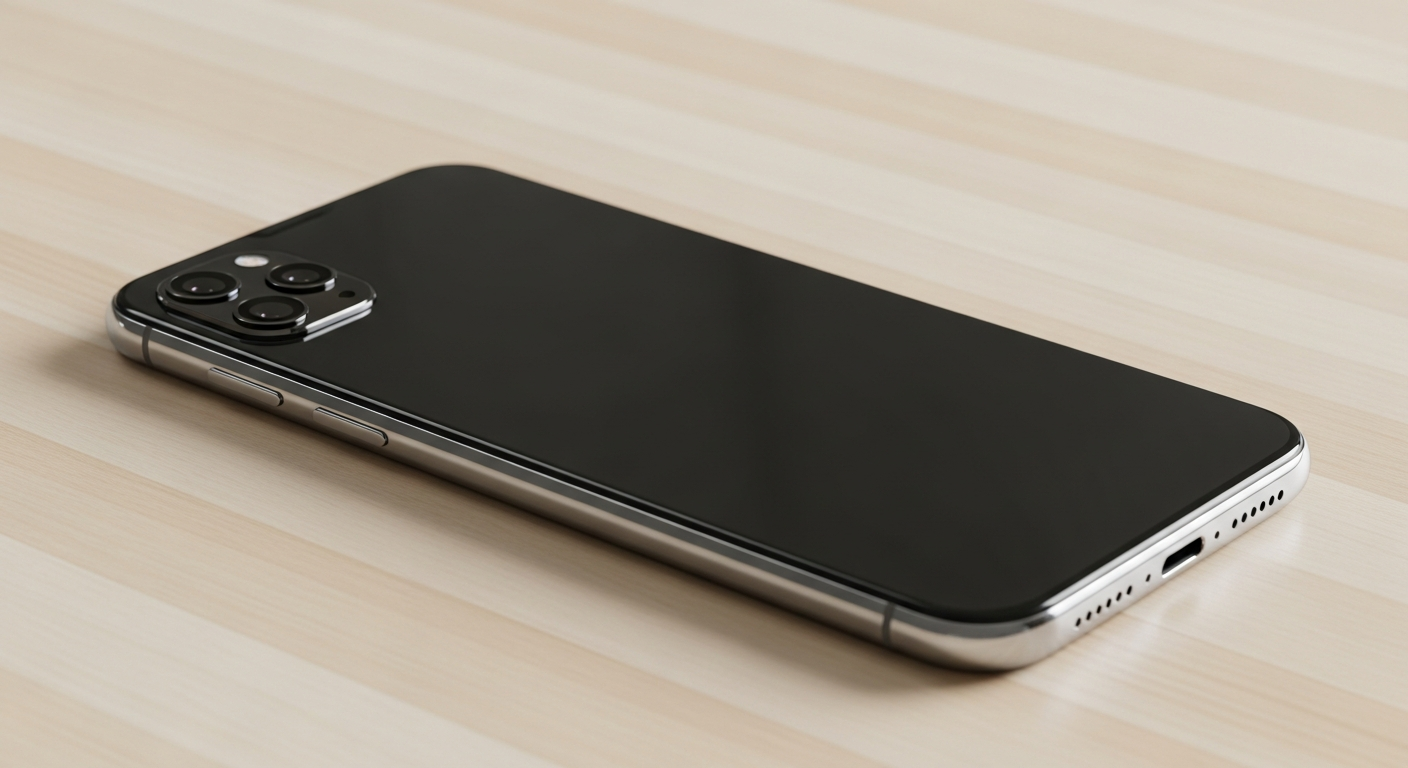
Your smartphone is a powerful tool, but sometimes finding the right controls can feel like a puzzle. This guide will help you understand and adjust the most important settings to make your phone work best for you.
1. Where can I find my phone's settings menu?
The settings menu is like your phone's control panel. You can usually find it by swiping down from the top of your screen to open the Quick Settings panel, then tapping the small gear icon. Alternatively, look for an app icon named "Settings" on your home screen or in your app drawer.
2. How do I change my screen brightness?
Adjusting brightness makes your screen easier to see in different lights. Swipe down from the top of your screen to reveal a slider, which you can drag left or right to decrease or increase brightness. You might also find this setting within the main "Display" section of your phone's settings menu.
3. What is dark mode and how do I enable it?
Dark mode changes your phone's background to black or dark grey, with white text. This can be easier on your eyes, especially at night, and can save battery life on some screens. You can usually enable it in the "Display" section of your settings, often called "Dark theme" or "Dark mode."
Light Mode
- Bright white backgrounds
- Good for well-lit environments
- Familiar, traditional look
- May cause eye strain at night
Dark Mode
- Dark grey/black backgrounds
- Better for low-light environments
- Can save battery on OLED screens
- Reduces blue light exposure
4. How do I change my phone's wallpaper?
Your wallpaper is the background picture on your home and lock screens. To change it, long-press on an empty space on your home screen, then select "Wallpaper" or "Styles & wallpaper." You can choose from your own photos or pre-installed options.
5. Where can I adjust my phone's volume?
Your phone has several volume types: ringtone, media (videos/music), and alarm. You can quickly adjust the main volume using the physical volume buttons on the side of your phone. For more specific controls, go to "Sound & vibration" in your settings menu.
6. How do I set up a new ringtone?
A ringtone is the sound your phone makes when someone calls you. To change it, navigate to "Sound & vibration" in your settings. Look for "Phone ringtone" or "Ringtone" and choose from the list of built-in sounds or add one of your own downloaded audio files.
7. What is the difference between Wi-Fi and mobile data?
Both Wi-Fi and mobile data connect your phone to the internet. Wi-Fi uses a local internet connection, like at home or a coffee shop, and is usually free to use. Mobile data uses your phone carrier's network, like 5G or LTE, and counts against your monthly data plan.
Connecting to the Internet
8. How do I check my phone's software version?
Your phone's software version tells you which operating system it's running. This is useful for troubleshooting or knowing if you can get new features. Go to "About phone" or "System" in your settings. You'll usually see "Android version" or "iOS version" listed there.
9. What is a factory reset?
A factory reset wipes all your personal data and settings from your phone, returning it to how it was when you first bought it. This is useful if you're selling your phone or experiencing major software issues. Always back up your data before performing a factory reset!
10. How do I customize my home screen?
Your home screen is what you see when you unlock your phone. You can customize it by long-pressing an empty space to add widgets (small app displays), change wallpaper, or adjust grid size. You can also drag app icons to rearrange them or create folders by dragging one app icon onto another.