
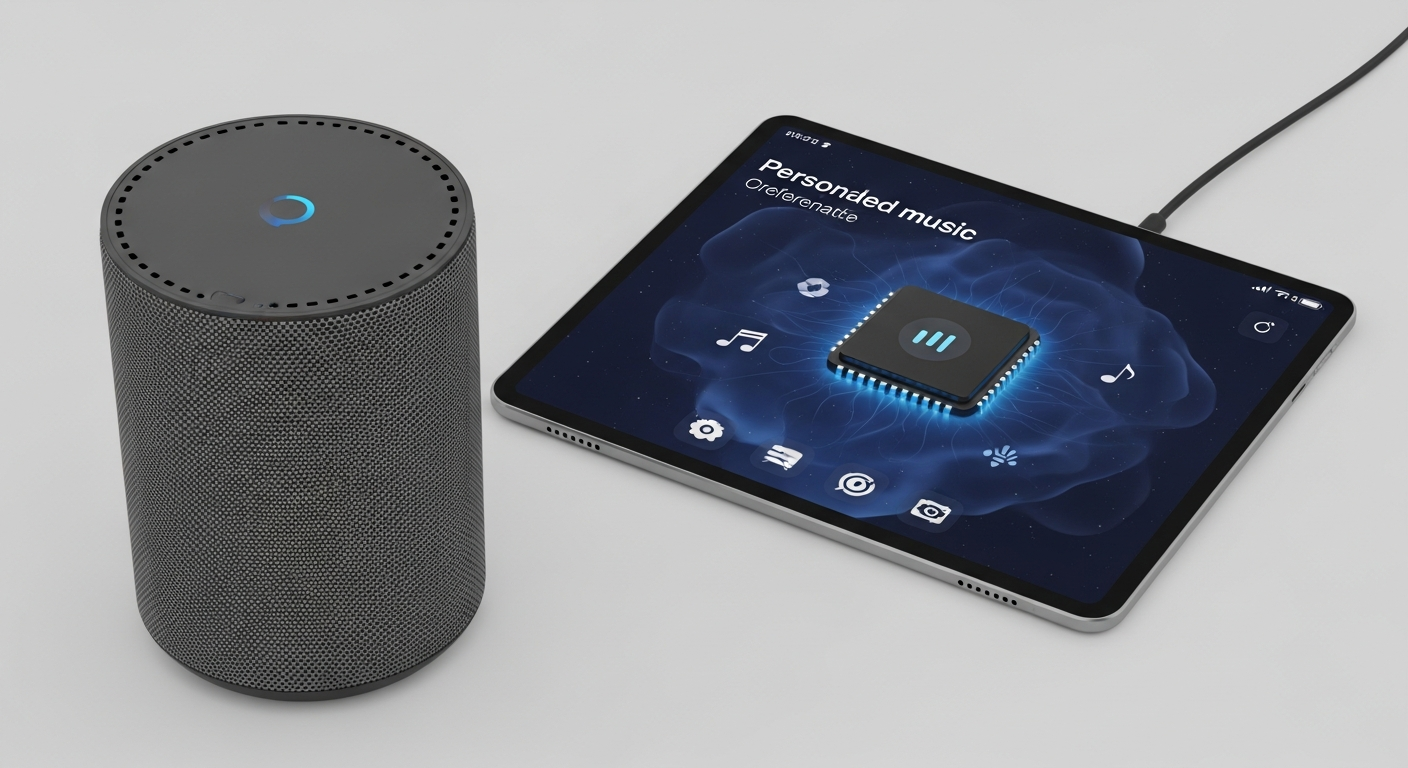
Smart devices make our lives easier, but sometimes they act up. Don't worry, most common issues have simple fixes you can try yourself!
This guide will walk you through basic troubleshooting steps for your smart home gadgets, even if you have zero tech knowledge.
1. My smart device won't connect to Wi-Fi, what should I do?
First, check if your Wi-Fi router is on and working. Unplug your router for 30 seconds, then plug it back in. This is called a "power cycle" and can fix many network issues. Also, make sure your smart device is close enough to the router; walls and distance can block the signal.
2. My voice assistant isn't responding, how can I fix it?
Ensure your device is plugged in and has power. Speak clearly and make sure you're within hearing range. Sometimes, simply restarting the smart speaker or display (unplugging it for a few seconds and plugging it back in) can resolve the issue. Check if its microphone is muted, often indicated by a light or button.
3. Why are my smart lights flickering or unresponsive?
Smart lights need a consistent power supply. Check if the light bulb is screwed in tightly and if the light switch is fully "on." If using a dimmer, ensure it's compatible with smart bulbs. Sometimes, the issue is a weak Wi-Fi signal, so try moving your router closer or adding a Wi-Fi extender.
Quick Fixes
- Restart device
- Check power/battery
- Move closer to Wi-Fi
- Check app settings
Deeper Troubleshooting
- Reset device
- Reinstall app
- Check router settings
- Update firmware
4. My smart plug isn't turning devices on/off, what's wrong?
First, confirm the device plugged into the smart plug actually works when plugged directly into a wall outlet. Next, check if the smart plug itself has power (often indicated by an LED light). Ensure the smart plug is connected to your Wi-Fi and that the control command from your app or voice assistant is correct.
5. How do I reset a smart device?
Resetting usually means returning the device to its factory settings, like when you first bought it. The method varies: some have a small button you press and hold, others require a specific sequence of power cycles. Always check your device's manual or the manufacturer's website for exact reset instructions before attempting.
6. My smart camera feed is lagging, what's causing it?
Lagging video is often due to a slow or overloaded Wi-Fi connection. Try reducing the camera's video quality setting in its app, as higher quality uses more bandwidth. Also, ensure your Wi-Fi network isn't being heavily used by other devices, like streaming movies or large downloads. Moving the camera closer to your router can also help.
7. Why is my smart thermostat showing incorrect temperatures?
Make sure your thermostat isn't in direct sunlight or near a heat source like a lamp, which can affect its readings. Dust can also build up inside, so gently clean any vents. If it's still off, check the app for calibration settings or consider restarting the thermostat by turning off its power at the circuit breaker for a minute.
Basic Troubleshooting Flow
8. My smart lock isn't responding to my phone, what now?
First, check the battery level of your smart lock; low batteries are a common culprit. Ensure your phone's Bluetooth is on and you're close enough to the lock if it uses Bluetooth. If it's Wi-Fi enabled, verify your home Wi-Fi is working. Sometimes, restarting your phone and the lock (if possible) can re-establish the connection.
9. What if my smart home hub isn't communicating with devices?
Your smart home hub is the brain of your system. First, restart the hub by unplugging it for 30 seconds and plugging it back in. Ensure it's connected to your internet router. Check the hub's app to see if all devices are listed as "online." Sometimes, a firmware update for the hub can fix communication issues.
10. When should I contact customer support for a smart device issue?
You should contact support if you've tried all the basic troubleshooting steps (restarting, checking Wi-Fi, resetting) and your device still isn't working. Also, if the device is physically damaged, making strange noises, or if you suspect a warranty issue, it's time to reach out to the manufacturer's customer service.