
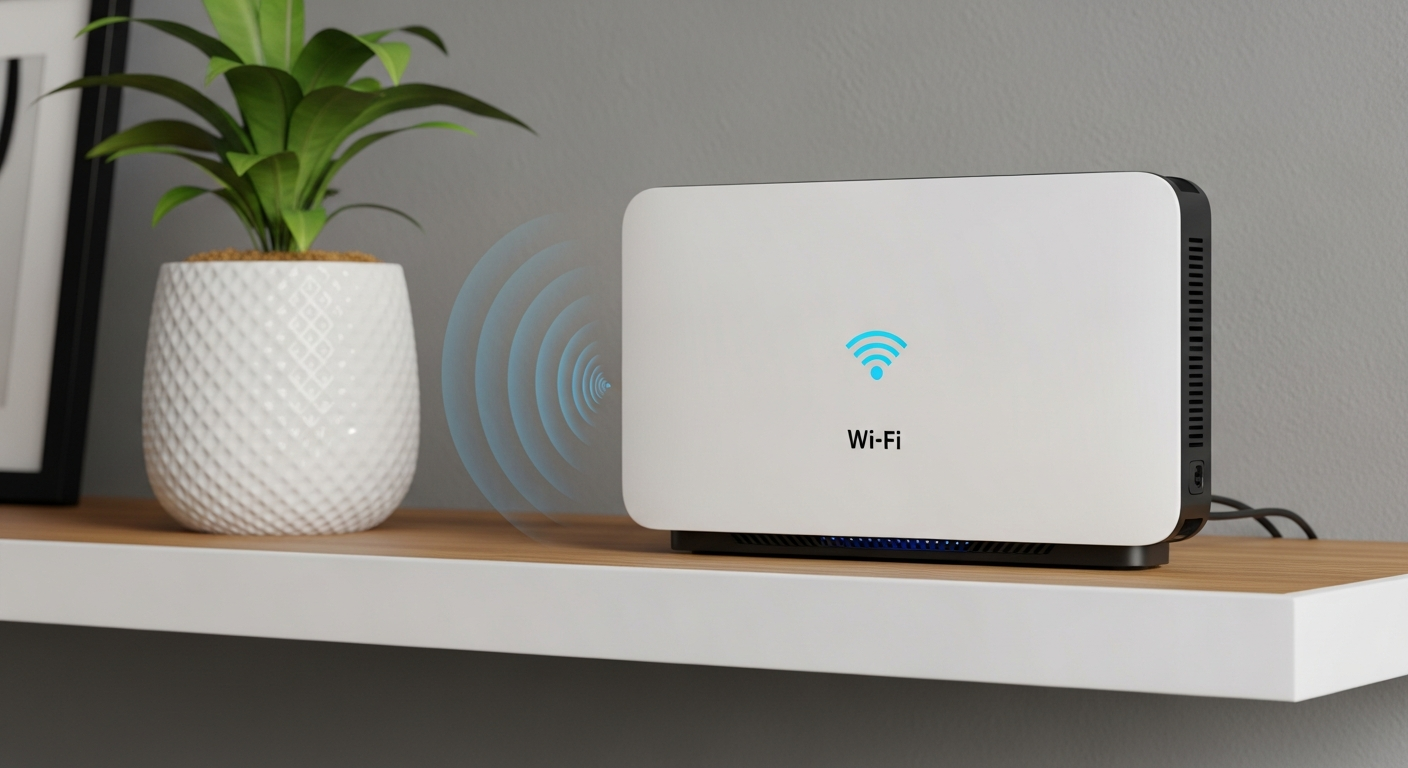
Having slow Wi-Fi can be frustrating when you're trying to work, stream, or play games. This guide will help you understand simple ways to make your home Wi-Fi faster and more reliable.
1. What is the best placement for my router?
Your Wi-Fi router sends out signals, much like a light bulb. Place it in a central spot in your home, away from walls and obstructions. High up on a shelf or table is often best, as signals travel downwards and outwards.
Avoid placing your router near large metal objects, microwaves, cordless phones, or baby monitors. These items can interfere with your Wi-Fi signal, making it weaker and slower.
2. How do I prioritize devices on my network?
Prioritizing devices means telling your router which devices need faster internet more often. For example, you might want your streaming TV to get priority over a smartphone that's just checking emails. This feature is often called Quality of Service (QoS) in your router settings.
You access these settings by typing your router's IP address (like 192.168.1.1) into a web browser. Look for a section named "QoS," "Traffic Prioritization," or "Bandwidth Control." Here, you can usually drag and drop devices or select priority levels.
3. Should I use an Ethernet cable for some devices?
Absolutely! An Ethernet cable provides a direct, wired connection to your router. This connection is almost always faster and more stable than Wi-Fi.
For devices that need the most reliable and fastest internet, like desktop computers, gaming consoles, or smart TVs used for 4K streaming, an Ethernet cable is highly recommended. It frees up your Wi-Fi for other devices that move around, like phones and laptops.
Wi-Fi
- Wireless freedom
- Easy for mobile devices
- Can be affected by interference
- Speeds vary
Ethernet Cable
- Faster, more stable speed
- No interference issues
- Requires physical cable
- Best for stationary devices
4. What is QoS (Quality of Service)?
QoS, or Quality of Service, is a feature in your router that helps manage internet traffic. Think of it as a traffic controller for your home network. It allows you to tell your router which types of online activities or specific devices are most important.
By using QoS, you can ensure that important tasks, like video calls or online gaming, get enough bandwidth even when other devices are also using the internet. This helps prevent lag and buffering for your priority activities.
5. How often should I restart my router?
Restarting your router, often called "power cycling," is a simple yet effective troubleshooting step. It clears out temporary glitches and refreshes the connection. It's like giving your router a mini-break to reset itself.
A good rule of thumb is to restart your router about once a month. Simply unplug it from the power outlet, wait about 10-15 seconds, and then plug it back in. Wait a few minutes for all the lights to come back on before checking your Wi-Fi.
6. Can updating router firmware improve speed?
Yes, updating your router's firmware can definitely improve speed and reliability. Firmware is the software that runs inside your router. Manufacturers regularly release updates to fix bugs, improve performance, and add new features.
Check your router's settings page for a "Firmware Update" or "Software Update" section. It's important to follow the instructions carefully to avoid issues. These updates can sometimes boost your Wi-Fi's efficiency and security.
7. What is Wi-Fi channel optimization?
Wi-Fi signals travel on different "channels," similar to radio stations. If many neighbors are using the same Wi-Fi channel, it can cause interference and slow down your connection. Channel optimization means choosing a less crowded channel for your router.
Some modern routers can automatically select the best channel. If yours doesn't, you can manually change it in your router's settings. Apps like "Wi-Fi Analyzer" can help you see which channels are least used in your area.
Wi-Fi Channel Optimization Flow
8. Should I upgrade my internet service plan?
Upgrading your internet service plan means paying your internet provider for faster speeds. If you've tried all other optimization tips and your internet still feels too slow, your current plan might not be fast enough for your household's needs.
Consider how many people and devices are using the internet simultaneously, and what activities they're doing (streaming 4K, online gaming, video calls). If you have many heavy users, a faster plan could be the solution.
9. How do I check for unwanted devices on my network?
Unwanted devices, like a neighbor's phone or an old tablet you forgot about, can hog your bandwidth. Most routers have a "Connected Devices" or "Client List" section in their settings. This list shows all devices currently connected to your Wi-Fi.
Review this list regularly. If you see an unfamiliar device, you can usually block it from your network through the router settings. Changing your Wi-Fi password regularly also helps prevent unauthorized access.
10. Does using a VPN affect Wi-Fi speed?
Yes, using a VPN (Virtual Private Network) can typically reduce your Wi-Fi speed. A VPN encrypts your internet traffic and routes it through a server, often in a different location. This process adds a few extra steps, which can slow things down.
While a VPN is great for privacy and security, the added encryption and routing mean your data travels a bit further. The impact on speed depends on the VPN provider, server location, and your original internet speed.