
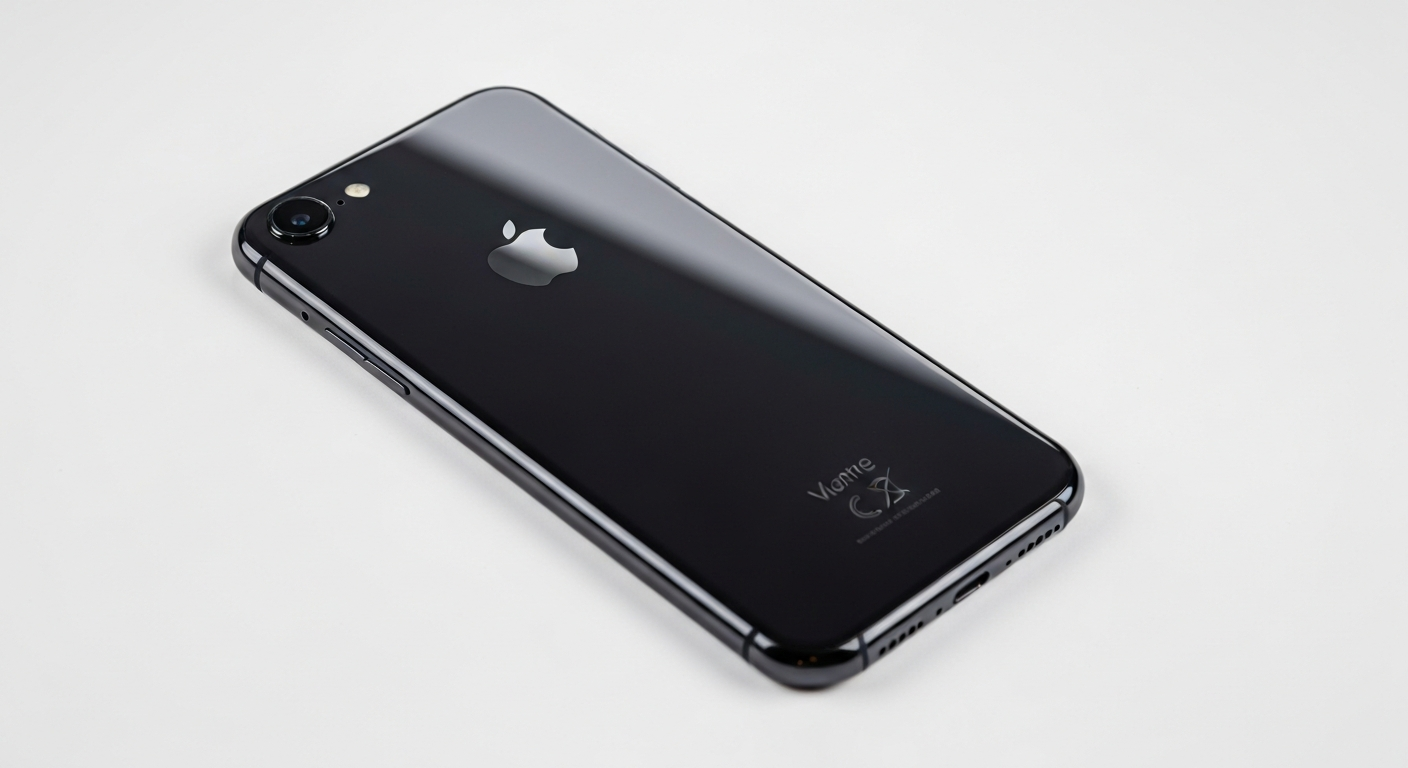
Welcome to your new iPhone! Setting it up for the first time might seem a bit daunting, but it's actually quite simple. This guide will walk you through every step, ensuring you get your new device ready to use quickly and easily.
1. How do I turn on a new iPhone?
To turn on your new iPhone, simply press and hold the power button. This button is usually on the right side of the phone. Keep holding it until you see the Apple logo appear on the screen. Once you see the logo, you can release the button, and your iPhone will begin to start up.
2. Should I restore from backup or start fresh?
If you had an old iPhone or another smartphone, restoring from a backup will copy your old apps, photos, and settings to your new phone. Starting fresh means your new iPhone will be completely empty, like a blank slate. Choose "restore" if you want everything from your old phone, or "start fresh" for a completely new beginning.
3. How do I set up Apple ID?
Your Apple ID is your personal account for everything Apple, like downloading apps, buying music, and using services like iCloud. During setup, you'll be prompted to sign in with an existing Apple ID or create a new one. If you don't have one, choose "Don't have an Apple ID or forgot it?" and follow the steps to create one using your email address.
iPhone Setup Flow
4. What apps should I download first?
After setup, you'll want to download essential apps from the App Store. Start with communication apps like WhatsApp or Messenger, social media apps like Facebook or Instagram, and any banking apps you use. Don't forget productivity apps like Google Maps or a weather app. You can always add more later!
5. How do I transfer contacts?
The easiest way to transfer contacts is by restoring from an iCloud or Google backup during initial setup. If you're starting fresh, you can import them from your old phone's SIM card, or by signing into your email accounts (like Gmail) in Settings > Mail > Accounts. Your contacts will then sync automatically.
6. Do I need to enable Find My iPhone?
Yes, absolutely! Find My iPhone is a crucial security feature. It helps you locate your iPhone if it's lost or stolen, lock it remotely, or even erase all your personal data to keep it safe. It's usually enabled automatically when you sign in with your Apple ID, but you can double-check in Settings > [Your Name] > Find My.
7. How do I set up Face ID?
Face ID uses your face to unlock your iPhone, authorize purchases, and sign into apps. During initial setup, you'll be prompted to set it up. You'll simply follow on-screen instructions to move your head in a circle to register your face. If you skipped it, go to Settings > Face ID & Passcode to set it up later.
iCloud Setup: On vs. Off
Enable iCloud
- Automatic backups of your iPhone
- Syncs photos, contacts, and notes across devices
- Easy sharing with family members
- Access files from any device
Disable iCloud
- More control over data storage
- Avoids potential cloud storage costs
- Reduces internet data usage
- Privacy preference for local storage
8. Should I enable iCloud?
Yes, enabling iCloud is highly recommended. It automatically backs up your iPhone, stores your photos and videos, and syncs your contacts, calendars, and notes across all your Apple devices. This means if anything happens to your phone, your important data is safe and easily recoverable. You get 5GB free storage, with options to upgrade.
9. How do I import photos?
If you enabled iCloud Photos, your pictures will automatically sync to your new iPhone once you sign in with your Apple ID. For photos on an old Android phone, you can use the "Move to iOS" app during initial setup. Alternatively, you can transfer photos using a computer by connecting both phones or using cloud services like Google Photos.
10. What settings should I change first?
First, personalize your wallpaper and ringtone in Settings > Wallpaper and Settings > Sounds & Haptics. Adjust your display brightness and text size in Settings > Display & Brightness for comfort. Check your privacy settings in Settings > Privacy & Security, and set up your preferred notification styles in Settings > Notifications to control app alerts.