
Setting up parental controls helps keep your kids safe online. This guide will walk you through the basics of managing their device use, even if you're not tech-savvy.
1. What are parental controls?
Parental controls are special tools or settings on devices and apps that let parents manage what their children can see and do online. Think of them as digital rules you set to guide your child's internet experience. They help create a safer digital space for kids.
2. Why are parental controls important?
They protect children from harmful content, online strangers, and excessive screen time. Parental controls help ensure your child has a balanced and safe experience with technology, promoting healthy digital habits from a young age.
3. Where can I find parental control settings?
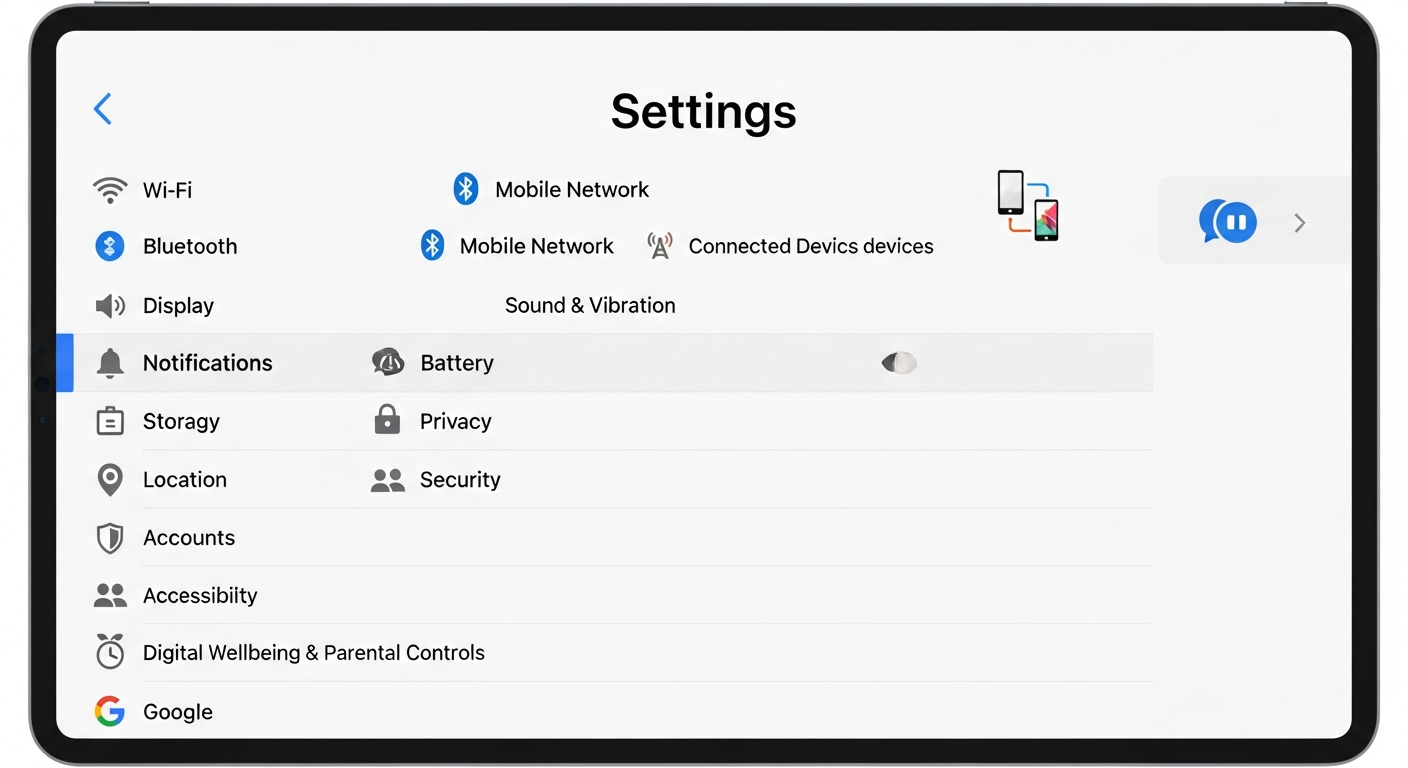
Most devices (like phones, tablets, and gaming consoles) have built-in parental controls. You'll usually find them in the "Settings" menu under sections like "Digital Wellbeing," "Screen Time," "Family Link," or "Parental Controls." App stores and streaming services also have their own settings.
Device-Level Controls
- Set overall screen time limits
- Block apps across the device
- Filter web content for all browsers
- Manage app purchases
- Location tracking
App/Service-Level Controls
- Filter content within a specific app (e.g., YouTube)
- Manage privacy settings for social media
- Control in-game purchases
- Restrict specific shows on a streaming service
- View activity reports for that app
4. How do I set screen time limits?
Go to your device's "Settings" and look for "Screen Time" (Apple) or "Digital Wellbeing" (Android). Here, you can set daily time limits for the entire device or for specific apps. You can also schedule "downtime" when certain apps are unavailable, like during bedtime or school hours.
5. Can I block specific apps?
Yes, you can. Within the "Screen Time" or "Digital Wellbeing" settings, you'll find options to restrict or completely block access to certain apps. You can also set age restrictions, which will automatically hide apps not suitable for your child's age group from the app store.
6. How do I filter inappropriate content?
Most devices and web browsers have built-in content filters. In settings, look for "Content & Privacy Restrictions" (Apple) or "SafeSearch" (Google). You can block certain websites, limit mature content, and prevent access to explicit material. Remember to enable these settings on each device your child uses.
7. What about privacy settings for kids?
It's crucial to review privacy settings on apps and social media. Look for options to make profiles private, limit who can contact your child, and control what information is shared. Teach your child about not sharing personal details online and the importance of strong passwords.
Setting Up Privacy for Kids
Check Device Settings
Go to main device settings (e.g., iPhone, Android tablet) and look for "Privacy" or "Security" options.
Review App Permissions
Limit apps from accessing location, camera, microphone, or contacts unless absolutely necessary.
Configure Social Media/Gaming
Ensure profiles are private, friend requests are restricted, and chat features are monitored or disabled.
Educate Your Child
Talk about not sharing personal info, recognizing strangers, and creating strong passwords.
8. How do I manage app purchases?
You can prevent accidental or unauthorized purchases by requiring a password for all app store downloads and in-app purchases. On Apple devices, this is in "Content & Privacy Restrictions." On Android, check "Google Play Store settings" under "Authentication" or "Parental Controls."
9. Can I track my child's location?
Many devices and family safety apps offer location tracking features. On Apple, "Find My" allows you to share locations. Android uses "Google Family Link." These tools can help you know where your child's device is, offering peace of mind, especially for younger children.
10. How do I review activity reports?
Most parental control systems provide reports on device usage. You can see which apps were used, for how long, and what websites were visited. These reports are usually found within the "Screen Time" or "Digital Wellbeing" sections, helping you understand your child's digital habits.