
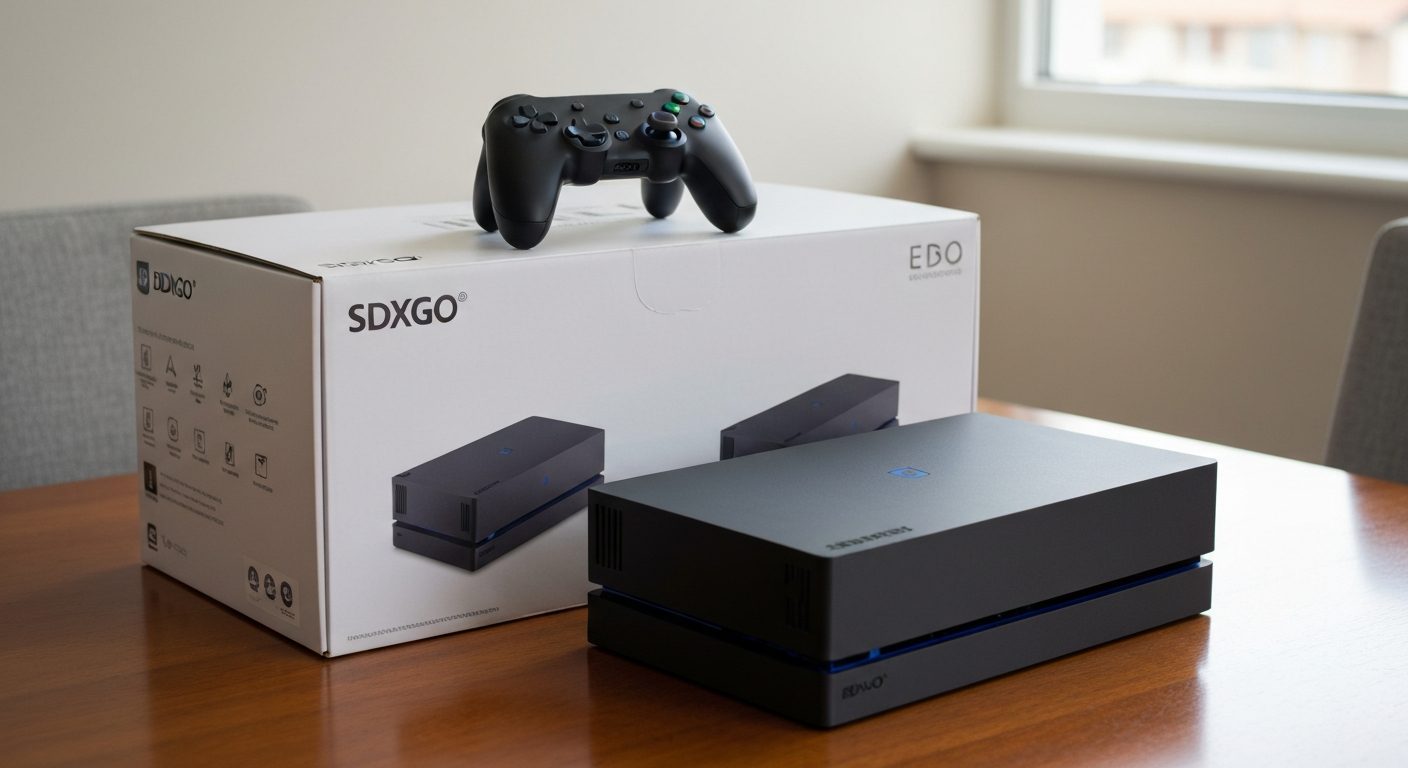
Getting a new gaming console is exciting! This guide will walk you through setting it up for the very first time, step by step, even if you've never done it before.
1. What cables come with a new console?
Your new console usually comes with two main cables: a power cable and an HDMI cable. The power cable plugs into a wall outlet to give your console electricity. The HDMI cable connects your console to your TV, sending both picture and sound.
2. How do I connect my console to my TV?
First, plug one end of the HDMI cable into the "HDMI Out" port on the back of your console. Then, plug the other end of the HDMI cable into an "HDMI In" port on your TV. There might be several HDMI ports on your TV, often labeled HDMI 1, HDMI 2, etc.
3. What's an HDMI cable?
An HDMI cable is like a super highway for digital information. It sends high-quality video (the picture) and audio (the sound) from your console to your TV using a single cable. This means you don't need separate cables for picture and sound anymore.
HDMI
- Single cable for picture and sound
- High-definition quality (HD, 4K)
- Common on modern TVs
- Easy to connect
Older Cables (e.g., RCA)
- Multiple cables (red, white, yellow)
- Standard-definition quality
- Common on older TVs
- Can be confusing
4. How do I connect to the internet (Wi-Fi or wired)?
For Wi-Fi, go to your console's settings, find "Network" or "Internet," and select "Wi-Fi." Choose your home network from the list and enter your Wi-Fi password. For a wired connection, plug an Ethernet cable from your internet router directly into the "Ethernet" port on your console.
5. Do I need to create an account?
Yes, you will need to create a free online account for your console's service (like PlayStation Network, Xbox network, or Nintendo Account). This account lets you download games, play online with friends, and access digital purchases. You'll usually be prompted to create one during the initial setup process.
6. How do I update the console's software?
After connecting to the internet, your console will likely prompt you to download a system update. These updates improve performance and add new features. Just follow the on-screen instructions. If not prompted, you can usually find "System Update" or "Software Update" in the console's settings menu.
7. What's the first thing to do after setup?
Once the initial setup and updates are complete, the very first thing you should do is connect your controller. Then, you can start downloading any games you own or explore the console's dashboard to get familiar with its menus and features before diving into gameplay.
First Steps After Setup
- Connect Controller
- Download Games
- Explore Menus
- Start Playing!
8. How do I connect a controller?
Most modern controllers connect wirelessly. Usually, you'll press a small "sync" or "pair" button on the controller and then a similar button on the console. The console's manual will show you exactly where these buttons are. Some consoles also let you connect a controller directly with a USB cable for initial pairing or charging.
9. Can I use any power outlet?
Yes, you can typically use any standard wall power outlet in your home. It's best to plug your console directly into a wall outlet or a surge protector. Avoid plugging it into a power strip that is already overloaded with many other devices, as this could cause issues.
10. What if my TV doesn't have an HDMI port?
If your TV is older and lacks an HDMI port, you might need an adapter. These adapters convert the HDMI signal from your console to an older type of connection, like RCA (red, white, yellow cables) or component (red, green, blue cables). You'll need to buy the correct adapter separately, as it doesn't come with the console.