
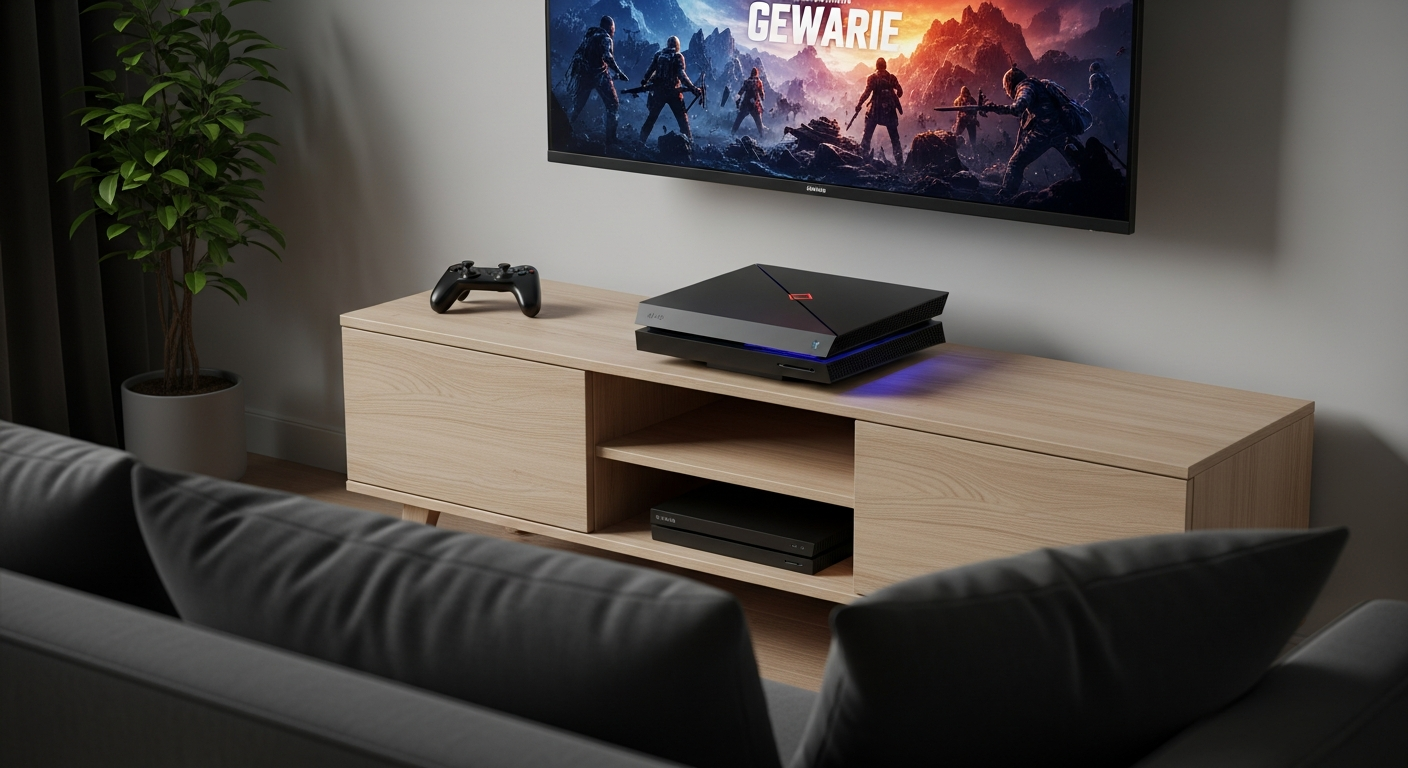
Just unboxed your brand-new gaming console? Congratulations! This guide will walk you through every step of setting it up for the first time, ensuring you're ready to play without any tech headaches.
1. What should I do first after unboxing my new console?
Carefully remove all items from the box. Check the contents against the list in your console's manual to ensure everything is there. You should find the console itself, a controller, a power cable, and an HDMI cable. Keep the packaging for a short while in case you need it.
2. How do I connect my console to my TV?
Locate the HDMI cable included with your console. Plug one end into the "HDMI Out" port on the back of your console. Then, plug the other end into an available "HDMI In" port on your TV. Make a note of which HDMI input number you used (e.g., HDMI 1, HDMI 2).
3. Where should I place my console for optimal performance?
Place your console on a flat, stable surface. It's crucial to ensure there's plenty of open space around it for proper airflow. This prevents the console from overheating, which can affect its performance and lifespan. Avoid placing it inside enclosed cabinets or blocking any vents.
Good Placement
- Open shelf or stand
- Clear space around all sides
- Vents unobstructed
- Stable, level surface
Bad Placement
- Inside a tight cabinet
- Against a wall or other devices
- Vents blocked by clutter
- Uneven or unstable surface
4. How do I connect my console to the internet (Wi-Fi or wired)?
For Wi-Fi, go to your console's settings, find "Network" or "Internet Settings," and select "Wi-Fi." Choose your home network from the list and enter your Wi-Fi password. For a wired connection, plug an Ethernet cable from your internet router directly into the Ethernet port on your console.
5. What accounts do I need to create to start gaming?
You'll need to create an account specific to your console's platform (e.g., PlayStation Network ID, Xbox network account, Nintendo Account). This account lets you download games, save your progress, play online with friends, and access digital content. Follow the on-screen prompts during initial setup.
6. How do I download my first game?
Once your console is connected to the internet and you've created your platform account, navigate to the console's digital store (e.g., PlayStation Store, Xbox Store, Nintendo eShop). You can browse or search for games. Select the game you want and choose the "Download" option. It will then begin installing.
7. What's a 'day one patch' and how do I install it?
A "day one patch" is an essential software update released by game developers right when a new game comes out. It fixes bugs, improves performance, and adds features. Your console will usually detect and prompt you to download and install this patch automatically when you first launch a new game or connect online.
First Game Setup Flow
8. How do I connect my controller to the console?
For most modern consoles, you'll connect the controller to the console using its included USB cable for the very first time. This "pairs" the controller. Once paired, it will connect wirelessly whenever you press the controller's main home button or power on the console.
9. What are the initial settings I should check?
After basic setup, explore your console's settings menu. Key areas include "Display" (to adjust resolution and HDR settings for your TV), "Audio" (for sound output), and "Parental Controls" if children will be using the console. Also review "Privacy" settings to control data sharing.
10. What if my TV doesn't have an HDMI port?
Modern gaming consoles are designed primarily for HDMI connections. If your TV lacks an HDMI port, you'll need a special adapter (e.g., HDMI to RCA or HDMI to DVI with separate audio). Be aware that using an adapter might result in lower picture quality. For the best experience, a TV with an HDMI port is highly recommended.