
How Do I Set Up My New Gaming Console for the First Time?
So you've got a brand new gaming console – congratulations! Setting it up for the first time might seem a bit tricky, but this guide will walk you through every step simply and clearly.1. What do I do first after unboxing my console?
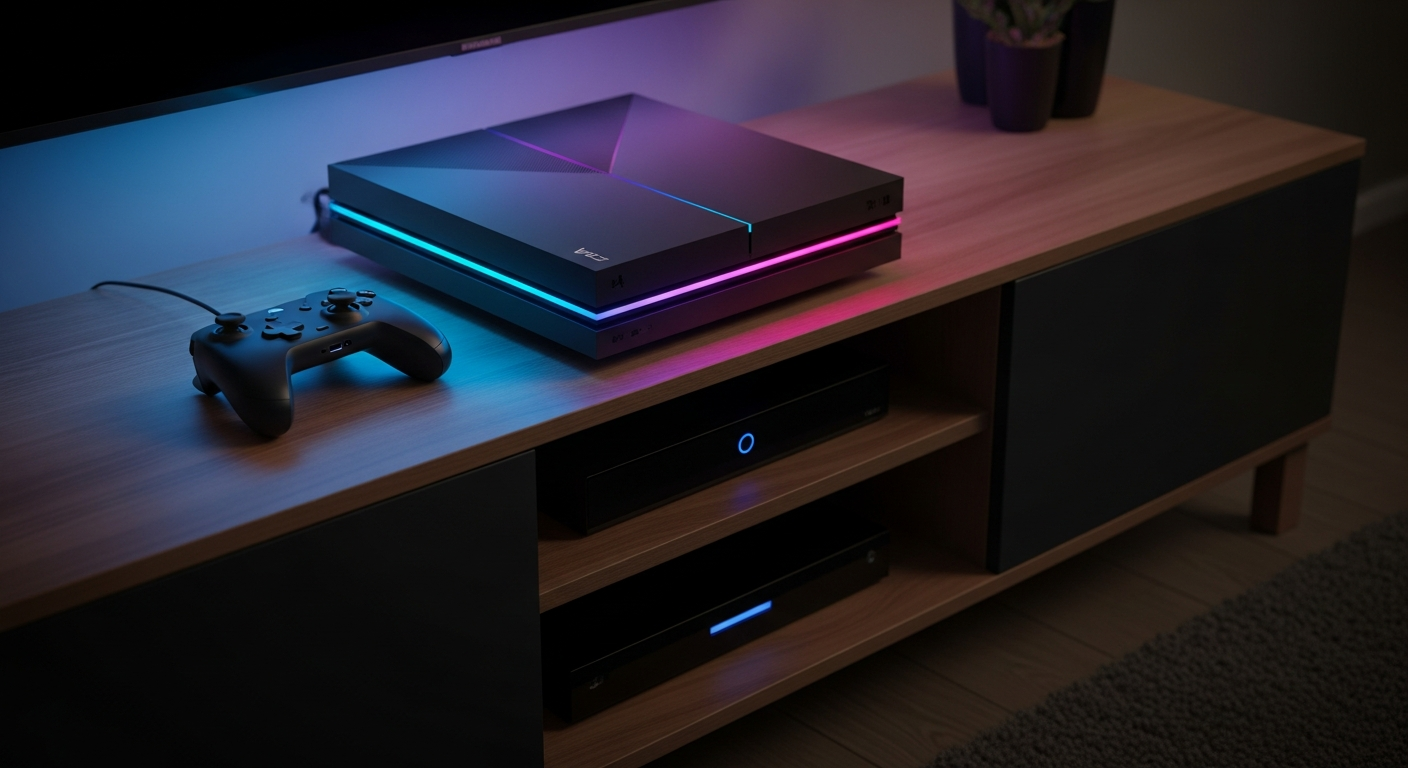
First, carefully remove everything from the box. You should find the console itself, a controller, power cable, HDMI cable, and possibly some instruction booklets. Place your console near your TV, making sure there's enough space around it for air to flow.2. How do I connect my console to the TV?
You'll use the HDMI cable for this. One end plugs into the "HDMI Out" port on the back of your console. The other end plugs into an "HDMI In" port on your TV. Your TV might have several HDMI ports, usually labeled HDMI 1, HDMI 2, etc.3. What cables do I need for setup?
You primarily need two cables: the power cable and the HDMI cable. The power cable connects your console to a wall outlet for electricity. The HDMI cable connects your console to your TV for picture and sound. Some consoles might also include a USB charging cable for your controller.HDMI Cable
Connects console to TV.
- Carries video and audio.
- Essential for gameplay.
- Plugs into "HDMI In" on TV.
Power Cable
Connects console to power.
- Provides electricity.
- Console won't turn on without it.
- Plugs into wall outlet.
For Picture & Sound
For Electricity
4. How do I connect my console to Wi-Fi?
Once your console is powered on and connected to your TV, navigate to the "Settings" menu. Look for "Network" or "Internet Settings." Your console will then scan for available Wi-Fi networks. Select your home network and enter your Wi-Fi password.5. What is a system update and why is it important?
A system update is like a software upgrade for your console. It downloads new features, fixes bugs, and improves security. It's very important to let your console complete these updates, as they ensure your console runs smoothly and you can access all the latest games and online features.6. How do I create a user account on my console?
After initial setup and updates, your console will prompt you to create a user profile. This account stores your game saves, settings, and online identity. You'll typically choose a username and password, and might need to link it to an email address.7. What's the best way to place my console for ventilation?
Proper ventilation is crucial to prevent your console from overheating. Place it on a flat, stable surface with plenty of open space around all sides. Avoid putting it inside a closed cabinet or stacking other electronics on top of it. Ensure air vents are not blocked.Optimal Console Placement
-
Choose Flat Surface
Place on a stable, level surface like a TV stand.
-
Ensure Open Space
Leave several inches of clear space around all sides.
-
Avoid Enclosures
Do not place inside tight cabinets or drawers.
-
Check Vents
Make sure air vents are not blocked by anything.
-
Keep Cool
Avoid direct sunlight or heat sources.