
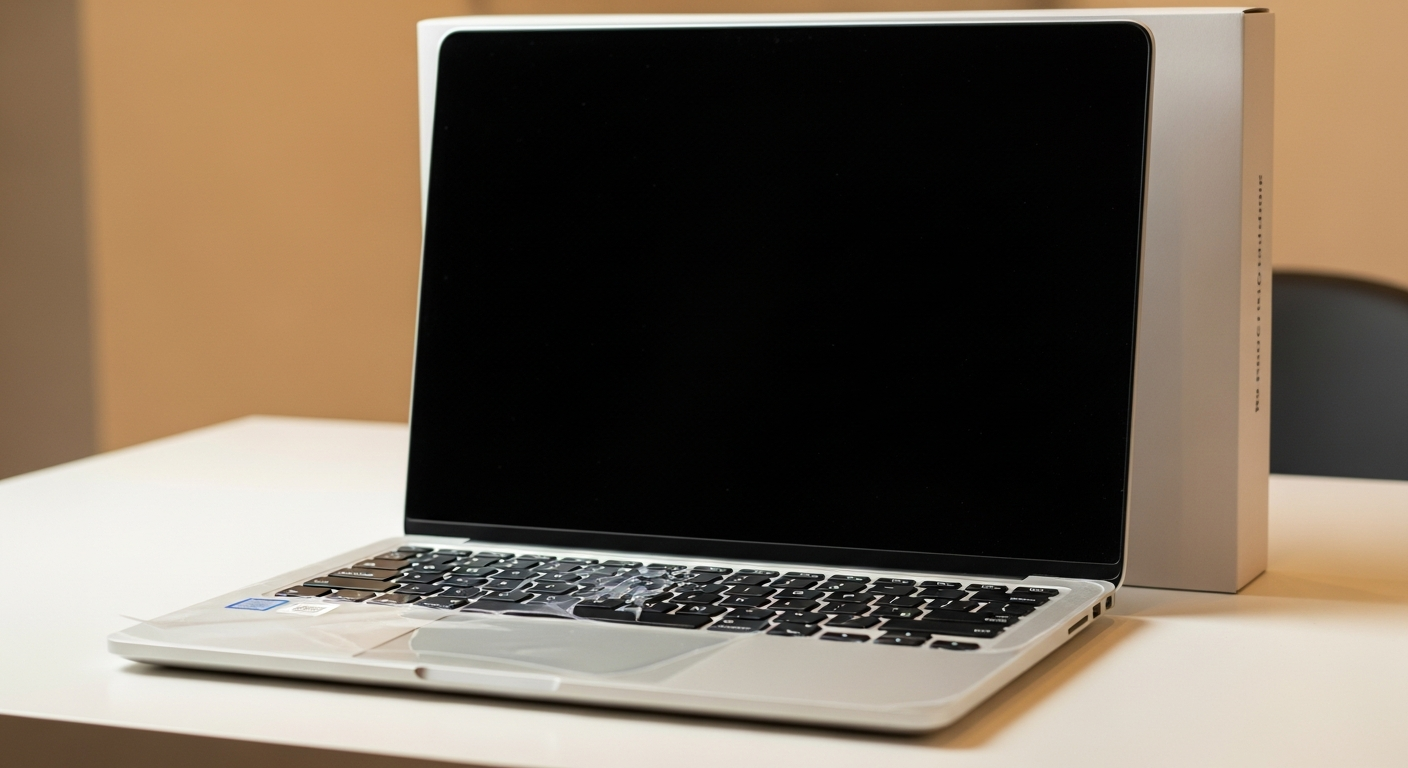
Congratulations on your new computer! Setting it up for the first time might seem tricky, but this guide will walk you through each step simply and clearly.
1. What should I do first after unboxing my new computer?
First, find a clean, flat surface like a desk or table to set up your computer. Carefully remove all components from the box, including the computer itself, monitor, keyboard, mouse, and any cables. Check the box contents against the packing list to ensure everything is there.
2. How do I connect the power cable and monitor?
For a desktop, plug one end of the power cable into the back of the computer tower and the other into a wall outlet or surge protector. For a laptop, plug the power adapter into the laptop and then into an outlet. Connect your monitor to the computer using the provided cable (often HDMI or DisplayPort), ensuring it's snug at both ends.
3. Where do I plug in the keyboard and mouse?
Most keyboards and mice connect using USB cables. Look for rectangular USB ports on the back or sides of your computer. Simply plug the USB connector from your keyboard and mouse into any available USB port. Wireless keyboards and mice usually come with a small USB receiver that you plug in similarly.
Desktop Computer
- Separate tower, monitor, keyboard, mouse.
- More powerful for gaming/heavy tasks.
- Less portable, stays in one spot.
- Easier to upgrade parts.
Laptop Computer
- All-in-one unit, built-in screen/keyboard.
- Great for portability and travel.
- Less powerful than comparable desktops.
- Harder to upgrade internal components.
4. What is the initial setup process like?
Once everything is plugged in, press the power button on your computer. It will guide you through an initial setup wizard. This usually involves choosing your language, region, and accepting the operating system's terms and conditions. Follow the on-screen prompts carefully.
5. How do I connect to my home Wi-Fi network?
During the initial setup, your computer will likely ask you to connect to a network. Select your home Wi-Fi network from the list of available networks. You'll then need to enter your Wi-Fi password, which is usually found on a sticker on your internet router. If you don't see your network, ensure your Wi-Fi router is on.
6. Should I create a user account and password?
Yes, absolutely! Creating a user account with a strong password is crucial for security. This protects your personal files and settings from unauthorized access. Choose a password that is easy for you to remember but difficult for others to guess, combining letters, numbers, and symbols.
7. What are essential software programs to install first?
Your computer comes with basic software, but you'll want to add more. Consider installing a good web browser (like Chrome or Firefox), an office suite (like Microsoft 365 or Google Docs), and a reliable antivirus program. Only download software from trusted sources to avoid security risks.
First-Time Computer Setup Flow
8. How do I check for system updates?
It's vital to keep your computer's operating system updated. Updates fix bugs, improve security, and add new features. You can usually find the update settings in your computer's "Settings" menu (often a gear icon). Look for "Update & Security" or "Windows Update" and click "Check for updates."
9. What should I do with the packaging?
Don't throw away the packaging immediately! Keep the original boxes and packing materials for at least a few weeks. This is useful if you need to return the computer for any reason or if you move it to a new location. After that, recycle the materials responsibly.
10. How do I safely shut down my computer?
Always shut down your computer properly to prevent data loss and system issues. Do not just unplug it. On Windows, click the "Start" button (usually bottom-left), then the power icon, and select "Shut down." On a Mac, click the Apple menu (top-left) and choose "Shut Down."