
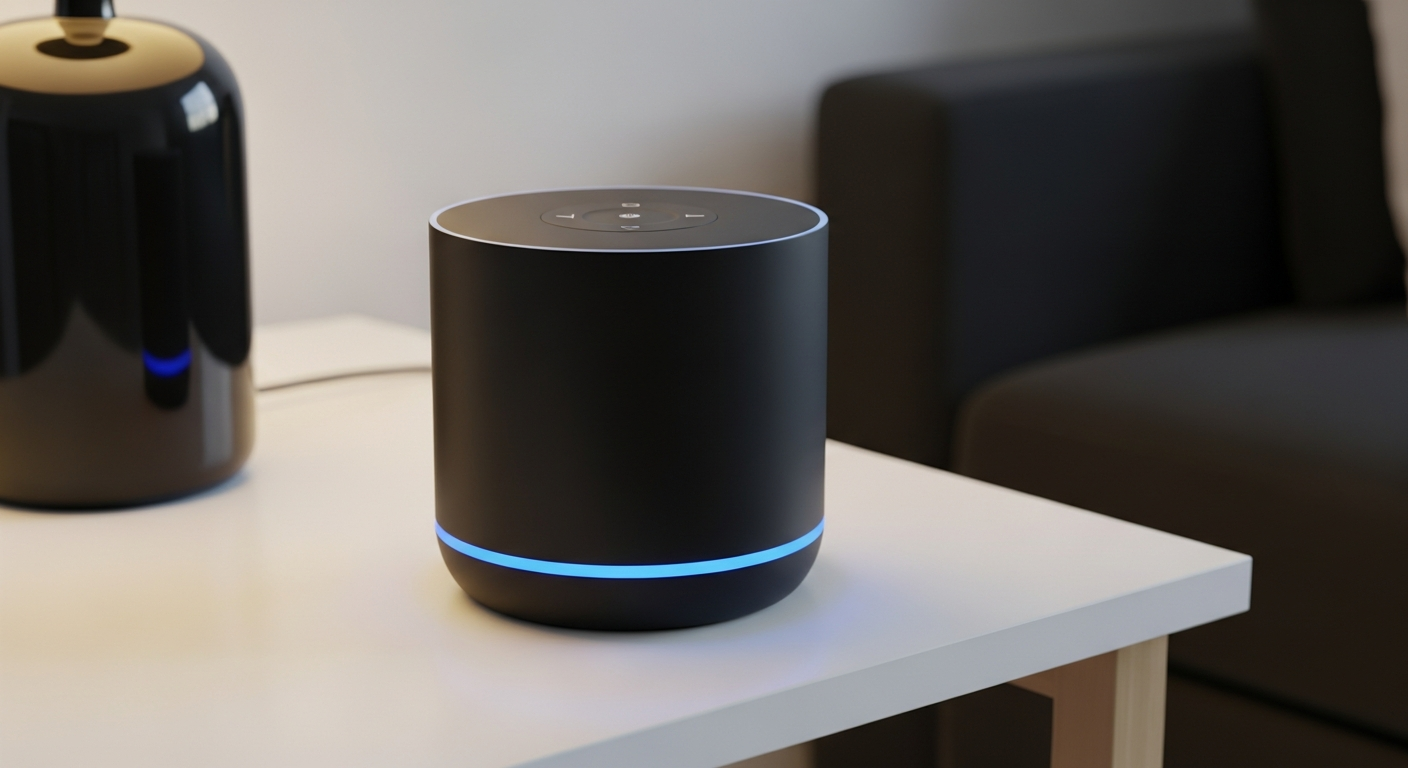
Welcome to the world of smart speakers! These handy devices can make your daily life much easier by responding to your voice. This guide will walk you through setting up and using your first smart speaker, whether it's an Alexa or Google Home device.
1. What is a smart speaker and what can it do?
A smart speaker is a device that uses your voice to do many things, like play music, answer questions, and control other smart gadgets in your home. Think of it as a helpful assistant that listens and talks back to you.
It connects to the internet using your home's Wi-Fi. This connection allows it to access information, stream music, and communicate with other smart devices. It's always listening for its "wake word" like "Alexa" or "Hey Google."
2. How do I unbox and plug in my new smart speaker?
First, carefully open the box and take out your smart speaker and its power adapter. Most smart speakers have very few parts. Find a good spot for your speaker, like on a kitchen counter or bedside table, where it's easy to hear and use.
Next, plug the power adapter into the back of your smart speaker. Then, plug the other end of the adapter into a wall outlet. Your speaker will usually light up or make a sound to show it's turning on. Give it a moment to start up.
3. What app do I need to download to set it up?
To set up your smart speaker, you'll need to download a special app on your smartphone or tablet. If you have an Amazon Alexa device, search for and download the "Amazon Alexa" app. If you have a Google Home device, search for and download the "Google Home" app.
These apps are free and available on both Apple's App Store (for iPhones/iPads) and Google Play Store (for Android phones/tablets). Once downloaded, open the app and sign in with your Amazon or Google account. If you don't have one, the app will guide you to create one.
Amazon Alexa App
- For Amazon Echo, Echo Dot, Echo Show
- Connects to your Amazon account
- Manages Alexa "Skills"
- Controls smart devices
Google Home App
- For Google Nest, Google Home devices
- Connects to your Google account
- Manages Google Assistant "Routines"
- Controls smart devices
4. How do I connect my smart speaker to Wi-Fi?
After downloading the correct app and signing in, the app will guide you through connecting your speaker to Wi-Fi. Make sure your phone is connected to the same Wi-Fi network you want your speaker to use.
The app will usually ask you to select your smart speaker from a list of nearby devices. Then, it will prompt you to choose your home's Wi-Fi network and enter its password. Follow the on-screen steps carefully, and your speaker will soon be online.
5. What voice commands can I use to play music?
Playing music is one of the most popular uses for a smart speaker. Once connected, simply say your wake word followed by a command. For example, "Alexa, play pop music" or "Hey Google, play some jazz."
You can also ask for specific songs, artists, or albums: "Alexa, play 'Happy' by Pharrell Williams" or "Hey Google, play the new Taylor Swift album." You can even specify a music service if you have one linked, like "Alexa, play my workout playlist on Spotify."
6. How do I ask my smart speaker questions?
Your smart speaker is great for getting quick answers to almost anything. Just use your wake word and then ask your question naturally, as if you were talking to a person. For example, "Alexa, what's the weather like today?" or "Hey Google, how tall is the Eiffel Tower?"
You can ask about news, sports scores, facts, definitions, and more. The speaker will use its internet connection to find and speak the answer to you. Try asking about local businesses or movie times too!
7. Can I set alarms and timers with my smart speaker?
Yes, setting alarms and timers is incredibly easy and useful. For an alarm, say "Alexa, set an alarm for 7 AM" or "Hey Google, wake me up at 6:30 AM tomorrow." You can specify days and even custom sounds.
For timers, which are great for cooking or exercising, say "Alexa, set a timer for 15 minutes" or "Hey Google, start a 30-minute timer." Your speaker will count down and notify you when the time is up. You can also ask "How much time is left on the timer?"
Setting a Timer Flow
Say "Alexa/Hey Google, set a timer for [X] minutes/hours."
Speaker confirms the timer is set.
Timer counts down in the background.
Speaker alerts you when time is up.
8. How do I connect other smart devices to my speaker?
Your smart speaker can become the central hub for your smart home. To connect other devices like smart lights or thermostats, you'll usually do this through the same Alexa or Google Home app you used for setup.
First, make sure your other smart devices are also set up according to their own instructions. Then, in the Alexa or Google Home app, look for a "Devices" or "Add Device" section. The app will guide you through finding and linking your smart lights, plugs, or other gadgets. Once linked, you can control them with your voice, like "Alexa, turn on the living room light."
9. What are "skills" or "routines" on a smart speaker?
"Skills" (for Alexa) and "Routines" (for Google Home) are like extra apps or shortcuts that add more features to your speaker. Skills let your speaker do specific things, like play a game, tell a story, or order a pizza, usually found in the Alexa app's "Skills & Games" section.
Routines let you combine several actions with one command. For example, you could say "Hey Google, good morning," and it might turn on your lights, tell you the weather, and play the news. You create and customize these in the Google Home app's "Routines" section.
10. How do I adjust the volume or mute my smart speaker?
You have a few ways to control the volume. You can use your voice: "Alexa, volume up" or "Hey Google, set volume to 5." Most speakers also have physical volume buttons (+ and -) directly on the device itself.
To mute your smart speaker so it stops listening for its wake word, look for a microphone button on the device. It often has a microphone icon with a line through it. Pressing this button will usually make a light turn red, indicating the microphone is off. Press it again to unmute.