
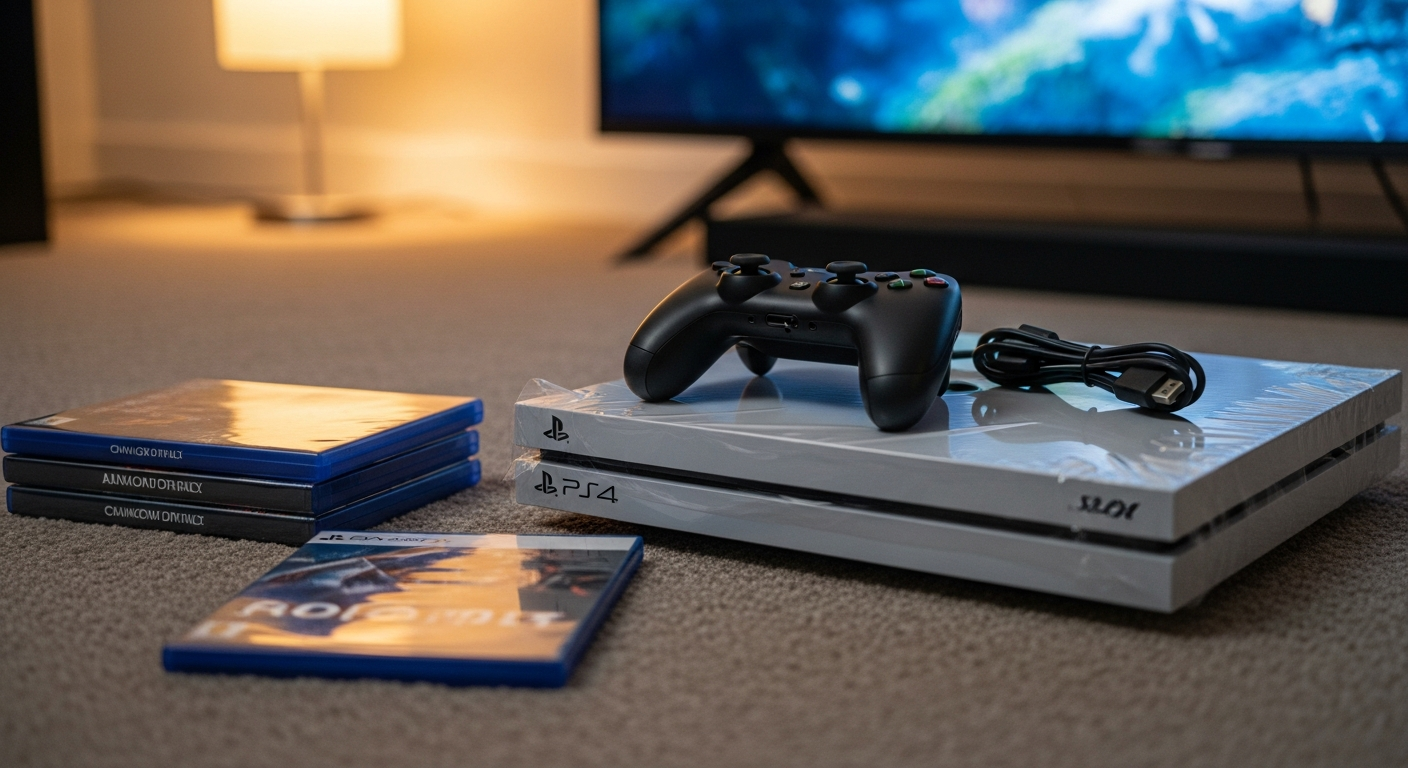
Getting a new gaming console is exciting! This guide will walk you through setting up your console for the very first time, step-by-step, even if you've never done it before.
We'll cover everything from unboxing to downloading your first game, making sure you're ready to play in no time.
1. How do I unbox and connect my new console to the TV?
First, carefully open the box and remove all contents: the console, controller(s), power cable, HDMI cable, and any manuals. Place your console on a flat, stable surface near your TV. Make sure there's good airflow around it to prevent overheating.
Plug one end of the power cable into the back of your console and the other end into a wall outlet or power strip. Never use an extension cord not rated for electronics, as it can be a fire hazard.
2. What cables do I need to connect to my TV?
You primarily need an HDMI cable. This single cable carries both video and audio from your console to your TV. Most consoles come with one in the box.
Locate an empty HDMI port on your TV (they are usually labeled HDMI 1, HDMI 2, etc.). Plug one end of the HDMI cable into the console's HDMI OUT port and the other end into your TV's HDMI IN port. Remember which HDMI port you used!
3. How do I connect my console to Wi-Fi?
Once your console is powered on and connected to your TV, you'll see the initial setup screen. Navigate through the on-screen prompts until you reach the network settings. Select "Wireless Network" or "Wi-Fi."
Your console will scan for available Wi-Fi networks. Find your home network's name (SSID) in the list and select it. You'll then be prompted to enter your Wi-Fi password. This is usually found on a sticker on your internet router.
First-Time Console Setup Flow
4. How do I create a user profile on my console?
After connecting to Wi-Fi, the console will guide you to create a user profile. This profile stores your game saves, settings, and achievements. You'll typically choose a username and create a password.
Many consoles also require you to link an online account (like PlayStation Network, Xbox network, or Nintendo Account). This allows you to download games, play online, and access digital purchases. Follow the on-screen instructions to set this up.
5. How do I update my console's software?
Once your console is online and your profile is set up, it will likely prompt you to download a system software update. These updates are crucial for security, performance, and new features.
Always allow your console to download and install these updates. It might take some time, and your console may restart several times. Do not turn off your console during an update.
6. How do I connect a controller to my console?
Most new consoles come with a wireless controller. To connect it, first ensure the controller is charged or has fresh batteries. Then, look for a small "sync" or "pair" button on both the controller and the console.
Press and hold the sync button on the controller, then immediately press the sync button on the console. The lights on the controller should flash and then become solid, indicating a successful connection. Some consoles just require you to connect the controller with a USB cable once to pair it.
7. How do I download my first game?
With your console updated and controller connected, you're ready for games! Navigate to the console's digital store (e.g., PlayStation Store, Xbox Games Store, Nintendo eShop). You can browse free-to-play games or purchase new titles.
Select the game you want and choose "Download." Large games can take a long time to download, depending on your internet speed. You can usually see the download progress on your console's home screen.
Digital vs. Disc Games
Digital Games
- Downloaded directly to console
- No physical disc needed to play
- Can be pre-loaded before release
- Requires significant storage space
- Tied to your online account
Disc Games
- Requires physical game disc
- Disc must be in console to play
- Can be resold or lent to friends
- Often requires installation to console
- Less reliance on internet speed for initial setup
8. What are parental controls and how do I set them up?
Parental controls allow you to manage what games and content can be accessed on the console, especially useful for younger players. You can set age restrictions, limit play time, and control online interactions.
These settings are usually found in the console's system settings under a "Parental Controls" or "Family Settings" menu. You'll typically create a PIN or password to protect these settings. Review the options carefully to customize them for your household.
9. How do I troubleshoot common setup issues?
If you encounter problems, first check all cable connections – power, HDMI, and internet. Ensure your TV is set to the correct HDMI input. If your Wi-Fi isn't connecting, try restarting your internet router.
For controller issues, make sure it's charged and try re-pairing it. If the console freezes, hold down the power button for 5-10 seconds to force a shutdown, then restart it. Consult your console's manual or the manufacturer's support website for specific error codes.
10. What should I do after my console is set up?
Once everything is running smoothly, explore your console's features! Check out the digital store for more games, demos, or free trials. Consider subscribing to online services (like Xbox Game Pass, PlayStation Plus, Nintendo Switch Online) for access to online multiplayer and free games.
Remember to keep your console's software updated regularly and enjoy your new gaming adventures!