
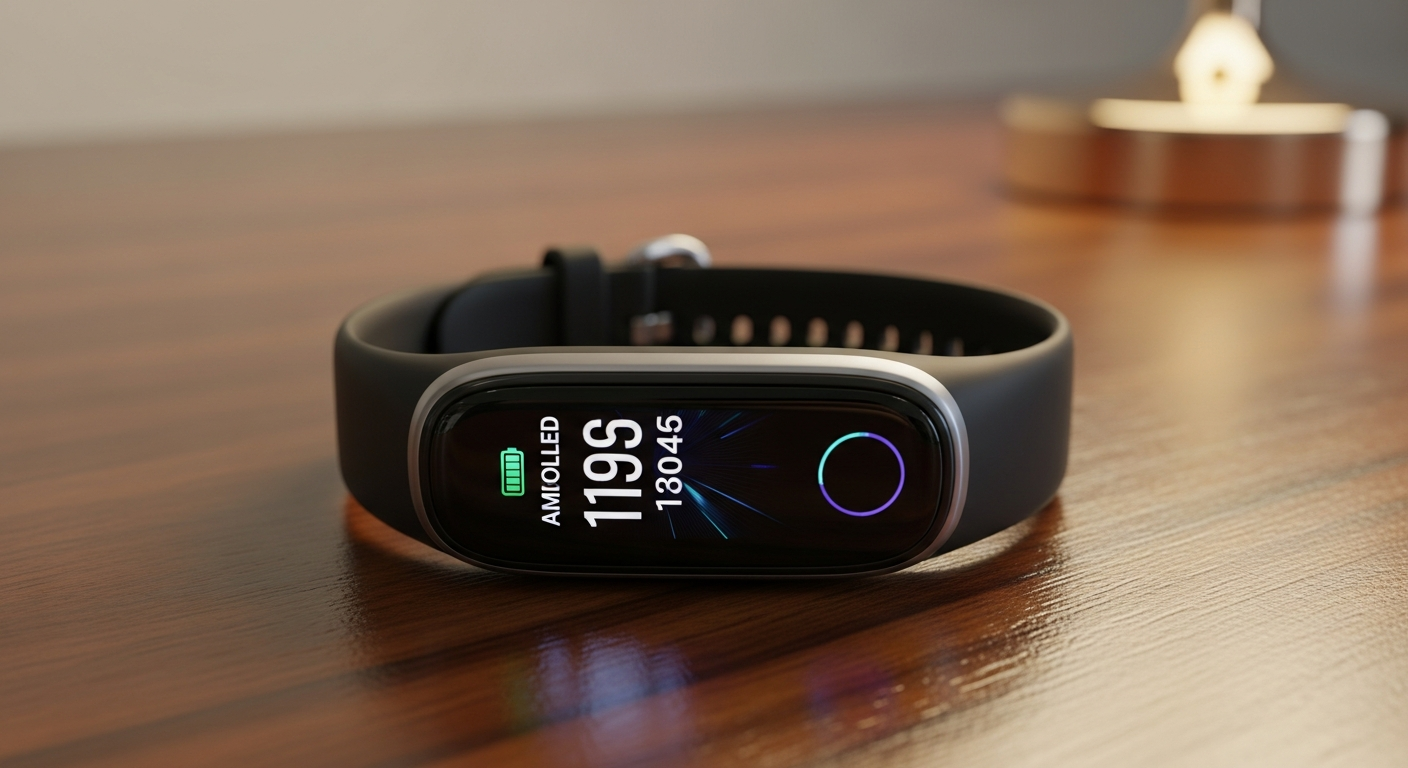
Welcome to the world of fitness tracking! Setting up your first fitness tracker might seem a bit tricky, but it's actually quite simple. This guide will walk you through every step to get you started on your health journey.
1. What should I do first after unboxing my new tracker?
After carefully unboxing your new fitness tracker, the very first thing to do is read the quick start guide or instruction manual. This small booklet contains important information specific to your device model, including charging instructions and how to download the correct app. Don't skip this step!
2. How do I charge my fitness tracker for the first time?
Most fitness trackers come with a special charging cable. Connect the cable to your tracker, ensuring it's properly aligned (it might snap magnetically or clip on). Then, plug the other end of the cable into a USB power source, like a wall adapter or a computer USB port. Charge it fully before its first use, which usually takes 1-2 hours.
3. Which app do I need to download for my tracker?
Your tracker needs a specific app to work with your smartphone. The quick start guide will tell you the exact name of the app (e.g., "FitTrack App," "HealthMate"). Search for this app on your phone's app store (Google Play Store for Android or Apple App Store for iPhone) and download it. Make sure it's the official app from your tracker's brand.
First-Time Setup Flow
4. How do I pair my tracker with my smartphone via Bluetooth?
First, make sure Bluetooth is turned on in your smartphone's settings. Then, open the tracker's app you just downloaded. The app will guide you through the pairing process, often asking you to tap a button on your tracker or select your tracker from a list. Follow the on-screen instructions carefully to connect your tracker and phone.
5. What personal information do I need to enter during setup?
The app will ask for basic details like your height, weight, age, and gender. This information is crucial for your tracker to accurately calculate things like calories burned, distance walked, and sleep patterns. Be honest with your measurements for the best results.
6. How do I set my daily step goal?
Once your tracker is paired and your profile is complete, you can usually set your daily step goal within the app. Look for a "Goals" or "Activity Settings" section. Most trackers default to 10,000 steps, but you can adjust this to a number that feels achievable and motivating for you. You can change it anytime.
7. Can I customize the watch face or display?
Yes, many modern fitness trackers allow you to customize their watch face or display. This feature is usually found within the tracker's app under "Device Settings," "Display," or "Watch Faces." You can often choose from various designs, colors, and information layouts to personalize your tracker.
Basic Tracker Display
- Shows time, steps, heart rate
- Limited customization
- Simple, easy to read
Advanced Tracker Display
- Shows time, steps, heart rate, weather, notifications
- Many watch face options
- More information at a glance
8. How do I sync my tracker's data with the app?
Most fitness trackers sync automatically with their app when they are near your smartphone and Bluetooth is enabled. If not, you can usually force a sync by opening the app and pulling down on the main screen, or by finding a "Sync Now" button in the app's settings. This transfers all your activity data to your phone.
9. What if my tracker isn't connecting to my phone?
First, ensure Bluetooth is on for both devices. Try restarting both your phone and your tracker. Sometimes, simply closing and reopening the app helps. If issues persist, try "forgetting" the device in your phone's Bluetooth settings and then re-pairing it from scratch through the app.
10. How do I update my tracker's software?
Software updates, also called firmware updates, are important for new features and bug fixes. Your tracker's app will usually notify you when an update is available. Connect your tracker to its charger, ensure it's close to your phone, and follow the in-app instructions to install the update. This process can take a few minutes.