
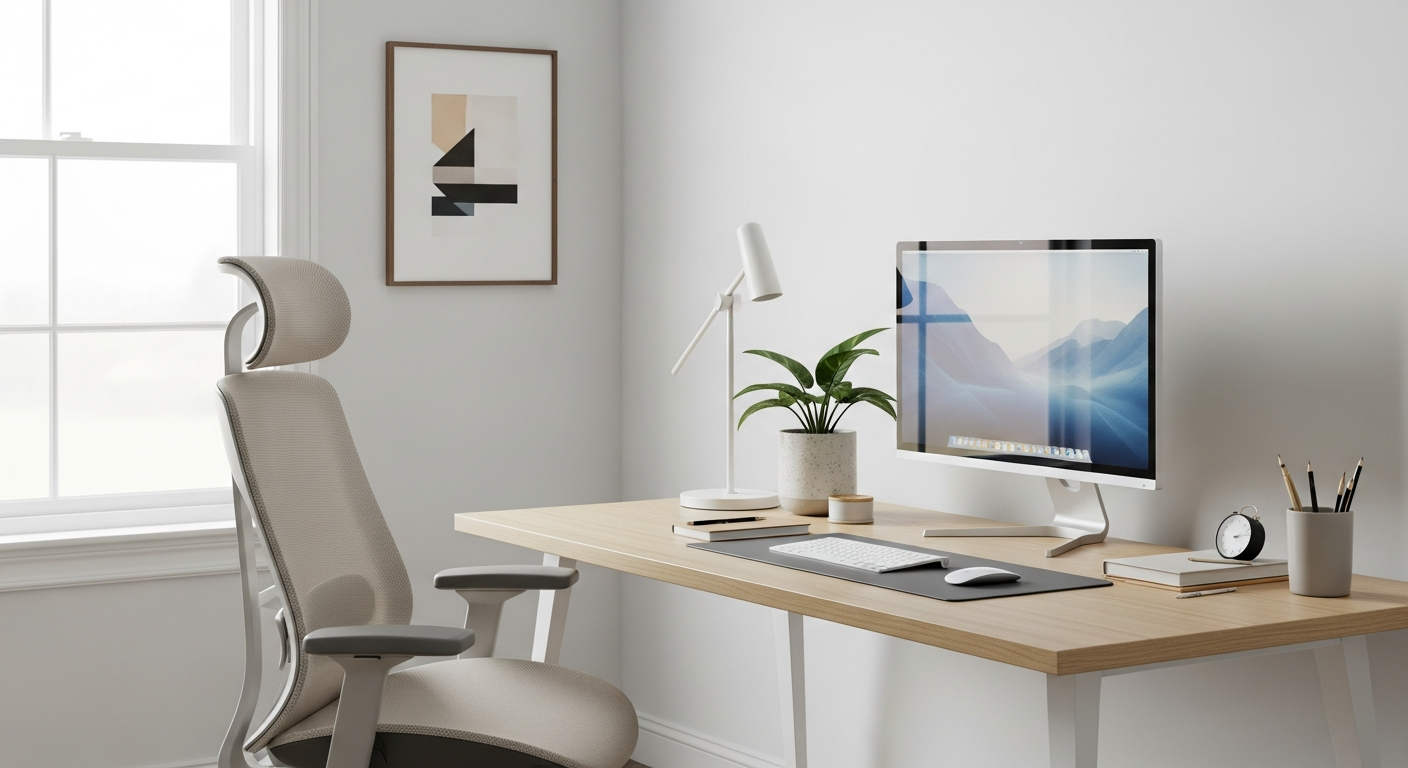
Setting up a home office for remote work doesn't have to be complicated or expensive. This guide will walk you through the basics, helping you create a comfortable and productive workspace right in your home.
1. What essential equipment do I need?
You'll need a computer (laptop or desktop), a reliable internet connection, and a comfortable desk and chair. A monitor can greatly improve productivity, even if you're using a laptop. Don't forget a mouse and keyboard for better ergonomics.
Other useful items include a webcam and microphone for video calls, especially if your computer doesn't have good built-in ones. A power strip with surge protection is also crucial to protect your electronics.
2. How much space do I need?
You don't need a dedicated room; a small corner or even part of a bedroom can work. The key is to have enough space for your desk, chair, and to move comfortably. Aim for an area that allows you to stand up and stretch occasionally.
Even a space as small as 3x3 feet can be enough for a compact desk and chair. Consider wall-mounted shelves or drawers to maximize storage in smaller areas without taking up floor space.
3. Where should I place my desk?
Place your desk near a window if possible for natural light, but avoid direct glare on your screen. If you're on video calls, try to have a plain, uncluttered background behind you. Avoid placing your desk facing a busy doorway.
Consider the acoustics of the space. If you're in a noisy area, placing your desk against a solid wall might help reduce distractions. Make sure there are power outlets nearby for your equipment.
Desk Placement: Facing a Wall
- Fewer visual distractions
- Easy access to power outlets
- Can feel enclosed
Desk Placement: Facing a Window
- Natural light, boosts mood
- View can be distracting
- Potential for screen glare
4. What's the best lighting for a home office?
Natural light is best, so try to work near a window. Supplement this with good artificial lighting. Overhead lighting should be bright but not harsh. A desk lamp is essential for task lighting, reducing eye strain.
Choose LED bulbs that mimic natural daylight (around 5000K-6500K color temperature). Avoid placing a bright light source directly behind your screen, as this can cause glare. Diffused light is generally more comfortable for your eyes.
5. Do I need a special chair?
While you don't need the most expensive ergonomic chair, a comfortable chair that supports your back is crucial. You'll be spending many hours in it, so good posture is important to prevent aches and pains.
Look for a chair that allows your feet to be flat on the floor, your knees at a 90-degree angle, and offers lumbar (lower back) support. Adjustable height and armrests are also very beneficial for comfort.
6. How can I manage cables?
Cable management keeps your workspace tidy and safe. Use cable ties, Velcro straps, or cable sleeves to bundle wires together. Stick-on cable clips can secure cables to the back of your desk or wall.
A cable management box can hide power strips and excess cable lengths. This not only looks cleaner but also prevents tripping hazards and makes cleaning easier. Labeling cables can also save you headaches later.
7. What about internet speed?
For most remote work, a download speed of at least 25-50 Mbps (megabits per second) and an upload speed of 3-10 Mbps is sufficient. This handles video calls, document sharing, and general browsing without issues.
If multiple people in your home are streaming or gaming, you might need higher speeds. Consider a wired Ethernet connection for your main work computer if your Wi-Fi is unreliable, as it offers a more stable connection.
Home Office Internet Check
1. Check Current Speed
Use an online speed test to see your current download/upload.
2. Identify Needs
Solo worker? Multiple users? Video calls? Large files?
3. Upgrade if Needed
Contact your internet provider for faster plans or better equipment.
4. Optimize Connection
Place router centrally, use Ethernet for main devices.
8. Should I use a laptop or desktop?
Laptops offer portability, allowing you to work from different spots. Desktops generally provide more power for the price and are easier to upgrade. For a simple home office, either can work well.
If you choose a laptop, consider adding an external monitor, keyboard, and mouse for better ergonomics and a more comfortable setup. This turns your laptop into a powerful desktop-like workstation.
9. How do I keep my space tidy?
Regular tidying is key. Put things away after use. Use drawers, shelves, and organizers for papers, pens, and small items. A clean desk helps maintain a clear mind and reduces distractions.
Dedicate a few minutes at the end of each workday to clear your desk. This ensures you start fresh the next morning. Avoid eating meals at your desk to prevent crumbs and spills.
10. What are some budget-friendly setup tips?
You don't need to break the bank. Look for used desks and chairs on online marketplaces or local thrift stores. Repurpose existing furniture, like a dining table, as a temporary desk.
Instead of buying a new monitor, see if you have an old TV that can double as a display. Utilize free software alternatives and open-source tools. DIY cable management with zip ties or even bread ties can save money.