
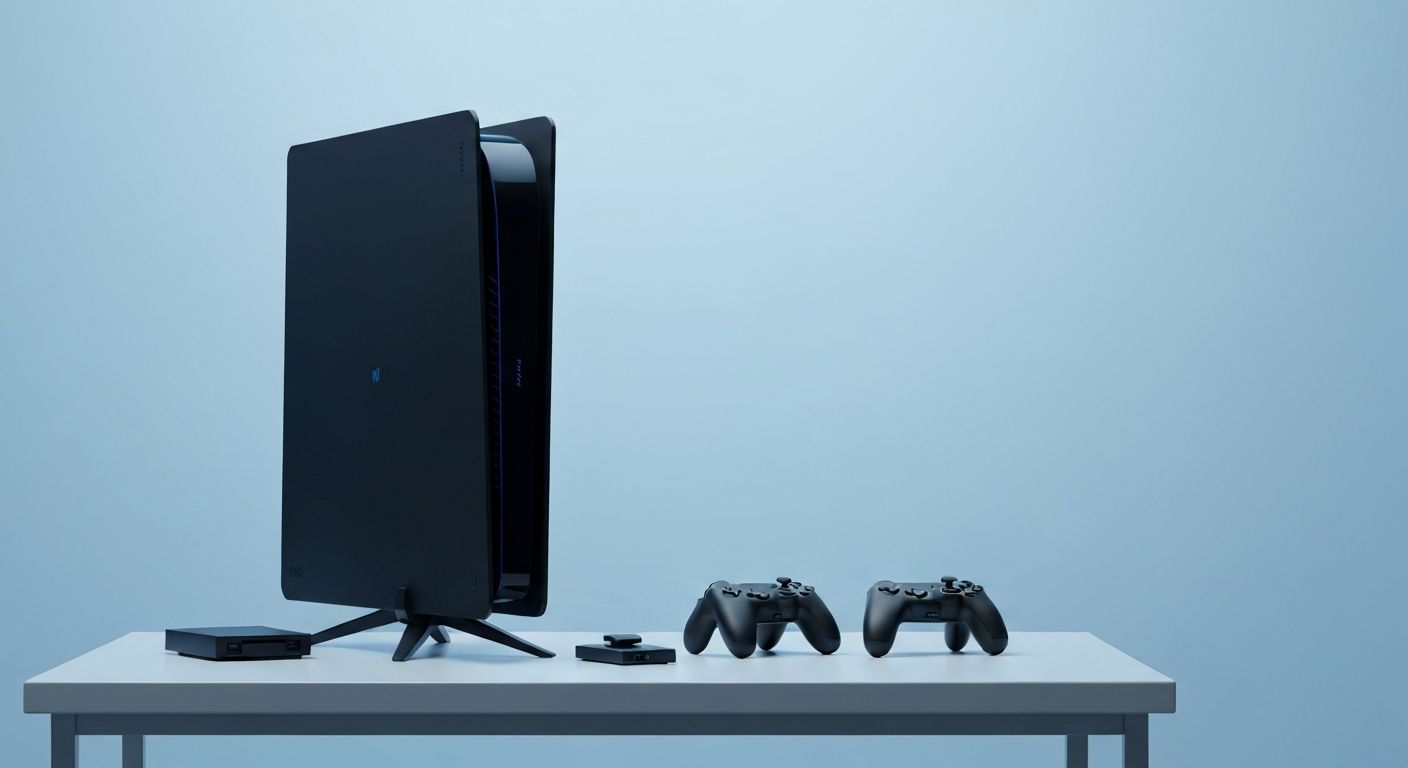
Getting a new gaming console is exciting! This guide will walk you through setting it up for the very first time, step-by-step, even if you've never done it before.
1. What cables do I need to connect my console to my TV?
You'll primarily need an HDMI cable. This single cable sends both video and sound from your console to your TV. Most consoles come with one in the box. You'll also need the power cable to plug your console into a wall outlet, which also comes with the console.
2. How do I connect my console to the internet (Wi-Fi or Ethernet)?
For Wi-Fi, go to your console's settings, find "Network" or "Internet," and select your home Wi-Fi network from the list. Enter your Wi-Fi password. For a wired connection (Ethernet), plug one end of an Ethernet cable into your console and the other end into your internet router or modem. This usually provides a more stable connection.
3. What's the first thing I should do after plugging in my console?
Once plugged in and connected to your TV, turn on your console using the power button. Your TV should automatically switch to the correct input, or you might need to select the HDMI input your console is connected to using your TV remote. Follow the on-screen prompts to choose your language and region.
Wi-Fi Connection
- Wireless, no cables to TV
- Easy setup
- Good for most gaming
- Can be slower or less stable
Ethernet Connection
- Wired, needs cable to router
- More stable and faster
- Best for online competitive games
- Requires a cable running to your router
4. How do I create a user account on my console?
After initial setup, your console will ask you to create a user profile. This profile saves your game progress, settings, and achievements. You'll usually need an email address and to create a password. This account often links to an online service (like PlayStation Network or Xbox network) for online gaming and digital purchases.
5. What are system updates and why are they important?
System updates are like software upgrades for your console. They add new features, fix problems, and improve security. Your console will likely prompt you to download and install one during the first setup. It's important to install them to keep your console running smoothly and securely, and to access the latest games and features.
6. How do I pair my controller with the console?
Most new consoles come with a controller that needs to be "paired" or connected wirelessly. Usually, you connect the controller to the console with a USB cable for the first time, then press the console's power button or a dedicated pairing button on both the console and controller. Check your console's manual for exact steps, as it varies slightly by brand.
7. Can I connect external devices like a headset?
Yes, most consoles support external devices. You can connect a gaming headset for chat and game audio, often via a 3.5mm jack on the controller or wirelessly via Bluetooth. External hard drives can also be connected via USB to expand your storage for more games. Check your console's specific compatibility for other accessories.
First-Time Console Setup Flow
8. How do I insert a game disc or download a digital game?
If your console has a disc drive, gently slide the game disc into the slot until it's pulled in. The console will usually start installing the game automatically. For digital games, go to your console's online store (e.g., PlayStation Store, Xbox Store), find the game you want, purchase it, and then select "Download."
9. What basic settings should I adjust first?
After setup, consider adjusting display settings like screen resolution (to match your TV) and HDR (High Dynamic Range) if your TV supports it for better colors. You might also want to set up parental controls if children will be using the console, or adjust audio output settings for your speakers or headset. Explore the "Settings" menu to customize your experience.
10. Where can I find troubleshooting tips if something goes wrong during setup?
If you encounter issues, first check your console's official support website; they have extensive guides. You can also search online forums or YouTube for solutions. Often, simply restarting your console or checking all cable connections can fix common problems. Don't hesitate to consult the physical manual that came with your console either.