
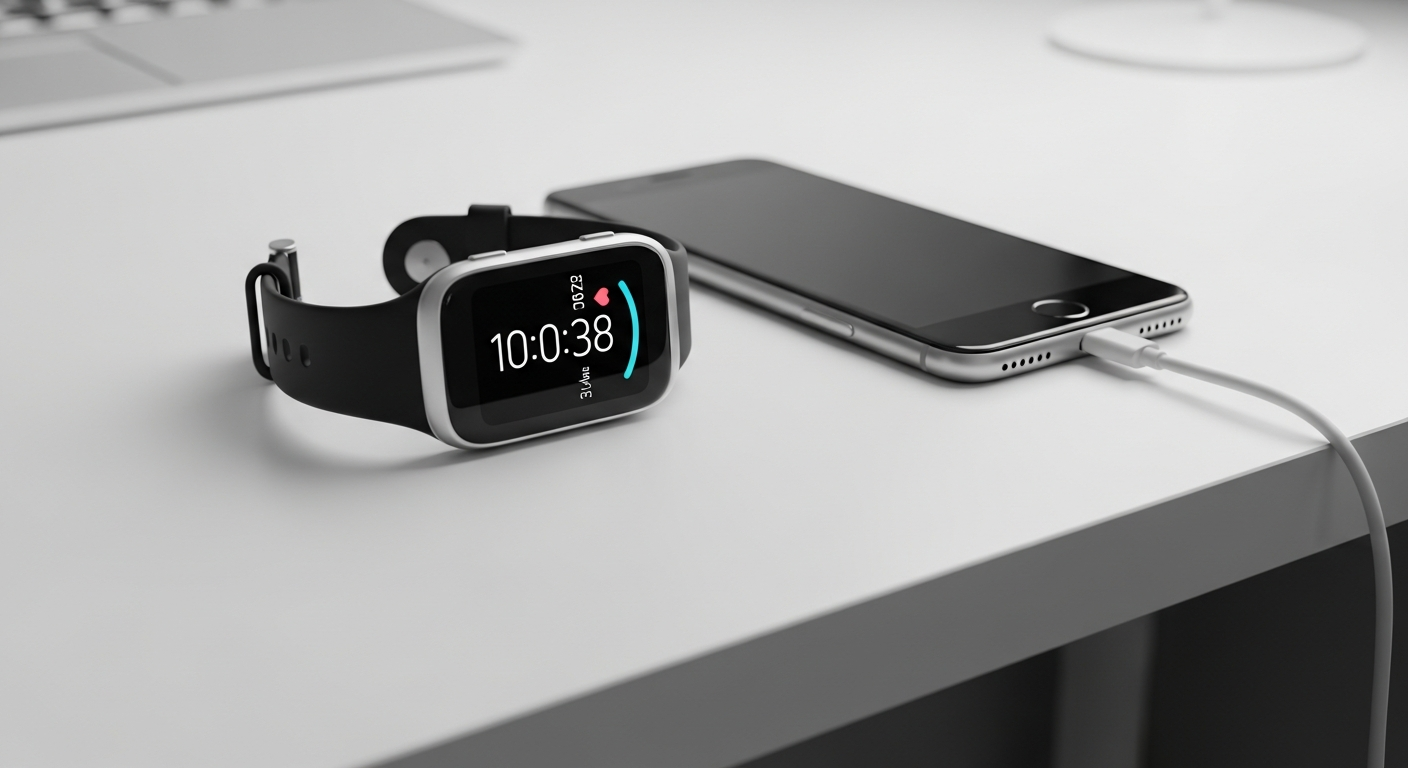
Just got a new fitness tracker or smartwatch? It's exciting to start using it, but setting it up can seem a bit tricky at first. This guide will walk you through everything you need to know, step-by-step, to get your new device ready to go!
1. What's the very first thing I should do after unboxing?
The very first thing you should do is fully charge your new device. Most fitness trackers and smartwatches come with a small amount of charge, but a full charge ensures a smooth setup process without interruptions. Use the charging cable that came in the box and plug it into a wall adapter or a computer USB port.
2. How do I pair my device with my smartphone?
Pairing means connecting your tracker to your phone. First, make sure Bluetooth is turned on on your smartphone. Bluetooth is a wireless way for devices to talk to each other. Then, open the specific app for your device (you'll usually be prompted to do this). The app will guide you through finding and connecting to your new tracker.
3. Do I need to download a specific app?
Yes, absolutely! Every fitness tracker or smartwatch brand has its own official app. This app is essential for setup, syncing your data, changing settings, and viewing your health information. You can usually find the correct app by searching the App Store (for iPhones) or Google Play Store (for Android phones) for your device's brand name, like "Fitbit app" or "Garmin Connect."
Setup Flow: Tracker to Phone
4. How do I enter my personal information like height and weight?
After pairing, the app will usually prompt you to create a profile. This is where you'll enter personal details like your age, gender, height, and weight. This information is crucial because your device uses it to calculate things like calories burned, step length, and sleep stages more accurately. You can usually find and edit this information later in the app's "Profile" or "Account" settings.
5. What are the essential settings I should configure initially?
Beyond personal info, check settings like notification preferences (which phone alerts show on your watch), activity goals (steps, active minutes), and sleep tracking schedules. You might also want to set alarms or reminders directly from the app. These initial settings help personalize your experience and ensure you get the most relevant information.
6. How do I customize watch faces or display options?
Most smartwatches and some fitness trackers allow you to change their "watch face" – the main screen display. This is usually done through the device's app. Look for a section like "Watch Faces," "Display," or "Gallery" within the app. You can often choose from many designs, some showing time, steps, heart rate, or weather.
7. What if my device won't connect to my phone?
Don't panic! First, make sure Bluetooth is on for both devices. Try restarting both your phone and your fitness tracker. Sometimes, simply turning them off and on again fixes connection issues. Also, ensure your tracker is charged. If problems persist, try "forgetting" the device in your phone's Bluetooth settings and then trying to pair it again through the app.
Connection Troubleshooting
Common Issues
- Bluetooth Off
- Low Battery
- App Glitch
- Device Too Far
Quick Fixes
- Enable Bluetooth
- Charge Device
- Restart Phone/Device
- Move Closer
8. How do I ensure my data is syncing correctly?
Syncing means your tracker sends its collected data to your phone app. Usually, this happens automatically when your device is near your phone and the app is open (or running in the background). You can often manually trigger a sync by opening the app and pulling down on the main screen. Look for a "Last Synced" timestamp in your app to confirm it's up-to-date.
9. Are there any tutorials or guides within the app?
Many fitness tracker apps include helpful tutorials, FAQs, or "getting started" guides. Look for sections like "Help," "Support," "Tips," or a question mark icon within the app. These resources can provide specific instructions for your model, explain features, and offer troubleshooting advice beyond what's covered here.
10. How do I start tracking my first activity?
To track an activity like a walk or run, you usually have two options. You can start it directly from your device by navigating through its menus to an "Exercise" or "Workout" mode and selecting your activity. Alternatively, you can often start an activity from the app on your phone, which then tells your tracker to begin recording. Remember to stop the activity when you're done!