
Getting a new fitness tracker or smartwatch is exciting! This guide will walk you through setting it up for the very first time, even if you're not tech-savvy.
We'll cover everything from charging to connecting, so you can start tracking your health goals right away.
1. What do I need before I start setting it up?
Before you begin, make sure you have your new fitness tracker or smartwatch, its charging cable, and a power source like a wall adapter or computer USB port. You'll also need your smartphone (an iPhone or Android phone) and its charger, as the setup process often drains phone battery.
It's also helpful to have your phone connected to Wi-Fi for faster app downloads and updates. A quiet space where you won't be interrupted can make the process smoother.
2. How do I charge my new device for the first time?
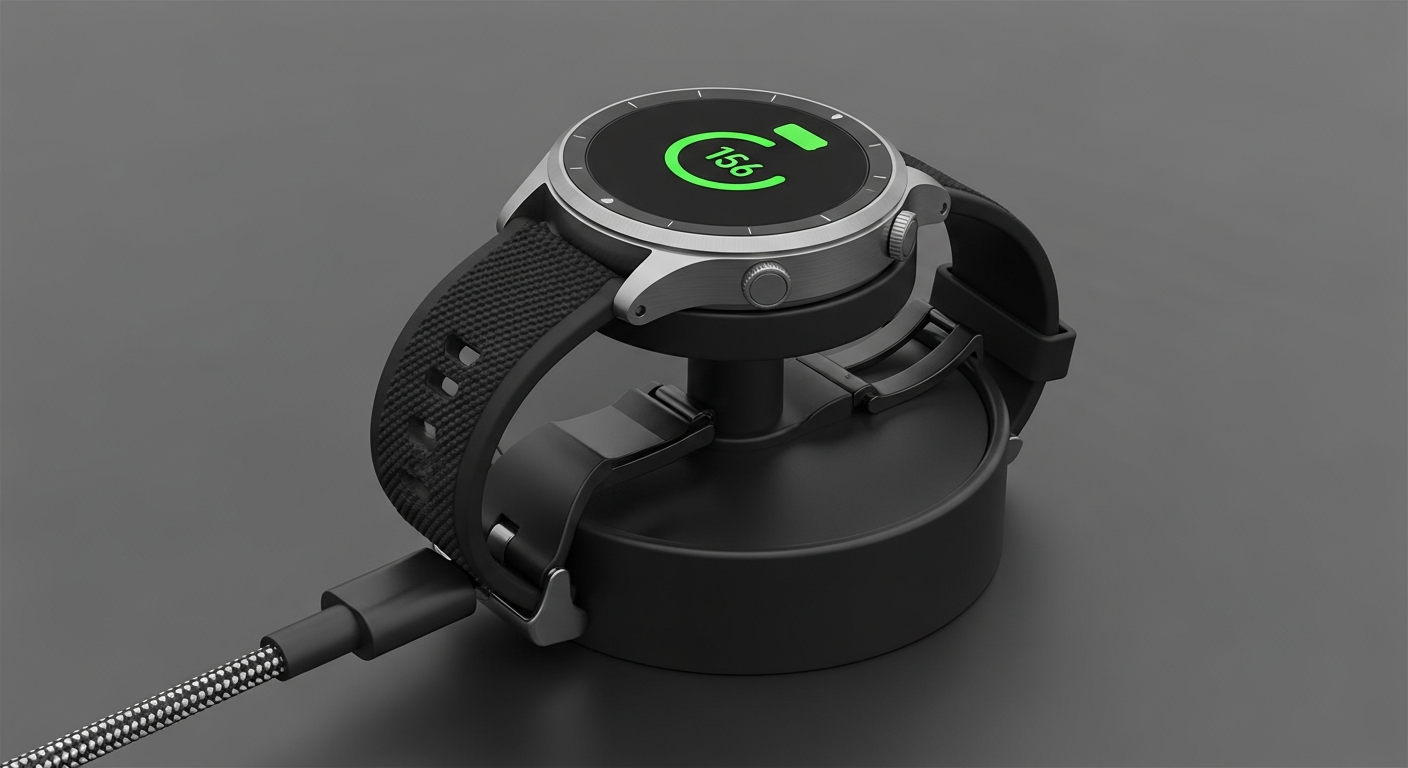
Most new fitness trackers and smartwatches come with a little bit of charge, but it's best to fully charge them before setup. Connect the charging cable to your device, making sure it snaps into place correctly (some are magnetic, others clip on).
Plug the other end of the cable into a USB power adapter or a USB port on your computer. Look for an indicator on your device's screen or a small light that shows it's charging. A full charge usually takes 1-2 hours.
3. Which app do I need to download?
Each fitness tracker or smartwatch brand has its own specific app. For example, if you have a Fitbit, you'll need the Fitbit app. For an Apple Watch, you'll use the built-in Watch app on your iPhone. Samsung devices use the Samsung Health app or Galaxy Wearable app.
Check the box or instruction manual for the exact app name. Then, go to your smartphone's app store (App Store for iPhone, Google Play Store for Android), search for the app, and download it. It's free!
Fitness Tracker App
- Tracks steps, sleep, heart rate
- Focuses on health data
- Often simpler interface
- Good for basic activity monitoring
Smartwatch App
- Handles notifications, calls, apps
- More complex features
- Integrates with phone deeply
- Good for communication & health
4. How do I pair my tracker/watch with my smartphone?
Pairing means connecting your device to your phone using Bluetooth, a wireless connection. Open the app you just downloaded. It will usually guide you through the pairing process. You might need to tap "Set up a new device" or "Add device."
Make sure your phone's Bluetooth is turned on (check your phone's settings). Your app will search for your device and display its name. Tap on your device's name to connect. Sometimes, a code will appear on both screens to confirm the connection.
5. What personal information do I need to enter?
The app will ask for basic information like your age, gender, height, and weight. This data helps your device calculate things like calories burned, step length, and heart rate zones more accurately.
You might also be asked to create an account with an email address and password. This account keeps all your health data safe and lets you access it even if you get a new phone or device.
6. How do I adjust the settings for my goals?
Once paired, explore the app's settings menu. You can usually find options to set daily step goals, sleep goals, or even weight goals. You can also customize notifications, choose which apps send alerts to your wrist, and set alarms.
Many apps also let you choose which health metrics are shown on your device's screen. Take some time to personalize these settings so your device works best for your specific fitness journey.
7. What if my device won't connect to my phone?
Don't worry, this is a common hiccup! First, make sure both your device and phone are charged and that Bluetooth is on for your phone. Try restarting both your phone and your fitness tracker/smartwatch. Sometimes, simply turning them off and on again fixes the issue.
Also, ensure your device is close to your phone. If it still doesn't connect, try forgetting the device in your phone's Bluetooth settings and starting the pairing process again from the app. Check the manufacturer's support website for specific troubleshooting tips for your model.
Troubleshooting Connection Issues
8. How do I update the software on my wearable?
Software updates, often called firmware updates, bring new features and fix problems. Your app will usually notify you when an update is available. It's important to keep your device updated for the best performance and security.
To update, make sure your device is charged (at least 50%), connected to your phone, and your phone is on Wi-Fi. Follow the prompts in the app. The update can take a while, so be patient and don't disconnect your device during the process.
9. Where do I wear it for best accuracy?
Most fitness trackers and smartwatches are designed to be worn on your non-dominant wrist (the one you don't write with). Wear it snugly, but not too tight, about one finger's width above your wrist bone.
Wearing it too loose can affect heart rate readings, and too tight can be uncomfortable. Experiment a little to find the most comfortable fit that still provides accurate data. Some activities might require specific placement, but your wrist is generally best.
10. What are the first things I should do after setup?
Once everything is set up, wear your device for a full day to get a baseline of your activity and sleep. Explore the app and your device's screen to see how your data is displayed.
Try a short walk or activity to see how it tracks steps and heart rate. Don't be afraid to click around in the app and on your device to discover all its features. The more you use it, the more comfortable you'll become!