
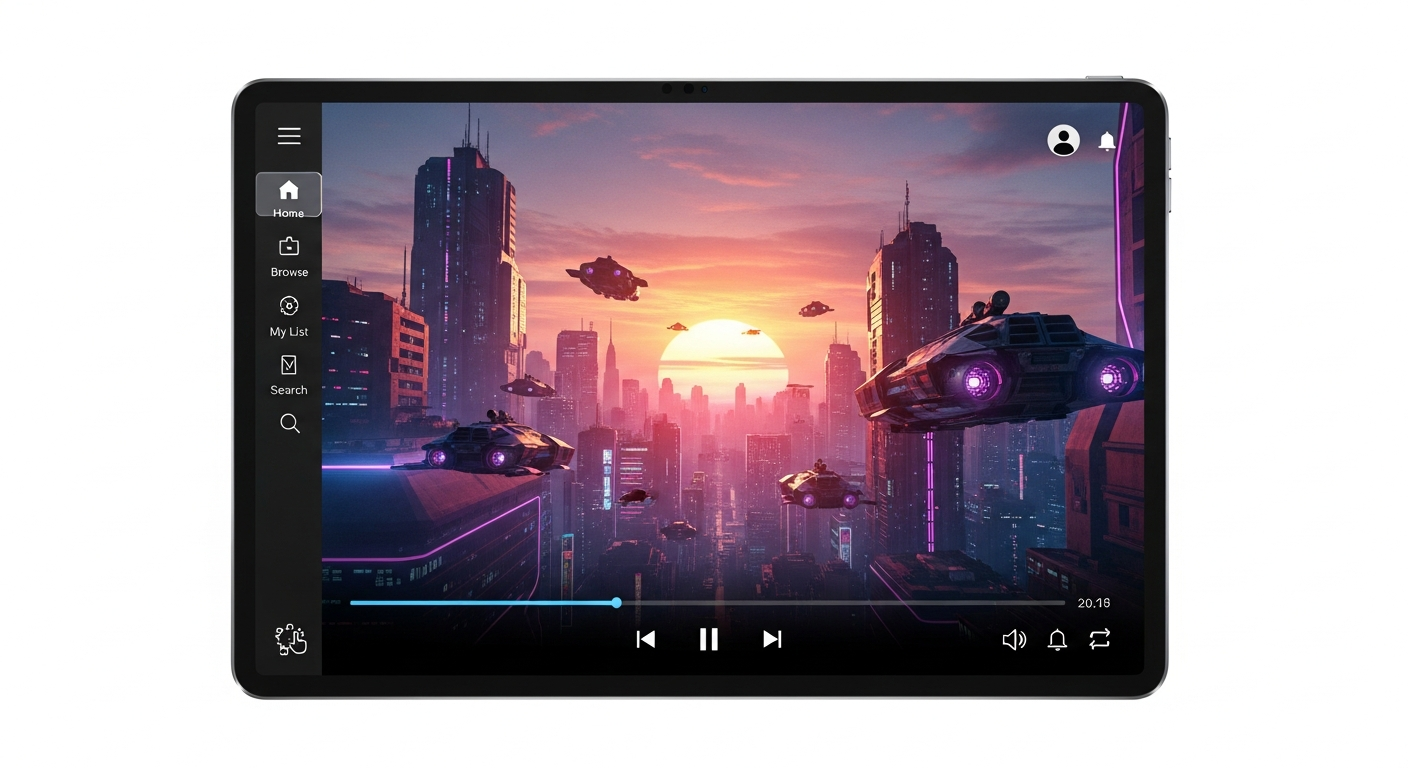
Welcome to the wonderful world of streaming! This guide will help seniors easily discover and enjoy countless movies, TV shows, and songs right from home.
1. What is a streaming service for movies and music?
A streaming service is like having a giant library of entertainment delivered directly to your TV, tablet, or phone through the internet. Instead of buying DVDs or CDs, you pay a monthly fee to watch or listen to whatever you want, whenever you want, without commercials on many services.
2. Which streaming services are easy for seniors to use?
For movies and TV, Netflix and Disney+ are often praised for their simple layouts. YouTube is excellent for free music, how-to videos, and news, though it has more ads. For music specifically, Pandora and Spotify have easy-to-navigate apps and offer vast song libraries.
3. What equipment do I need to start streaming?
You'll need a device to watch or listen on, like a smart TV, tablet (iPad, Android tablet), smartphone, or computer. Most importantly, you need a reliable internet connection at home. If you have Wi-Fi, you’re all set!
Smart TV
- Large screen, easy viewing
- Apps built-in, no extra boxes
- Can be expensive
- Requires internet connection
Tablet/Phone
- Portable, use anywhere
- Smaller screen, personal viewing
- Often already owned
- Requires internet connection (Wi-Fi or cellular)
4. How do I set up an account for a streaming service?
First, download the app for the service (like Netflix) onto your device, or visit their website. You'll then click "Sign Up" or "Start Free Trial." You'll need to provide your email address, create a password, and usually enter payment information (like a credit card) for the monthly fee. Don't worry, you can often cancel anytime.
5. How do I search for movies, TV shows, or music?
Most services have a "Search" button or magnifying glass icon. Tap or click it, then type in the name of a movie, actor, or song. You can also browse categories like "Comedy," "Drama," or "New Releases." Many services also suggest things you might like based on what you've watched before.
6. What are subtitles and closed captions, and how do I turn them on?
Subtitles show the dialogue spoken on screen as text, usually at the bottom. Closed captions do the same but also describe sounds, like "[door creaks]" or "[music playing]". To turn them on, look for an icon that looks like a speech bubble or "CC" while a video is playing. Click or tap it to choose your language or turn them on/off.
7. How do I control playback (pause, rewind, fast forward)?
When watching, simply tap the screen or click your remote's center button to bring up controls. You'll see buttons for play/pause, rewind (often a double arrow pointing left), and fast forward (double arrow pointing right). You can also drag a bar to jump to a specific part of the video.
Basic Playback Controls
- Tap/Click Screen
- Controls Appear
- Use Icons:
- Pause
- Play
- Rewind
- Fast Forward
8. Can I create a watchlist or favorite list of content?
Yes, absolutely! Most streaming services let you save movies, shows, or songs you want to watch or listen to later. Look for icons like a plus sign (+), a heart, or "Add to My List." This makes it easy to find them again without searching.
9. What if I have trouble finding something to watch or listen to?
Don't get discouraged! Try browsing different categories or genres. Many services have sections like "Trending Now," "Top 10," or "Recommended for You." You can also ask a friend or family member for recommendations, or even search online for "best movies on Netflix for seniors."
10. How do I manage my subscription or cancel a streaming service?
To manage or cancel, you usually need to go to the service's website (not just the app) and log in to your account settings. Look for sections like "Account," "Billing," or "Subscriptions." From there, you can update payment info, change your plan, or find the "Cancel Subscription" option. Remember to cancel before your next billing date to avoid charges.