
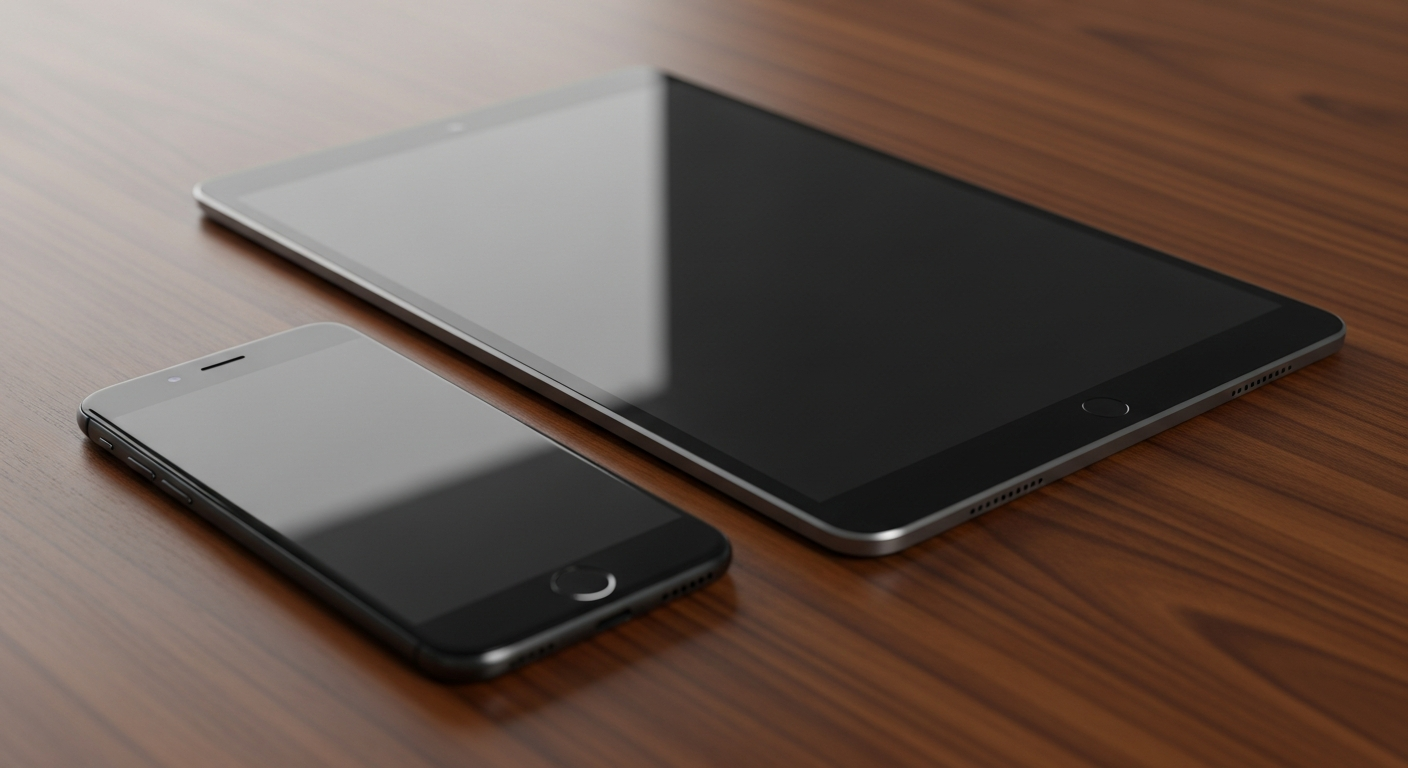
Smartphones and tablets can make daily life much easier and more connected. This guide will help seniors understand the basics of using these devices for common tasks.
1. What is a smartphone?
A smartphone is like a mini-computer you can hold in your hand. It lets you make calls, send messages, take photos, browse the internet, and use special programs called "apps" for many other things. Tablets are similar but usually have a larger screen, making them great for reading or watching videos.
2. How do I turn on/off a smartphone?
To turn it on, press and hold the power button, usually on the side or top, until the screen lights up. To turn it off, press and hold the same power button until you see an option to "Power Off" or "Shut Down" on the screen. Tap that option to confirm.
3. How do I make a phone call?
Tap the "Phone" app icon, which often looks like a telephone receiver. Then, tap the "Keypad" or "Dialer" icon, which looks like numbers. Type the phone number you want to call and tap the green "Call" button. To end a call, tap the red "End Call" button.
Smartphone
- Fits in pocket
- Primary for calls/texts
- Good for on-the-go
- Smaller screen
Tablet
- Larger screen
- Great for reading/videos
- Better for home use
- Less portable
4. How do I send a text message?
Tap the "Messages" app icon, which often looks like a speech bubble. Tap the "New Message" or "+" icon to start a new conversation. Type the person's name or phone number in the "To" field, then type your message in the "Text Message" box. Tap the "Send" button, usually an arrow, when you're done.
5. What are apps and how do I use them?
Apps are small programs that add extra features to your device, like games, weather forecasts, or banking tools. You can find and download new apps from the "App Store" (for iPhones/iPads) or "Play Store" (for Android devices). Tap an app icon on your screen to open and use it.
6. How do I adjust screen brightness and text size?
To change brightness, swipe down from the top of the screen to open quick settings, then drag the brightness slider. For text size, go to "Settings," then "Display" or "Accessibility." Look for "Font Size" or "Text Size" and adjust it to your preference. Making text larger can make reading much easier.
7. How do I connect to Wi-Fi?
Go to "Settings" and tap "Wi-Fi." Turn Wi-Fi "On" if it's not already. Your device will show a list of available networks. Tap the name of your home Wi-Fi network. If it asks for a password, type it in carefully and tap "Connect." This lets you use the internet without using your mobile data.
Connecting to Wi-Fi
8. How do I charge my phone?
Find the charging port on your device, usually at the bottom. Plug the small end of your charging cable into this port. Plug the larger end of the cable into the wall adapter, then plug the adapter into a wall outlet. You'll see a charging indicator on your screen, often a battery icon with a lightning bolt.
9. What are common accessibility settings?
Accessibility settings are designed to make your device easier to use. In "Settings," look for "Accessibility." Here you can find options like "Magnification" to zoom in on the screen, "TalkBack" or "VoiceOver" to read text aloud, and "Color Correction" for better visibility. Explore these to find what helps you most.
10. Where can I get help if I'm stuck?
Don't hesitate to ask for help! Family members, friends, or local community centers often have tech-savvy individuals willing to assist. Many phone stores offer basic support, and there are online video tutorials that can guide you step-by-step. Practice makes perfect, and it's okay to take your time learning.