
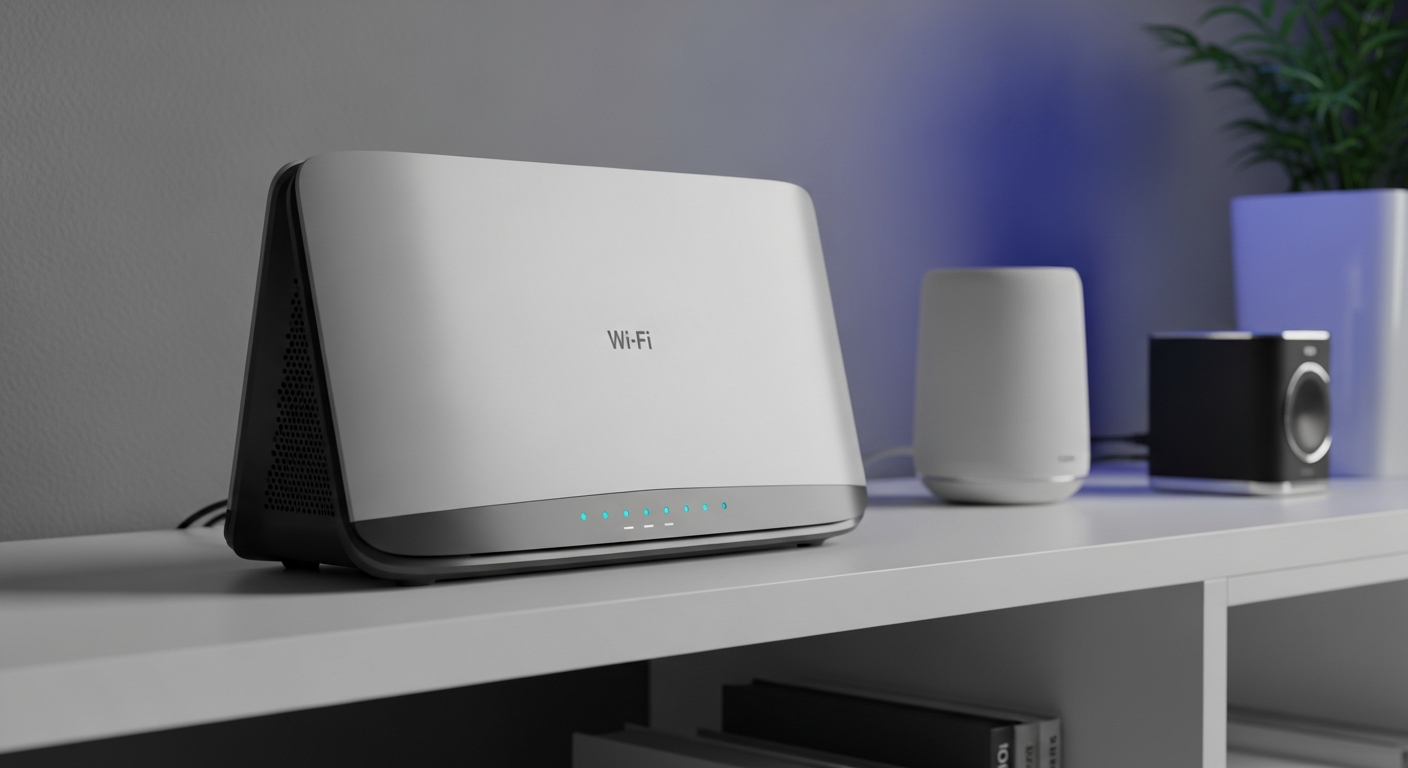
Your home Wi-Fi network is the gateway to your digital life, connecting all your devices to the internet. Keeping it secure is crucial to protect your personal information and ensure your online safety.
1. Why is Wi-Fi security important?
Securing your Wi-Fi prevents strangers from using your internet connection without permission. This protects your personal data, like bank details or private photos, from being accessed. It also stops others from slowing down your internet or using your connection for illegal activities, which could be traced back to you.
2. What is a strong Wi-Fi password?
A strong Wi-Fi password is like a tough lock on your front door. It should be at least 12 characters long and mix uppercase letters, lowercase letters, numbers, and symbols. Avoid using easy-to-guess information like your name, birthday, or common words. Make it unique and hard to predict.
3. How do I change my Wi-Fi password?
To change your Wi-Fi password, you usually need to access your router's settings. Open a web browser and type your router's IP address (often 192.168.1.1 or 192.168.0.1) into the address bar. Log in with the administrator username and password (found on the router or in its manual). Then, navigate to the Wi-Fi or Wireless settings to change your password and save the changes.
Easy-to-Guess Password
- Short (e.g., 8 characters)
- Uses only lowercase letters or numbers
- Common words or personal info (e.g., "password123", "yourname")
- Predictable patterns (e.g., "12345678")
Strong Wi-Fi Password
- Long (12+ characters)
- Mix of uppercase, lowercase letters, numbers, symbols
- Random combination (e.g., "K!9p@sW0rD_2fG")
- Unique, not used anywhere else
4. What is WPA2/WPA3 encryption?
WPA2 and WPA3 are security standards that scramble your Wi-Fi data, making it unreadable to unauthorized users. WPA3 is the newest and strongest version, offering better protection against advanced hacking methods. Always choose WPA3 if your router supports it, otherwise, WPA2 is the next best option to keep your information private.
5. Should I hide my Wi-Fi network name (SSID)?
Hiding your Wi-Fi network name, also known as its SSID, means it won't appear in the list of available networks. While it might deter very casual snoopers, it offers minimal real security against determined attackers. It can also make it harder for you and your guests to connect legitimate devices. Focus on a strong password and WPA3/WPA2 encryption instead.
6. What is a guest Wi-Fi network?
A guest Wi-Fi network is a separate, isolated Wi-Fi connection that your router can create specifically for visitors. It allows your guests to access the internet without giving them access to your main network, where your personal computers, smart devices, and files are stored. This adds an extra layer of security for your home.
7. How do I know if someone is using my Wi-Fi?
You can check your router's settings page for a list of connected devices; look for any unfamiliar names. Another sign might be unusually slow internet speeds, especially when no one in your home is actively using a lot of bandwidth. Some routers also have apps that show connected devices, making it easier to monitor.
Signs Your Wi-Fi Might Be Compromised
Your internet speed is much slower than usual, even when no one is actively using it heavily.
You see unknown devices connected to your network in your router's settings.
Your smart devices (cameras, lights) act strangely without your input.
Your router's activity lights are constantly flashing, even when no one is using the internet.
8. What is a firewall and do I need one?
A firewall acts like a digital security guard, controlling what information can enter and leave your network. It blocks unwanted traffic and potential threats. Your home router usually has a built-in firewall, and your computer's operating system also includes one. Yes, you absolutely need both to protect your devices and data.
9. Should I disable WPS?
WPS, or Wi-Fi Protected Setup, is a feature designed to make connecting new devices easier, often with a simple button press or an 8-digit PIN. However, the PIN method has known security weaknesses that make it vulnerable to hacking. It's generally recommended to disable WPS in your router's settings for better overall network security.
10. What are the risks of an unsecured network?
An unsecured Wi-Fi network leaves you exposed to several dangers. Strangers could steal your personal data, infect your devices with malware, or use your internet connection for illegal activities that could be traced back to you. It also allows them to access your smart home devices, potentially compromising your privacy and safety.