
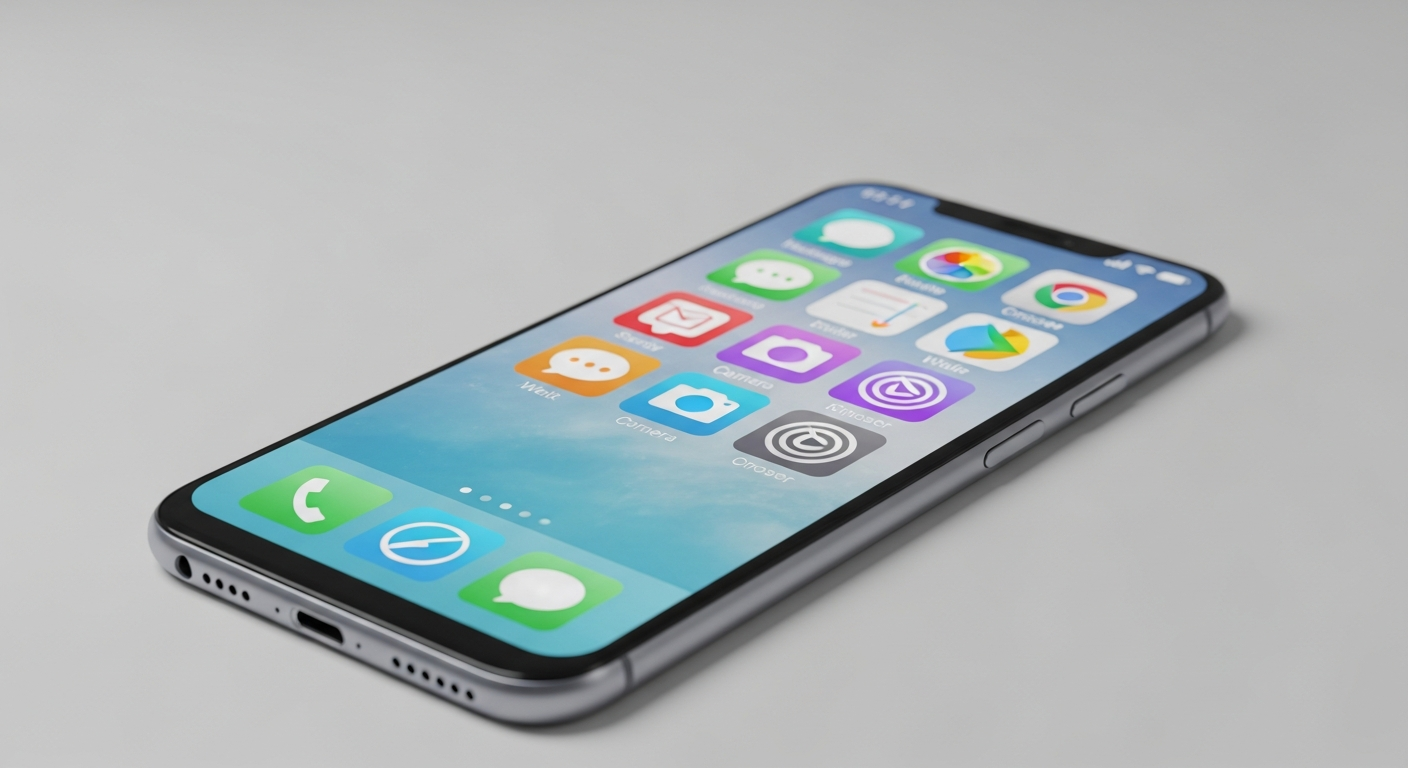
Welcome to the world of smartphone apps! This guide will help you understand how to safely download, use, and manage applications on your phone, even if you're new to technology.
1. Where do I download new apps from?
You should always download apps from your phone's official app store. For Android phones, this is the Google Play Store. For iPhones, it's the Apple App Store. These stores have security checks in place to help ensure apps are safe.
Avoid downloading apps from websites or unofficial stores, as these sources often lack security screening and can contain harmful software. Sticking to the official stores is your best defense against unsafe apps.
2. How can I tell if an app is safe to download?
Before downloading, check a few things. Look at the app's reviews and ratings – many low ratings or complaints about privacy are red flags. See who the developer is; reputable companies usually have many apps and a clear online presence.
Also, look at the number of downloads; popular apps from well-known developers are generally safer. Finally, read the app description carefully to ensure it does what it claims and doesn't promise anything suspicious.
3. What do app permissions mean and should I grant them?
App permissions are requests for access to features on your phone, like your camera, microphone, contacts, or location. An app needs these permissions to function properly; for example, a camera app needs access to your camera.
You should only grant permissions that make sense for the app's purpose. A flashlight app doesn't need access to your contacts. Review permissions carefully when an app asks, and deny any that seem unnecessary or intrusive.
Safe App Permissions
- Camera app needs Camera access
- Map app needs Location access
- Messaging app needs Contacts access
- Music app needs Storage access
Suspicious App Permissions
- Flashlight app asks for Contacts
- Game app asks for Microphone
- Calculator app asks for Location
- Weather app asks for Camera
4. How do I update my apps?
Apps are updated regularly to fix bugs, add new features, and improve security. You can usually set your phone to update apps automatically through your app store settings. This is the easiest way to keep your apps current.
If you prefer to update manually, you can visit your app store, go to your "Apps" or "Updates" section, and tap "Update All" or select specific apps to update. Always update apps when new versions are available to ensure the best performance and security.
5. How do I delete an app from my phone?
Deleting an app, also known as uninstalling, is simple. On most phones, you can press and hold the app icon on your home screen or app drawer. An option to "Remove App," "Uninstall," or a small "X" will appear.
Tapping this option will remove the app from your phone. You can also go into your phone's "Settings," find "Apps" or "Applications," select the app you want to remove, and choose "Uninstall."
6. Can apps track my location or data?
Yes, many apps can track your location or collect data, but usually only if you've granted them permission to do so. This data can include your location, usage patterns, or even information from your contacts.
You can review and change these permissions at any time in your phone's "Settings" under "Apps" or "Privacy." It's a good practice to regularly check which apps have access to your sensitive information and revoke access for those that don't need it.
7. What are in-app purchases and how do they work?
In-app purchases are extra items or features you can buy within an app, like new game levels, virtual currency, or premium subscriptions. These purchases use your app store account and are usually charged to the payment method linked to it.
Your phone's app store settings allow you to require a password or fingerprint for every in-app purchase, or even disable them entirely. This is especially useful to prevent accidental purchases or unauthorized spending by children.
Understanding In-App Purchases
8. How do I stop apps from running in the background?
Apps running in the background can use battery and data. To manage this, go to your phone's "Settings," then "Apps" or "Battery." You can usually see which apps are using battery in the background.
Many phones allow you to restrict background activity for specific apps. For example, you can choose to "Force Stop" an app (which closes it completely until you reopen it) or adjust its background data usage. Some apps need to run in the background to send notifications, like messaging apps.
9. Can I restrict app usage for my kids?
Yes, both Android and iPhone devices offer robust parental control features. These allow you to set time limits for app usage, block certain apps, prevent in-app purchases, and filter content.
On iPhones, look for "Screen Time" in Settings. On Android, you can use "Digital Wellbeing & parental controls" or set up a "Family Link" account. These tools are essential for managing your children's digital experience safely.
10. What if an app crashes frequently?
If an app keeps crashing, try these troubleshooting steps. First, restart your phone; this often resolves temporary glitches. Second, check if there's an update available for the app in your app store; updates frequently fix bugs.
If it still crashes, try clearing the app's cache (temporary files) in your phone's "Settings" under "Apps." If all else fails, uninstall the app and then reinstall it from the official app store. This often resolves persistent issues.