
How Can I Set Up Parental Controls on My Home Wi-Fi?
Worried about what your kids see online or how much time they spend on the internet? Setting up parental controls on your home Wi-Fi can help you manage their online experience.
1. What are parental controls for Wi-Fi?
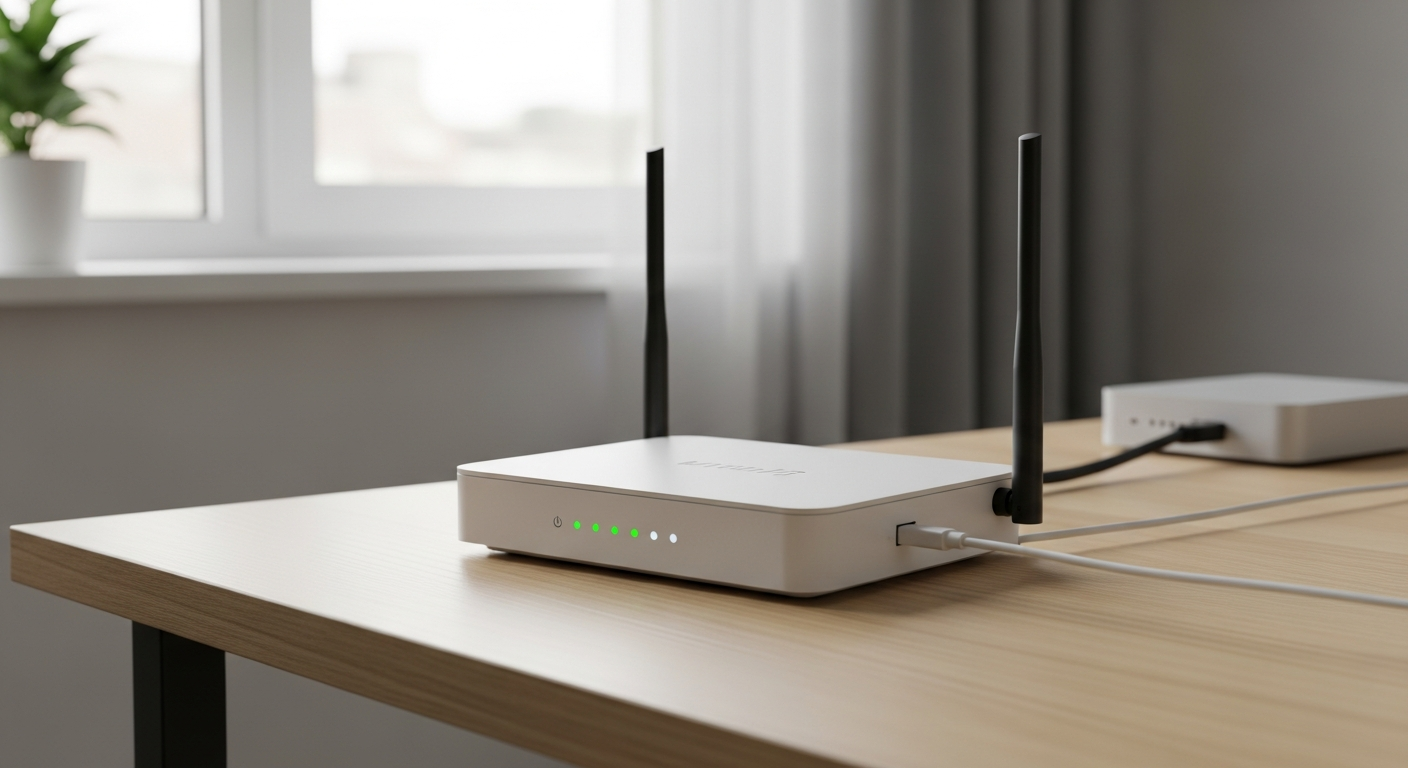
Parental controls for Wi-Fi are tools that let you manage and restrict how devices connected to your home internet can access the web. Think of them as a digital gatekeeper for your family's online activity, right from your main internet box (router).
These controls allow you to block certain websites, limit internet time, or even pause the internet for specific devices. They help create a safer online environment for everyone in your household.
2. Why should I use parental controls?
Using parental controls helps protect your family from inappropriate content, online dangers, and excessive screen time. It gives you peace of mind knowing you have some control over what your children encounter online.
They can also help promote healthier digital habits by setting boundaries for internet use. This can prevent arguments about screen time and ensure homework gets done without internet distractions.
3. How do I access my router's settings?
To access your router's settings, you usually open a web browser (like Chrome or Safari) and type in a special address, often "192.168.1.1" or "192.168.0.1". This address is like a secret doorway to your router's control panel.
You'll then need a username and password. These are often printed on a sticker on the router itself, or you can find them in your router's manual. If you changed them and forgot, you might need to reset your router.
Router-Based Controls
- Managed directly from your Wi-Fi router.
- Applies to ALL devices connected to your Wi-Fi.
- No extra apps needed on individual devices.
- Can be harder to set up for beginners.
App-Based Controls
- Managed through a separate app or service.
- Often requires installing software on devices.
- Can offer more detailed device-specific settings.
- May require subscriptions or ongoing costs.
4. Can I block specific websites on my Wi-Fi?
Yes, many routers allow you to block specific websites. Look for a section in your router's settings called "Parental Controls," "Access Restrictions," or "Security." Here, you can usually add website addresses (URLs) to a "blacklist" to prevent access.
Keep in mind that blocking specific sites can be a bit of a cat-and-mouse game, as new sites pop up constantly. Content filtering (explained later) offers a broader approach.
5. How do I set time limits for internet access?
Most routers with parental controls offer a "scheduling" feature. This allows you to set specific hours during the day or week when certain devices can or cannot access the internet. For example, you can block internet access after bedtime.
You usually select the device (by its name or a unique number called a MAC address) and then draw out the allowed times on a grid. This is great for enforcing screen time rules.
6. Can I pause the internet for certain devices?
Absolutely! Many modern routers and dedicated parental control apps include a "pause" or "instant block" feature. This lets you temporarily cut off internet access for a specific device with just a tap or click.
This is super handy for getting kids to the dinner table, focusing on homework, or ensuring they get enough sleep. The internet can be unpaused just as easily when it's time.
7. What is content filtering?
Content filtering is a more advanced way to block entire categories of websites, rather than just individual ones. Instead of blocking "badsite.com," you can block all sites related to "gambling" or "adult content."
Your router or a parental control service uses a database to identify and block websites based on their content. This offers broader protection and is often more effective than manually blocking sites one by one.
Simple Content Filtering Flow
1. Device Requests Website
Your child's tablet tries to visit a website.2. Router Checks Rules
Your Wi-Fi router intercepts the request.3. Parental Controls Applied
Router checks if the site is blocked by category or schedule.4. Is Site Allowed?
5. Access Granted
Website loads on the device.6. Access Denied
Website is blocked, device sees an error.8. Are there apps for Wi-Fi parental controls?
Yes, many router brands now offer companion apps that make managing parental controls much easier. Instead of logging into a complex web page, you can often control settings from your smartphone.
There are also third-party apps and services that integrate with your router or act as a separate layer of control. These often provide more features, like detailed usage reports or location tracking, but might require a subscription.
9. What are DNS-based parental controls?
DNS-based parental controls work by changing your router's "phone book" for the internet. When you type a website name, your computer asks a DNS server for its numerical address. DNS parental controls use special servers that filter out inappropriate sites before your computer even tries to visit them.
This is a powerful and often free way to block broad categories of content across all devices on your network. Services like OpenDNS FamilyShield are popular examples.
10. How do I make sure parental controls are working?
The best way to check is to test them yourself! Use a device that should be affected by the controls (like your child's tablet). Try to visit a blocked website, access the internet during a restricted time, or pause the internet for that device.
If the controls are working, the device should be unable to access the blocked content or internet. Regularly review your settings, as kids can be clever at finding workarounds!