
Having your internet suddenly stop working can be really frustrating! This guide will walk you through simple steps to troubleshoot common connection problems and get you back online.
1. Why do I have no internet connection?
Many things can cause your internet to stop working. It could be a simple issue like a loose cable, a temporary glitch with your modem or router, or a problem with your internet service provider (ISP). Sometimes, it's just your device having a small hiccup.
2. What's the first thing to check?
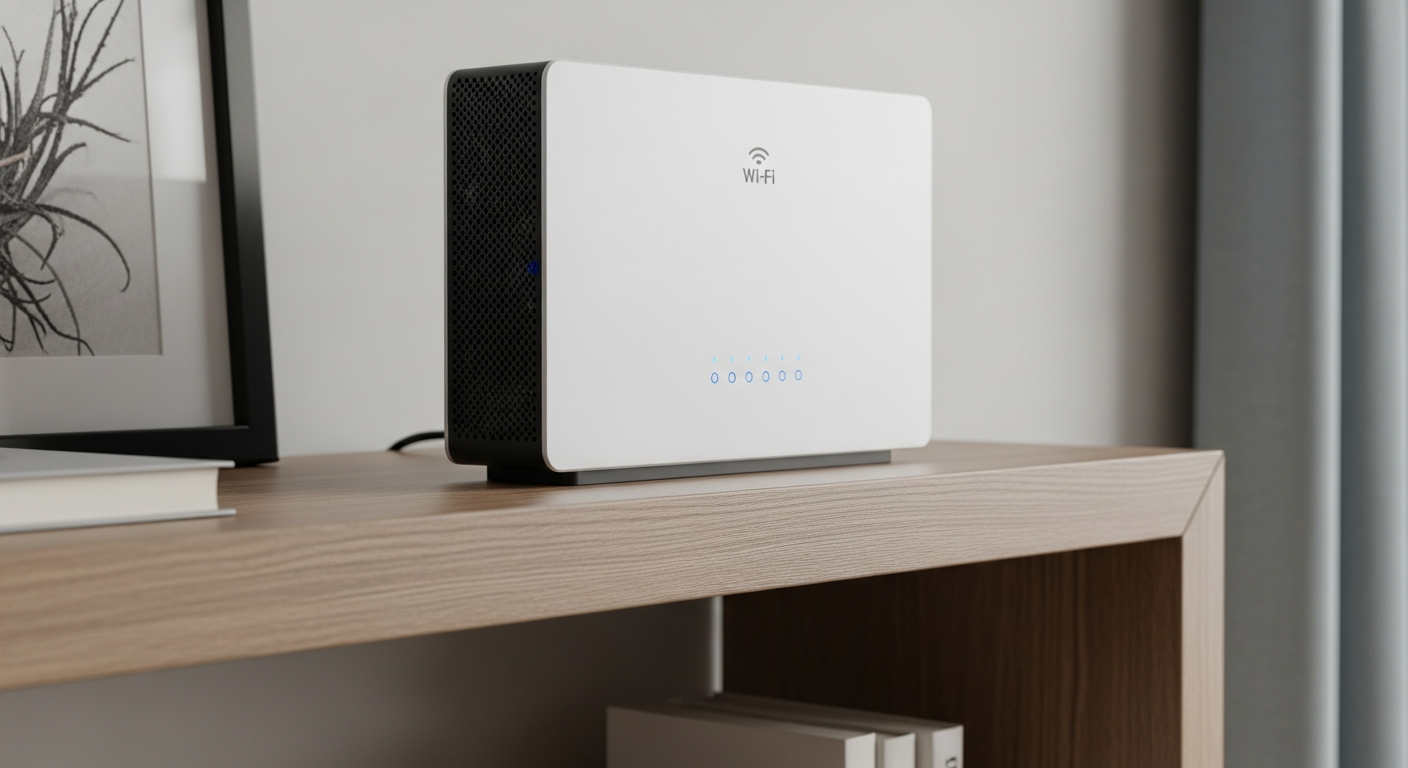
The very first thing to check is if your modem and router are properly plugged in and turned on. Look for indicator lights on them; they should be lit up. Also, quickly check if your Wi-Fi is turned on for your device, like your phone or laptop.
3. How do I restart my modem and router?
To restart, unplug the power cord from both your modem and your router. Wait about 30 seconds. Plug the modem back in first and wait for its lights to become stable (usually 1-2 minutes). Then, plug your router back in and wait for its lights to stabilize. This simple "power cycle" often fixes many issues.
Restarting Your Internet Gear
- Unplug Modem
- Unplug Router
- Wait 30 Seconds
- Plug in Modem
- Wait for Lights
- Plug in Router
- Wait for Lights
- Check Internet
4. Is it a problem with my device or the network?
Try connecting to the internet with another device, like a different phone or laptop. If other devices can connect, the problem is likely with your original device. If no devices can connect, the issue is probably with your network (your modem/router) or your internet service.
5. What do indicator lights on my modem/router mean?
Modem and router lights tell you their status. A solid green or blue light usually means everything is working correctly. A blinking light might mean activity or a connection attempt. Red or orange lights often signal a problem, like no internet connection or a service issue. Check your device's manual for exact meanings.
6. How do I check if my internet service is down?
You can use your phone's cellular data (if available) to visit your ISP's website or social media pages. They often post outage updates there. Websites like "DownDetector" also collect reports from users about service outages in specific areas. You can also call a friend or neighbor who uses the same ISP to see if their internet is working.
7. When should I contact my ISP?
You should contact your ISP (Internet Service Provider) if you've tried all the basic troubleshooting steps, like restarting your equipment and checking cables, and your internet is still not working. Also, contact them if their status page confirms an outage in your area or if your modem lights indicate a persistent problem.
When to Troubleshoot vs. Call ISP
Troubleshoot Yourself
- Loose cables
- Modem/router lights are off or red
- Only one device can't connect
- Just restarted equipment
Call Your ISP
- All devices can't connect
- ISP website reports outage
- Modem/router lights still problematic after restart
- No internet for hours/days
8. What is an IP address?
An IP address (Internet Protocol address) is like a unique street address for your device on the internet or your local network. It allows devices to find and communicate with each other. Your modem gets a public IP address from your ISP, and your router gives private IP addresses to your devices at home.
9. How do I reset network settings on my computer?
On Windows, go to Settings > Network & Internet > Advanced network settings > Network reset, then click "Reset now." On a Mac, go to System Settings > Network, select your Wi-Fi, click "Details," then "Forget This Network." This clears old network information that might be causing issues, but you'll need to reconnect to Wi-Fi afterwards.
10. Can a loose cable cause no internet?
Yes, absolutely! A loose or damaged Ethernet cable (the one that looks like a larger phone jack) connecting your modem to your router, or your computer to your router, can easily stop your internet connection. Make sure all cables are securely plugged into their ports. Sometimes, simply unplugging and replugging them can fix the issue.