
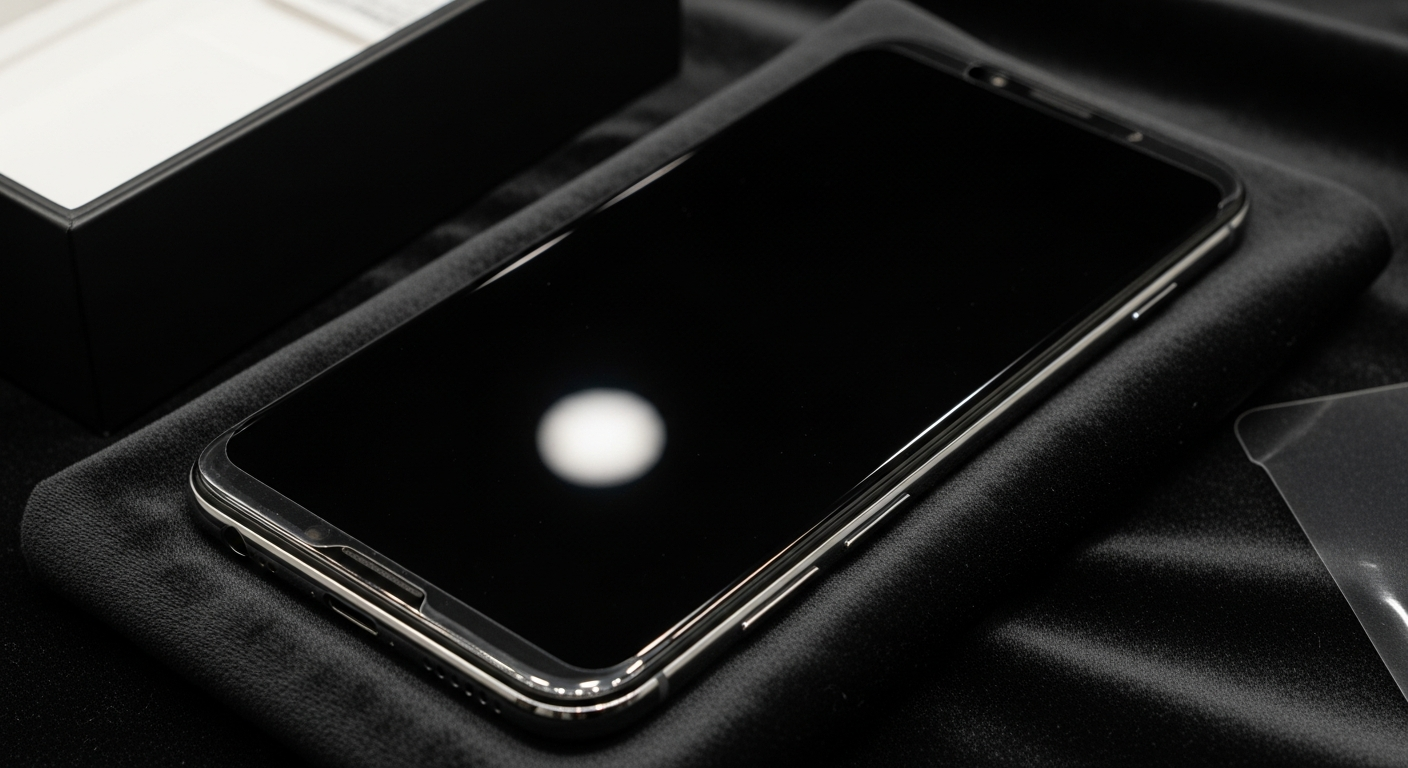
Getting a new smartphone is exciting! This guide will walk you through setting up your new device for the very first time, step by step, even if you're not tech-savvy.
1. What should I do before turning on my new phone?
Before you power on your new phone, make sure it's fully charged. Find your phone's charging cable and adapter, plug it into a wall outlet, and connect it to your phone. A full charge ensures you won't run out of battery during the setup process.
Also, locate your SIM card (if you have one) and the small tool that comes with your phone for opening the SIM tray. If you plan to transfer data, have your old phone nearby and charged as well.
2. How do I insert a SIM card?
A SIM card connects your phone to your mobile network, allowing calls, texts, and mobile internet. Look for a small tray on the side of your phone with a tiny hole. Use the special tool (or a straightened paperclip) to gently push into the hole until the tray pops out.
Place your SIM card onto the tray, making sure the cut corner aligns with the tray's shape. Gently slide the tray back into the phone until it clicks into place. Don't force it.
3. What is a Google or Apple ID and why do I need one?
A Google ID (for Android phones) or an Apple ID (for iPhones) is like your phone's master key. It's a free account that lets you download apps, back up your photos, access emails, and use many other features specific to your phone's brand.
You'll need to create one or sign in with an existing one during the initial setup. It's essential for personalizing your phone and making it truly yours. Keep your login details safe!
Google ID (Android)
- Access to Google Play Store for apps
- Gmail, Google Photos, Google Drive
- Device backup to Google Cloud
- Works across many Android devices
Apple ID (iPhone)
- Access to App Store for apps
- iCloud Mail, iCloud Photos, iCloud Drive
- Device backup to iCloud
- Works across Apple devices (iPhone, iPad, Mac)
4. How do I transfer data from my old phone?
Most new phones offer easy ways to transfer data like contacts, photos, and messages from an old phone. During setup, look for an option like "Transfer data" or "Restore from backup."
You might use a special cable, a wireless connection, or restore from a cloud backup (like Google Drive or iCloud). Follow the on-screen instructions carefully. It's usually a straightforward process.
5. Should I set up a screen lock immediately?
Yes, absolutely! Setting up a screen lock is crucial for your phone's security. It prevents unauthorized access to your personal information if your phone is lost or stolen.
You can choose from options like a PIN, pattern, password, fingerprint, or face recognition. Pick a method that is both secure and convenient for you to use regularly.
6. How do I connect to Wi-Fi during setup?
Connecting to Wi-Fi is important for downloading updates and apps without using your mobile data. During setup, your phone will usually show a list of available Wi-Fi networks.
Tap on your home Wi-Fi network's name. You'll then be prompted to enter its password, which is often found on a sticker on your Wi-Fi router. Once entered, your phone will connect.
7. What apps should I download first?
After initial setup, focus on essential apps. These often include your preferred messaging app (like WhatsApp or Messages), social media apps, banking apps, and any productivity tools you use daily.
You can find and download apps from the Google Play Store (Android) or the App Store (iPhone). Just search for the app by name and tap "Install" or "Get."
First Apps to Install
Messaging App
Stay connected with friends and family.
Social Media
Access your favorite platforms (e.g., Facebook, Instagram).
Banking App
Manage your finances securely on the go.
Navigation App
Get directions (e.g., Google Maps, Apple Maps).
8. How do I customize my home screen?
Your home screen is what you see when you unlock your phone. You can personalize it by changing the wallpaper, adding widgets (small interactive app displays), and arranging your app icons.
To change wallpaper, long-press an empty space on your home screen. To move an app, tap and hold its icon, then drag it to a new spot. Explore your phone's settings for more customization options.
9. What are notification settings?
Notification settings control how and when your apps alert you to new information. You can decide if an app can show messages on your screen, play a sound, or vibrate your phone.
Go to your phone's "Settings" menu, then look for "Notifications." Here, you can manage settings for each app individually, turning off alerts for less important apps to reduce distractions.
10. How do I check for software updates?
Software updates provide new features, improve performance, and fix security issues. It's important to keep your phone updated. To check, go to "Settings," then usually "System" or "About Phone," and look for "Software Update" or "System Update."
Your phone will then check if a new version of its operating system is available. If so, follow the prompts to download and install it. Make sure your phone is charged and connected to Wi-Fi before starting an update.