
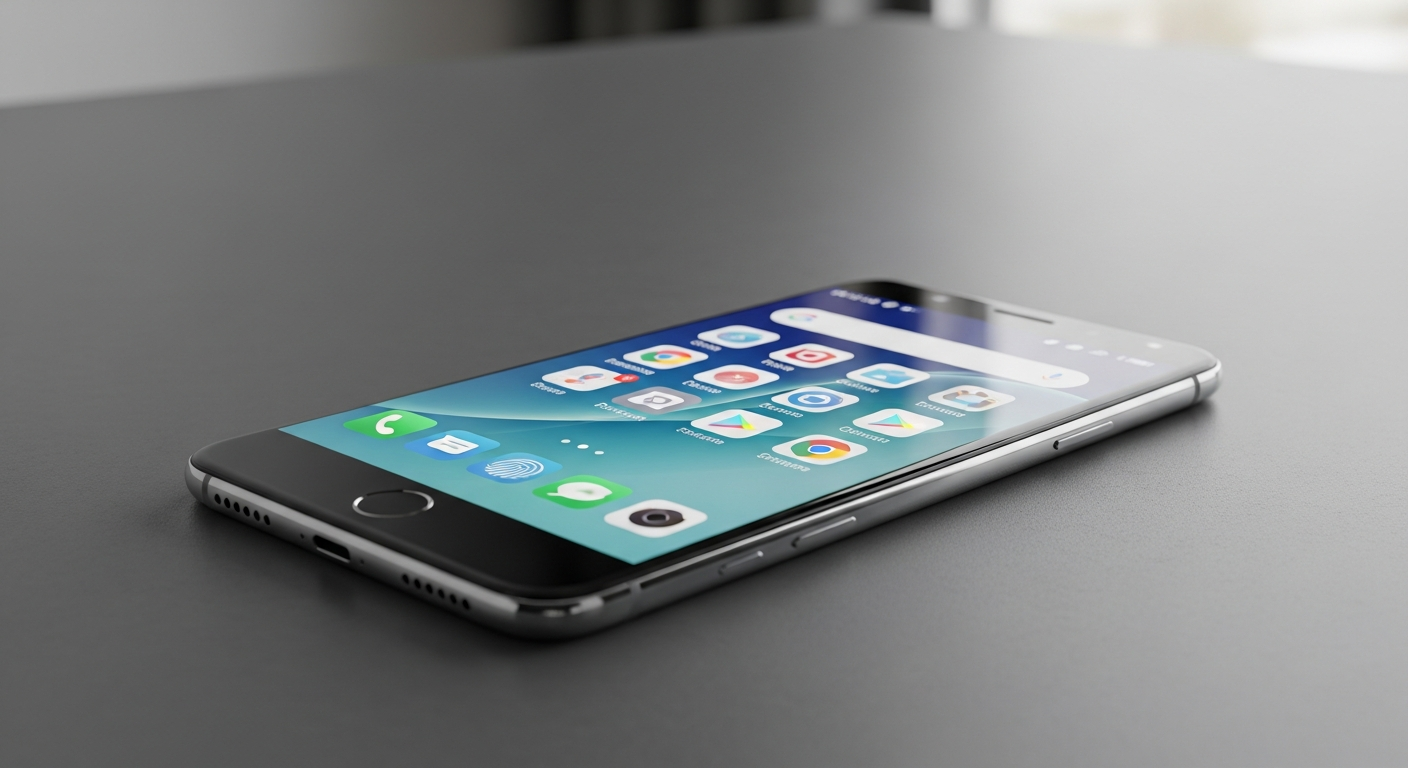
Getting a new smartphone is exciting! This guide will walk you through setting up your phone for the very first time, step-by-step, even if you've never done it before.
We'll cover everything from turning it on to understanding basic settings, making sure your new device is ready to use.
1. How do I turn on my new phone?
First, make sure your phone has some battery charge. If not, plug it into a power outlet using the charger that came in the box. Look for the power button, usually on the side or top edge of the phone. Press and hold this button for a few seconds until the screen lights up and you see a logo, like an Apple or Android symbol.
2. What's a SIM card and how do I insert it?
A SIM card is a small chip from your phone company that connects your phone to their network for calls, texts, and mobile internet. Your phone usually comes with a small tool (a paperclip-like pin) to open the SIM tray. Find a tiny hole on the side of your phone, insert the tool, and the tray will pop out. Place your SIM card in the tray, matching the cut corner, and push the tray back in gently.
3. How do I connect to Wi-Fi during setup?
After turning on your phone, it will likely ask you to choose a language and then connect to Wi-Fi. Wi-Fi lets your phone use the internet without using your mobile data. Find your home Wi-Fi network name (SSID) from the list, tap it, and then enter your Wi-Fi password. This password is usually found on a sticker on your internet router.
Wi-Fi
- Uses your home internet connection
- No extra cost (if you already have home internet)
- Faster speeds indoors
- Good for large downloads and streaming
Mobile Data
- Uses your phone company's network
- Costs money (part of your phone plan)
- Available almost anywhere you have signal
- Good for on-the-go browsing and maps
4. What's a Google Account or Apple ID and why do I need one?
This is your main account for your phone. If you have an Android phone, you'll need a Google Account. If you have an iPhone, you'll need an Apple ID. These accounts let you download apps, back up your phone, sync contacts, and access services like email. If you don't have one, the setup process will guide you to create one for free.
5. How do I transfer contacts from my old phone?
There are a few ways. If your old phone was also a smartphone, you can often transfer contacts using your Google Account or Apple ID by signing in on your new phone. Some phones also offer a direct transfer tool during setup, or you can use a special app. If your old phone was very basic, you might need to manually enter contacts or transfer them via SIM card.
6. What initial settings should I check?
During setup, you'll be asked about privacy settings, like location services and sending usage data. It's a good idea to review these carefully and only allow what you're comfortable with. You'll also set up your screen lock (PIN, pattern, or fingerprint) and choose a wallpaper. Don't worry, you can change all these later.
7. How do I choose a strong password or PIN?
A strong password or PIN protects your phone from unauthorized access. For a PIN, use at least 6 digits and avoid simple sequences like "123456" or your birthday. For a password, mix uppercase and lowercase letters, numbers, and symbols. The longer and more complex, the better. Consider using a fingerprint or face unlock for convenience, but always have a strong PIN or password as a backup.
Setting Up Your Phone Security
8. What are app permissions and should I allow them?
App permissions are requests from apps to access certain features on your phone, like your camera, microphone, location, or contacts. For example, a map app needs location access. Only grant permissions that make sense for what the app does. If a flashlight app asks for your contacts, that's a red flag. You can always change permissions later in your phone's settings.
9. How do I update the software on my new phone?
Software updates provide new features and important security fixes. Your phone will usually notify you when an update is available. It's best to install these updates over Wi-Fi when your phone is charged, as they can be large and take some time. You can usually find the "Software Update" option in your phone's main settings menu.
10. What's the difference between Android and iOS?
Android (made by Google) and iOS (made by Apple) are the two main operating systems that run smartphones. Think of them as the "brains" of your phone. Android offers more customization and is found on many different phone brands (Samsung, Google Pixel, etc.). iOS is exclusive to iPhones and is known for its simplicity and strong integration with other Apple products. Both are great, just different!