
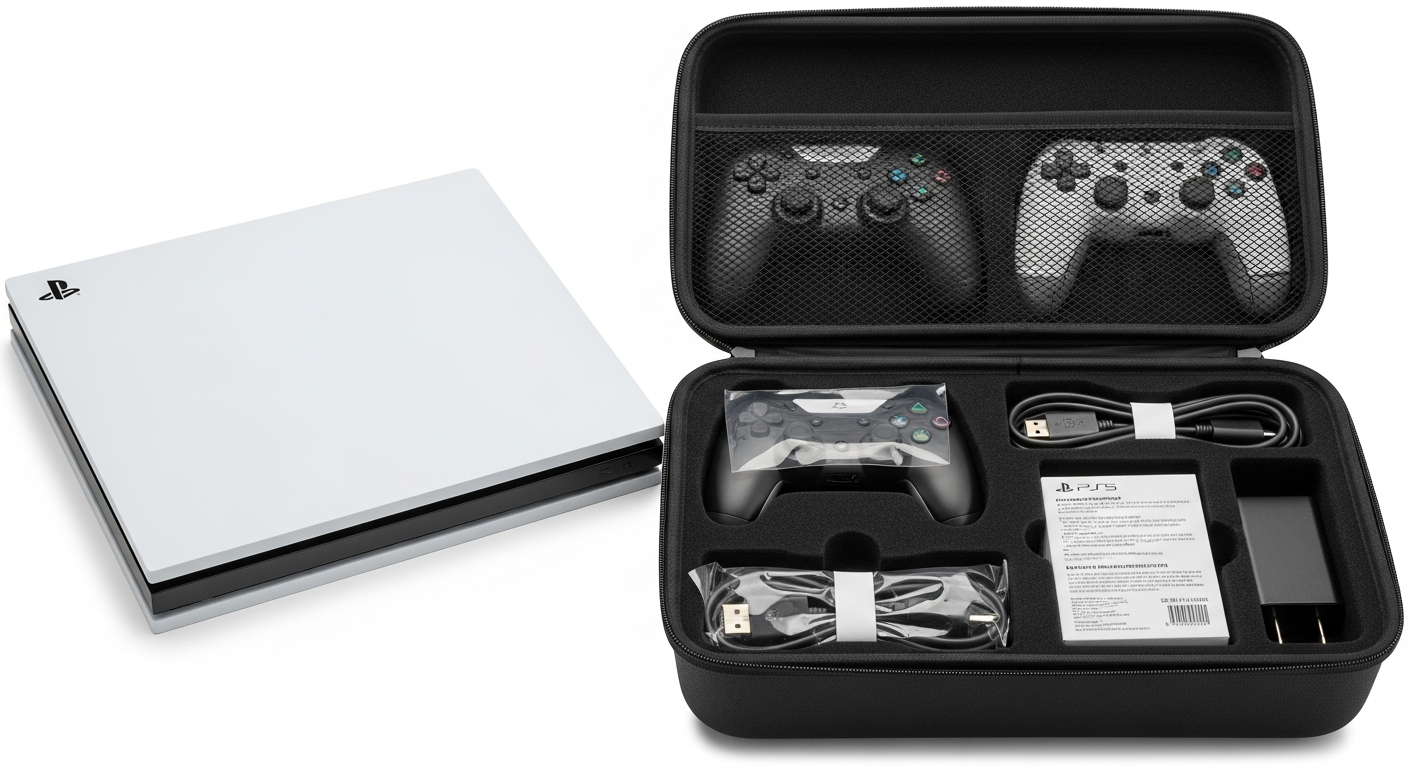
Congratulations on your new gaming console! Getting started might seem a little tricky, but this guide will walk you through every step, from unboxing to playing your first game.
We'll cover everything you need to know to set up your console and dive into the exciting world of gaming.
1. How do I unbox and connect my new console to my TV?
First, carefully remove your console and all accessories from the box. Find a flat, stable surface near your TV with access to a power outlet. Connect one end of the HDMI cable to the "HDMI Out" port on your console and the other end to an "HDMI In" port on your TV. Then, plug the power cable into your console and the other end into a wall outlet.
2. What cables do I need to connect my console?
You primarily need two cables: an HDMI cable and a power cable. The HDMI cable sends video and audio from your console to your TV. The power cable supplies electricity to your console. If you plan to connect directly to the internet, you might also use an Ethernet cable.
3. How do I connect my console to the internet (Wi-Fi or Ethernet)?
After turning on your console, go to the "Settings" menu, then look for "Network" or "Internet Settings." For Wi-Fi, select your home network from the list and enter your password. For an Ethernet connection, plug an Ethernet cable from your internet router directly into the "Ethernet" port on your console. The console should then connect automatically.
Wi-Fi Connection
- Wireless convenience
- Easy setup anywhere in range
- Can be slower or less stable
Ethernet Connection
- Faster, more stable internet
- Better for competitive gaming
- Requires a cable to your router
4. How do I create an account on my console?
Your console will likely prompt you to create an account during the initial setup. This account is essential for downloading games, playing online, and saving your progress. You'll need to provide an email address, create a username, and set a password. Follow the on-screen instructions, which usually involve agreeing to terms and conditions.
5. How do I download or install my first game?
If you have a physical game disc, insert it into the console's disc drive, and the installation will usually start automatically. For digital games, navigate to the console's online store (e.g., PlayStation Store, Xbox Store, Nintendo eShop). Search for a game, select it, and choose "Download" or "Purchase." The game will then download and install onto your console's storage.
6. What are the basic functions of my gaming controller?
A gaming controller typically has two joysticks for movement and camera control, a directional pad (D-pad) for menu navigation, and several face buttons (often labeled with symbols or letters) for actions like jumping or attacking. There are also "shoulder" buttons and "triggers" on top for additional actions. You'll learn specific button uses as you play different games.
7. How do I keep my console software updated?
Console manufacturers regularly release software updates to improve performance, add features, and fix issues. Your console will usually notify you when an update is available and often downloads them automatically in the background. You can also manually check for updates in the "Settings" menu, usually under "System" or "Software Update." Always install updates to ensure the best gaming experience.
Keeping Your Console Updated
- Console Notifies You
- Update Downloads Automatically
- Install Update (Restart Console)
- Enjoy Latest Features & Fixes
8. How do I troubleshoot common setup issues?
If you have no picture on your TV, ensure all HDMI and power cables are securely plugged in. Check your TV's input source to make sure it's set to the correct HDMI port. If your internet isn't connecting, try restarting your home router and modem. For other issues, consult your console's official support website or user manual.
9. Where can I find new games to play?
The primary place to find new games is your console's digital store, accessible directly from your console. You can also buy physical game discs from electronics stores or online retailers. Many consoles also offer subscription services (like Xbox Game Pass or PlayStation Plus) that give you access to a large library of games for a monthly fee.
10. What are some essential first steps for safe gaming?
Always take breaks during long gaming sessions to rest your eyes and stretch. Be mindful of your online interactions; never share personal information with strangers. If you're playing online, use strong, unique passwords for your accounts. Consider setting up parental controls if children will be using the console to manage screen time and content access.