
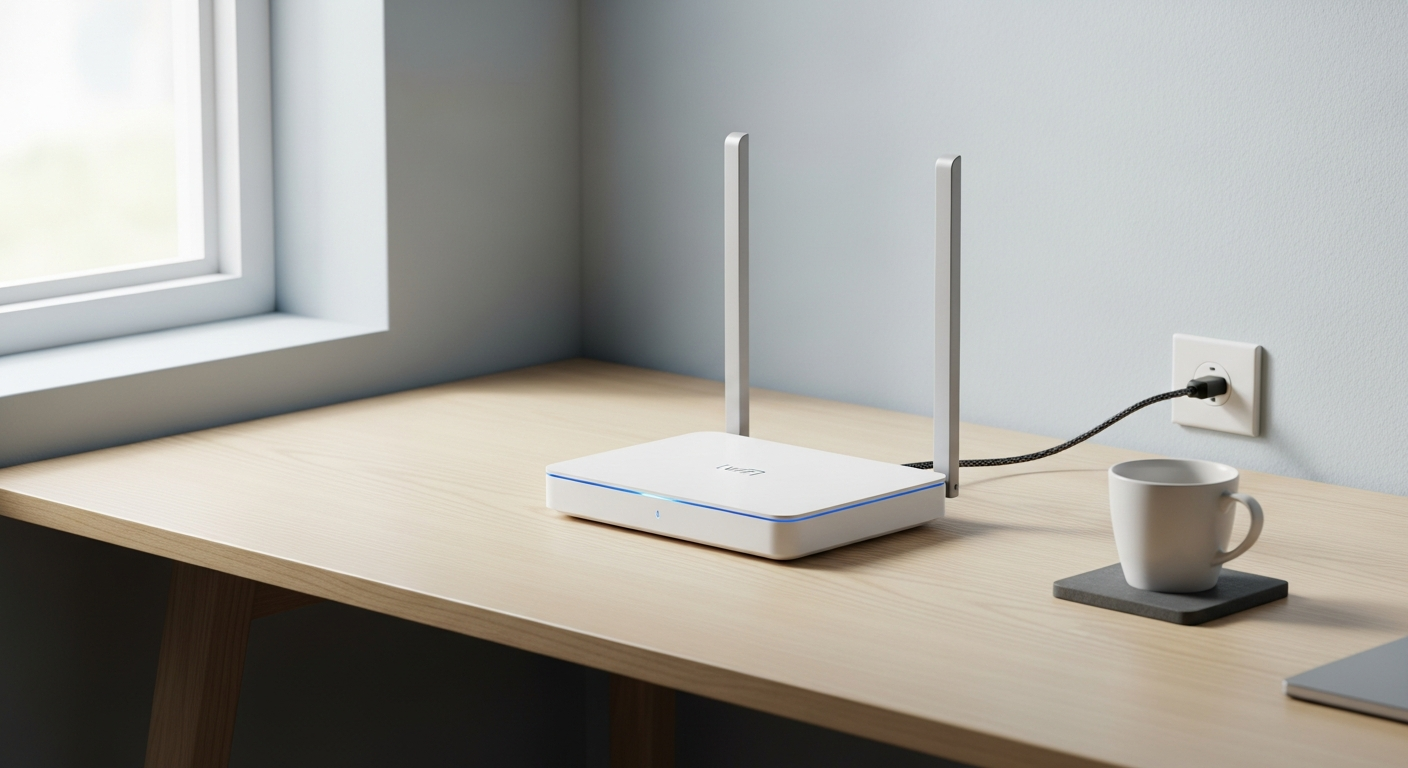
Having trouble getting your device online? It can be frustrating when your WiFi won't connect, but many common issues have simple fixes.
This guide will walk you through easy troubleshooting steps to get you back online quickly, even if you're not tech-savvy.
1. Why won't my device connect to WiFi?
Your device might not connect to WiFi for several reasons. It could be a simple glitch with your device or router, an incorrect password, or a problem with your internet service itself. Sometimes, settings on your device or router might be preventing the connection.
2. What's the first thing to check when WiFi isn't connecting?
The very first step is to restart your device and your WiFi router. Turn off your phone, tablet, or computer, then unplug your router and modem from the power outlet. Wait about 30 seconds, then plug them back in. Wait a few minutes for them to fully start up before trying to connect again.
3. How do I find my WiFi password?
Your WiFi password, also called a network key or security key, is often printed on a sticker on the bottom or side of your WiFi router. If you've changed it and forgotten, you might find it saved on a device that's already connected, or you'll need to reset your router to its factory settings (which will revert the password to the one on the sticker).
Restart Your Device
- Quick fix for temporary glitches.
- Refreshes your device's network connection.
- Doesn't affect settings or data.
Restart Your Router
- Clears router memory and resolves bugs.
- Re-establishes connection with your internet provider.
- Essential for many connection problems.
4. What does "authenticating problem" mean when connecting to WiFi?
An "authenticating problem" usually means your device is trying to connect to the WiFi network but can't confirm your identity. This is most often caused by typing in the wrong WiFi password. Double-check your password carefully, paying attention to capital letters and numbers. Sometimes, a temporary glitch with the router can also cause this, so restarting it can help.
5. Why can my phone connect but my laptop can't?
If one device connects but another doesn't, the problem is likely with the non-connecting device itself. Its WiFi adapter might be turned off, its network settings could be corrupted, or its drivers might be outdated. Try restarting the laptop, forgetting the network and re-adding it, or checking for driver updates.
6. How do I reset my network settings on my device?
Resetting network settings clears all saved WiFi passwords, Bluetooth connections, and VPN settings on your device. On Android, go to Settings > System > Reset options > Reset Wi-Fi, mobile & Bluetooth. On iPhone, go to Settings > General > Transfer or Reset iPhone > Reset > Reset Network Settings. On Windows, go to Settings > Network & internet > Advanced network settings > Network reset.
7. What if my WiFi network doesn't show up at all?
If your WiFi network doesn't appear in the list of available networks, first ensure your router is powered on and its WiFi light is lit. Your device's WiFi might be off, or you might be too far from the router. Sometimes, the router's WiFi signal might be hidden, or there could be an issue with the router itself, requiring a restart.
WiFi Troubleshooting Flow
8. Could my router be broken if nothing connects?
Yes, if you've tried all basic troubleshooting steps and no device can connect to your WiFi, your router might be faulty. Look for unusual lights (or no lights) on the router. Before assuming it's broken, try connecting a computer directly to the router with an Ethernet cable to see if you get internet. If not, it points to a router or modem issue.
9. What is MAC address filtering and how does it affect connection?
MAC address filtering is a security feature on some routers that only allows specific devices to connect to the WiFi network. Each device has a unique MAC address, like a digital fingerprint. If your router has this feature enabled and your device's MAC address isn't on the approved list, it won't be able to connect, even with the correct password. You would need to access your router settings to add your device's MAC address or disable this feature.
10. When should I contact my internet provider for connection issues?
You should contact your internet provider (ISP) if you've tried restarting your device and router, checked your password, reset network settings, and still can't get online. Also, contact them if your internet service is completely out, even when connected directly to the modem, or if your router lights indicate a problem with the internet connection itself. They can check for outages or issues with your service line.