
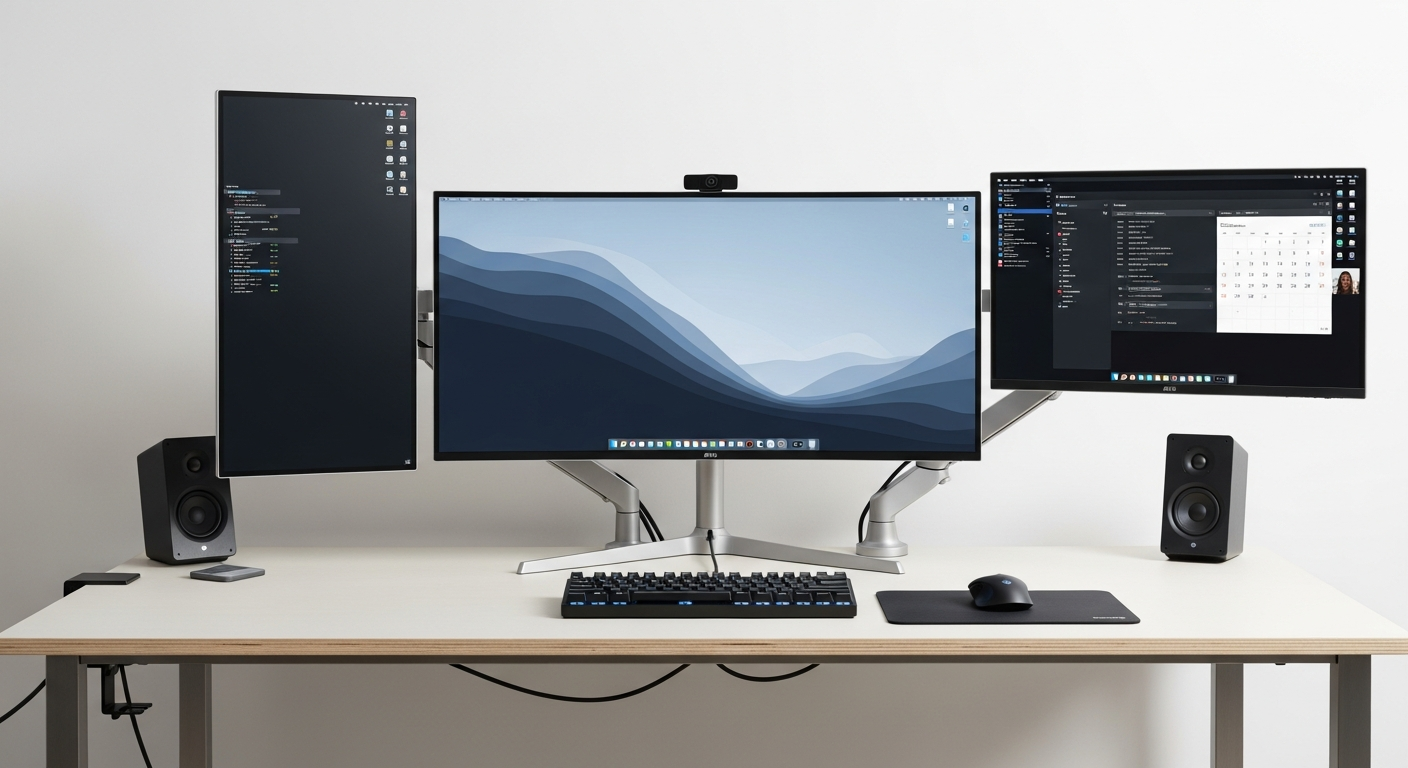
Choosing a computer monitor can feel overwhelming with all the technical terms. Don't worry, we'll break down everything you need to know in plain language, helping you pick the perfect screen for your needs.
Think of this guide as your friendly helper, explaining monitors from scratch so you can make a smart choice without any tech headaches.
Choosing Your First Monitor: A Simple Path
1. What monitor size should I get?
Monitor size is measured diagonally, like a TV. For most everyday tasks and smaller desks, a 24-inch screen is a great starting point. It's comfortable to view without turning your head too much.
If you have more desk space and want to see more at once, 27 inches is very popular. For big desks or if you really want to immerse yourself in movies or games, 32 inches or larger can be fantastic. Just make sure your desk can fit it!
2. What is 4K and do I need it?
4K refers to a very high screen resolution, meaning the picture has many more tiny dots (pixels) than standard screens. This makes images and text look incredibly sharp and detailed, like a super clear photograph.
You'll notice the difference most on larger monitors (27 inches and up) or if you do detailed work like photo editing. For general web browsing or basic tasks on a smaller screen, 4K isn't essential and can be more expensive. A good 1080p or 1440p monitor is often perfectly fine.
3. What is the difference between IPS, VA and TN panels?
These are different types of screen technology, each with pros and cons. Think of them like different kinds of paint for a picture.
IPS (In-Plane Switching) panels offer the best colors and viewing angles, meaning the picture looks great even if you're not sitting directly in front. They're excellent for creative work and watching movies. VA (Vertical Alignment) panels have very good contrast, making blacks look deeper, which is great for movies and some games. TN (Twisted Nematic) panels are the fastest, making them ideal for competitive gaming, but their colors and viewing angles aren't as good.
Monitor Panel Types: Quick Comparison
4. How much should I spend on a monitor?
You can find a decent 24-inch monitor for basic use starting around $100-$150. For a good 27-inch monitor with better resolution and colors (like 1440p IPS), expect to pay $200-$400. High-end monitors for gaming or professional creative work (4K, high refresh rate) can cost $400 or more.
Don't feel pressured to buy the most expensive one. For most people, a mid-range monitor offers the best value and performance for everyday tasks.
5. Is curved better than flat?
Curved monitors are designed to wrap slightly around your field of vision, making the picture feel more immersive. This can be especially nice for very wide screens, as it helps reduce eye strain by keeping all parts of the screen equidistant from your eyes.
For standard-sized monitors (under 30 inches), a flat screen is usually perfectly fine and often more affordable. Curved screens are mainly beneficial for gaming, movies, or productivity on large ultrawide displays.
6. What is refresh rate and does it matter?
Refresh rate is how many times your screen updates the image per second, measured in Hertz (Hz). A standard monitor is 60Hz, meaning it updates 60 times a second. Think of it like flipping through a comic book – a higher refresh rate means the pages turn faster, making motion look much smoother.
For everyday tasks like browsing or work, 60Hz is perfectly adequate. However, for gaming, a higher refresh rate (like 120Hz, 144Hz, or even 240Hz) makes a huge difference, making fast-paced action look incredibly fluid and responsive. For general use, 75Hz or 100Hz can offer a noticeable smoothness upgrade over 60Hz without a huge cost.
7. Can I use a TV as a computer monitor?
Yes, you can connect your computer to a TV, usually with an HDMI cable. However, TVs are generally not ideal for close-up computer work. They often have "input lag" (a slight delay between your mouse movement and what you see) and their screens aren't designed for sharp text clarity like monitors.
TVs are great for watching movies or playing games from a distance on a big screen, but for reading, writing, or precise tasks, a dedicated computer monitor will provide a much better experience for your eyes and productivity.
TV vs. Monitor for Your PC
8. Do I need two monitors?
Having two monitors (or more!) gives you much more screen space to work with. It's like having two desks instead of one. This is incredibly useful for multitasking, such as having your email open on one screen while working on a document on the other.
While not essential for everyone, two monitors can significantly boost productivity for students, remote workers, or anyone who frequently juggles multiple applications. For casual use, one good monitor is usually sufficient.
9. What cables do I need (HDMI, DisplayPort, USB-C)?
The most common video cables are HDMI and DisplayPort. HDMI is widely used for TVs and many monitors, carrying both video and audio. DisplayPort is often preferred for high-performance gaming monitors because it can handle higher resolutions and refresh rates.
USB-C is a newer, versatile cable. Some modern laptops and monitors can use a single USB-C cable to send video, power, and data all at once, which is super convenient for a clean setup. Always check the ports on your computer and monitor to ensure they match!
10. How do I set up a second monitor?
Setting up a second monitor is usually quite easy! First, connect the monitor to your computer using the correct cable (HDMI, DisplayPort, or USB-C) and plug the monitor into a power outlet. Your computer should automatically detect the new screen.
On Windows, right-click on your desktop and select "Display settings." On a Mac, go to "System Settings" > "Displays." Here, you can arrange your screens, choose to "extend" your desktop (giving you more space) or "duplicate" it (showing the same thing on both screens), and adjust resolution.