
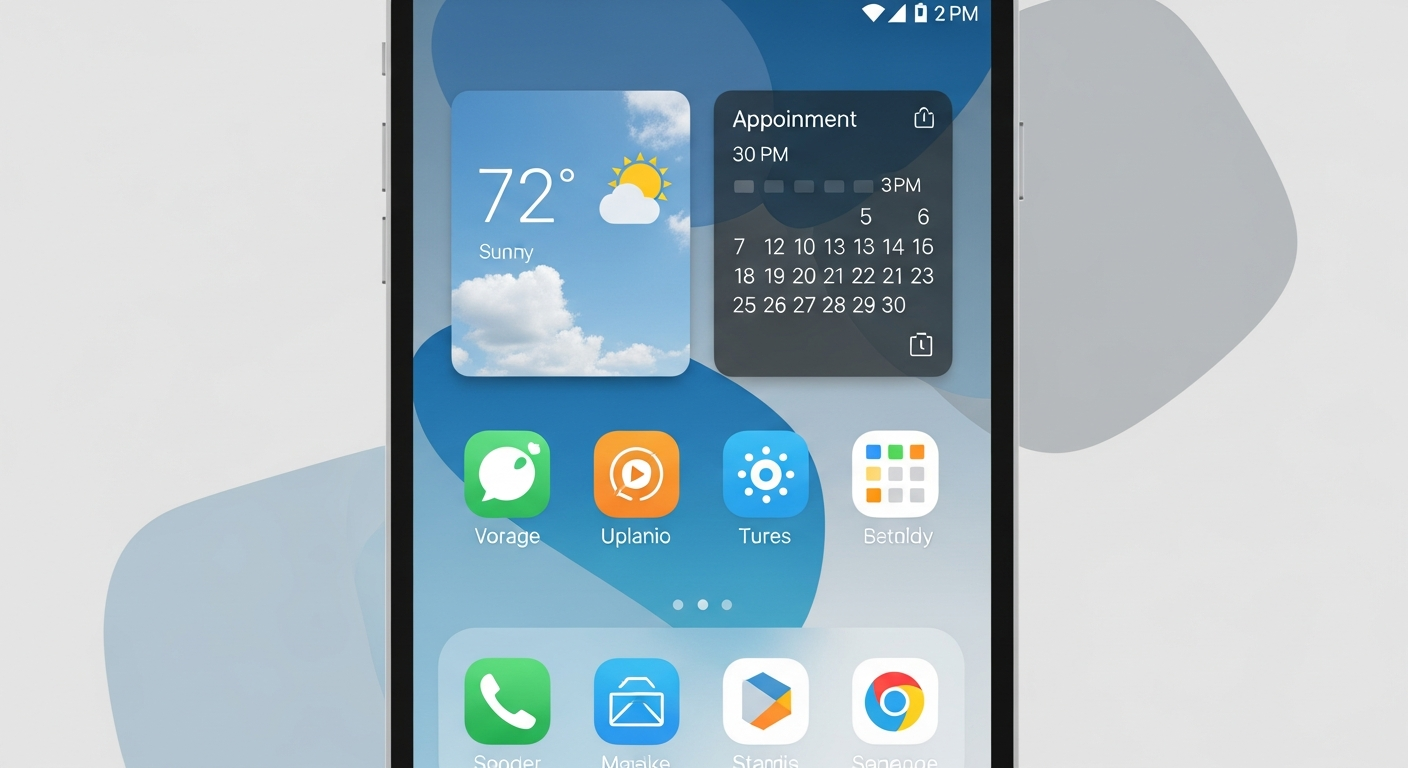
Feeling overwhelmed by appointments and tasks? Digital calendars are smart tools that help you organize your life, making sure you never miss an important date again.
This guide will walk you through the basics of using a digital calendar, even if you've never used one before.
1. Why use a digital calendar instead of paper?
Digital calendars offer many advantages over paper. They can send you reminders, automatically update across all your devices, and make it easy to reschedule or move events without messy erasures. You can also share events or your whole calendar with others instantly.
2. What are popular digital calendar apps?
Some of the most popular digital calendar apps include Google Calendar, Apple Calendar (for iPhone/Mac users), and Microsoft Outlook Calendar. These are widely used because they are often free, easy to use, and integrate well with other services you might already use, like email.
3. How do I add a new event to my calendar?
To add an event, you usually click or tap on the date and time you want the event to happen. A small window will pop up where you can type in the event name, choose the date and time, and add other details like location or notes. Then, you simply save it.
Paper Calendar
- Physical only
- Manual updates
- No reminders
- Hard to share
Digital Calendar
- Accessible everywhere
- Automatic sync
- Smart reminders
- Easy sharing
4. Can I set reminders for events?
Yes, setting reminders is one of the best features of digital calendars! When you create or edit an event, you'll see an option to add a notification or reminder. You can usually choose how far in advance you want to be reminded, like 10 minutes, 1 hour, or even a day before.
5. How do I invite others to an event?
When creating an event, look for an "Add guests" or "Invite attendees" option. You can then type in the email addresses of the people you want to invite. They will receive an email invitation and can accept or decline, and the event will automatically appear on their digital calendar if they accept.
6. How do I view my calendar by day, week, or month?
Most digital calendars have buttons or menus at the top that let you switch between different views. You'll typically find options for "Day," "Week," "Month," and sometimes "Year" or "Agenda." Clicking these will change how your events are displayed, helping you see your schedule at a glance.
7. Can I create recurring events?
Absolutely! For events that happen regularly, like a weekly team meeting or a monthly bill payment reminder, you can set them to repeat. When creating an event, look for a "Repeat" or "Recurrence" option. You can then choose to repeat daily, weekly, monthly, or even annually.
Event Creation Flow
8. How do I sync my calendar across devices?
Digital calendars usually sync automatically if you're signed into the same account on all your devices (like your phone, tablet, and computer). For example, if you use Google Calendar, make sure you're logged into your Google account on each device. Any changes you make on one device will instantly appear on the others.
9. What are different calendar views?
Beyond day, week, and month, some calendars offer "Agenda" view, which lists events chronologically, or "Year" view, showing a full year. "Schedule" or "Timeline" views might show events as bars across a time scale. These different views help you quickly grasp your schedule depending on your needs.
10. How do I share my calendar with family or colleagues?
Most digital calendars allow you to share your entire calendar, not just individual events. Look for a "Settings" or "Share calendar" option. You can then choose who to share it with (using their email address) and what level of access they have, like just viewing or also adding/editing events.