
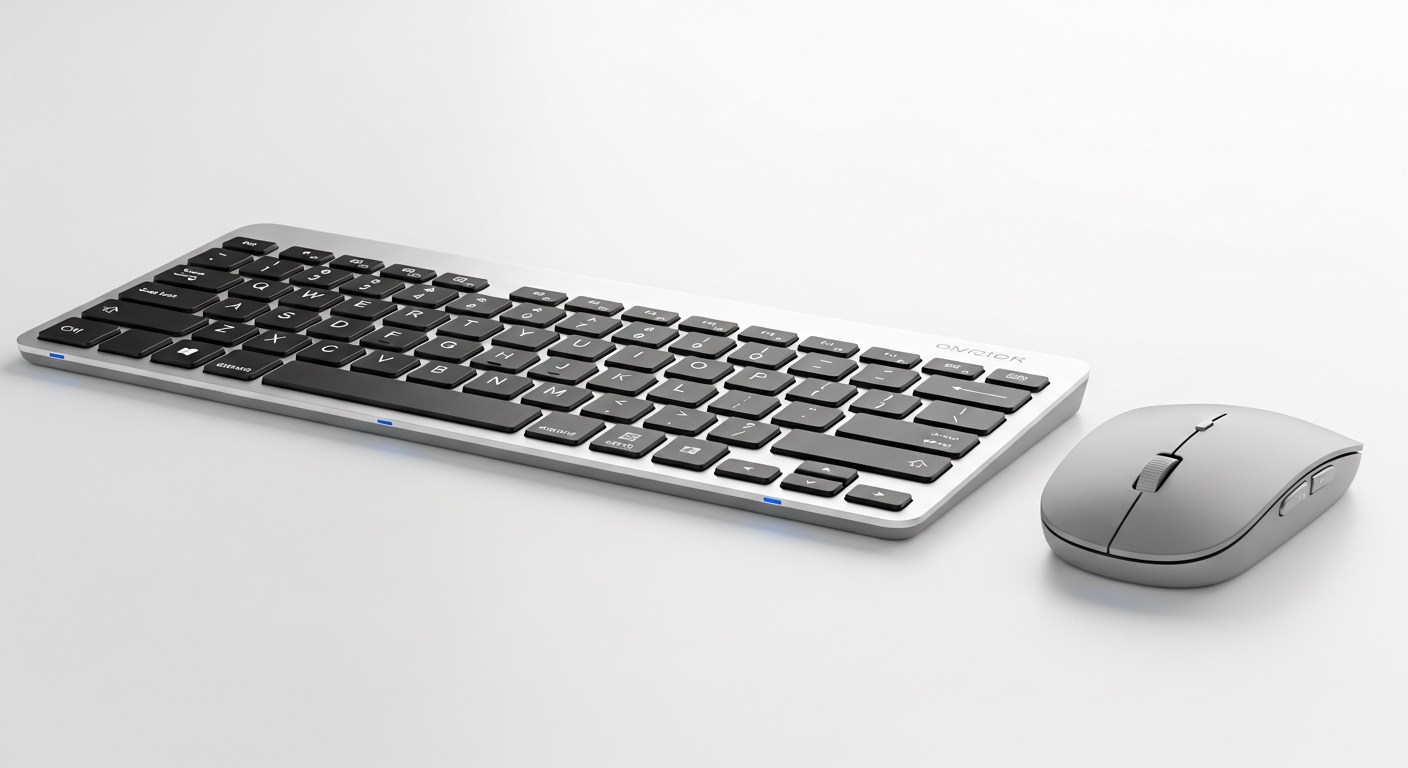
Choosing the right keyboard and mouse is crucial for a comfortable and productive computer experience. This guide will answer the most common questions beginners have, helping you pick the perfect tools for your setup.
Overview
Wired vs. Wireless: A Quick Decision Guide
graph TD
A[Start Purchase 🛒] --> B{"Want a clutter-free desk?"}
B -- Yes --> C[Consider Wireless 📡]
B -- No --> D[Consider Wired 🔌]
C --> E{"Okay with charging/batteries?"}
E -- Yes --> F[Wireless is great! ✨]
E -- No --> D
D --> G{"Need lowest possible delay?"}
G -- Yes --> H[Wired is best! ⚡]
G -- No --> F
1. Wireless or wired — which is better?
For most everyday computer users, wireless keyboards and mice offer the most convenience. They reduce desk clutter and allow you to sit further from your screen, which is great for media. Wired options are generally more reliable because they don't need batteries and have no chance of signal interference. They also have virtually no "input lag" (a tiny delay), making them preferred by serious gamers or professionals where every millisecond counts.2. What is a mechanical keyboard and do I need one?
A mechanical keyboard uses individual switches under each key, giving a distinct "clicky" or "bumpy" feel when pressed. This is different from common "membrane" keyboards, which use a rubber dome under a single sheet. You don't *need* a mechanical keyboard for basic tasks. However, many people find them more satisfying to type on, more durable, and more precise for gaming. They are usually more expensive and can be louder than membrane keyboards.3. How much should I spend on a keyboard?
For basic daily use like browsing and emails, a keyboard in the $20-$50 range is perfectly adequate. These are usually membrane keyboards and offer good value. If you type a lot, game, or want a better feel, consider spending $50-$100 for an entry-level mechanical keyboard or a higher-quality membrane one. Premium mechanical or ergonomic keyboards, with more features and better build, can cost $100 or more. Guide
Keyboard Spending Guide
graph TD
A[Keyboard Purchase 🛒] --> B{"What's your main goal?"}
B -- "Basic Typing/Browsing" --> C["Budget Keyboard ($20-50) 💸"]
B -- "Better Typing Feel/Gaming" --> D["Mid-Range ($50-100) ✨"]
B -- "Premium Feel/Ergonomics" --> E["High-End ($100+) 🚀"]
C --> F[Simple, reliable, membrane]
D --> G[Mechanical, better build quality]
E --> H[Advanced features, comfort, durability]
4. Bluetooth vs USB wireless — what is the difference?
Both are types of wireless connections. USB wireless uses a small "dongle" (a tiny adapter) that plugs into your computer's USB port. This creates a dedicated, often very fast, connection. Bluetooth connects directly to your computer without a dongle, as long as your computer has Bluetooth built-in. This is great for laptops with limited USB ports or for connecting to multiple devices. USB wireless often feels slightly more responsive and reliable.5. Do I need a mouse pad?
Yes, a mouse pad is highly recommended! Even with modern optical mice that work on many surfaces, a good mouse pad provides a consistent, smooth surface. This allows your mouse sensor to track more accurately and smoothly. Mouse pads also protect your desk from scratches and reduce wear on your mouse's "feet" (the glide pads underneath). They can also make your mouse more comfortable to use for long periods.6. What is an ergonomic keyboard?
An ergonomic keyboard is designed to promote a more natural hand and wrist position, reducing strain and discomfort over long typing sessions. They often feature a split layout, curved shape, or built-in wrist rests. These keyboards can take some getting used to because the layout is different from a standard keyboard. They are beneficial for anyone experiencing wrist pain or those who type for many hours daily.7. How do I clean my keyboard?
Cleaning your keyboard regularly helps it last longer and stay hygienic. First, always unplug your keyboard (or turn off wireless) before cleaning. Turn it upside down and gently shake out any crumbs or debris. Next, use a can of compressed air (available at electronics stores) to blow out dust and particles from between the keys. Finally, wipe the keycaps with a slightly damp cloth moistened with a mild cleaner (like diluted rubbing alcohol). Never spray liquid directly onto the keyboard. Steps
Keyboard Cleaning Process
graph TD
A[Start Cleaning 🧼] --> B[Unplug Keyboard 🔌]
B --> C[Shake Out Loose Debris 🧹]
C --> D[Use Compressed Air 🌬️]
D --> E[Wipe Keys with Damp Cloth (Mild Cleaner) ✨]
E --> F[Let Air Dry Completely ⏳]
F --> G[Plug Back In & Use! ✅]