
Connecting to the internet and keeping your Wi-Fi running smoothly can seem tricky, but it's easier than you think. This guide will help you understand the basics and fix common issues, even if you have zero tech knowledge.
1. What is Wi-Fi and how does it work?
Wi-Fi is a way to connect your devices, like phones and computers, to the internet without using cables. It uses invisible radio waves, much like a radio or TV, to send and receive information.
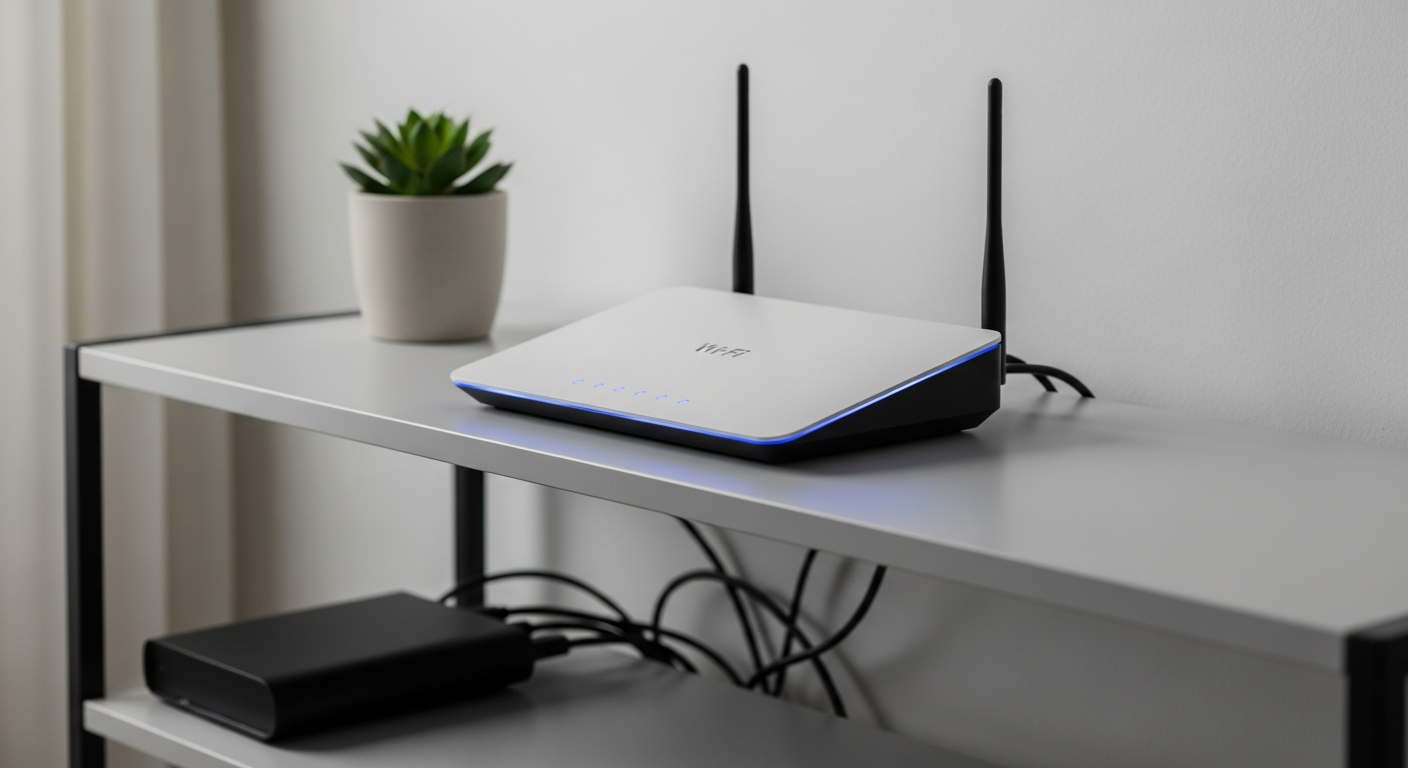
A special device called a router sends out these Wi-Fi signals. Your devices pick up these signals to get online. This allows you to move freely around your home while staying connected.
2. How do I connect my computer to Wi-Fi?
First, find the Wi-Fi icon on your computer's screen, usually in the bottom-right (Windows) or top-right (Mac). Click it to see a list of available networks.
Select your home network's name (also called an SSID) from the list. You'll then be asked to enter your Wi-Fi password. Type it carefully and click "Connect." Your computer should then join the internet.
3. What is an Ethernet cable?
An Ethernet cable is a physical wire that connects your computer or other devices directly to your internet router. It looks like a thicker phone cord with a bigger plug.
Using an Ethernet cable provides a very stable and often faster internet connection compared to Wi-Fi. It's great for things like online gaming or streaming high-quality video where a strong, consistent connection is important.
Wi-Fi (Wireless)
- Connects devices without cables.
- Offers freedom to move around.
- Signal can be affected by distance and obstacles.
- Good for phones, tablets, laptops on the go.
Ethernet (Wired)
- Connects devices directly with a cable.
- Provides a very stable and fast connection.
- Limited by cable length and need for ports.
- Ideal for desktop computers, smart TVs, gaming consoles.
4. Why is my internet slow?
Several things can slow down your internet. You might have too many devices using Wi-Fi at once, or your router could be too far away from your devices. Older equipment can also struggle with modern internet speeds.
Sometimes, the issue isn't with your home setup but with your internet service provider (ISP). They might be experiencing problems or your internet plan might not offer enough speed for your needs.
5. How do I find my Wi-Fi password?
The easiest place to find your Wi-Fi password is on a sticker on your router itself. It's often labeled "Wi-Fi Password," "Wireless Key," or "Network Key."
If it's not there, check any documents you received from your internet provider when your service was set up. You can also ask whoever initially set up your home network.
6. What does "reboot your router" mean?
"Rebooting" your router simply means turning it off and then on again. To do this, unplug the power cord from the back of your router, wait about 30 seconds, and then plug it back in.
This process is like restarting a computer; it clears out minor glitches and can often fix common internet issues, giving your connection a fresh start.
7. What's the difference between 2.4GHz and 5GHz Wi-Fi?
These are two different "bands" or frequencies your Wi-Fi router can use. Think of them as different lanes on a highway. 2.4GHz Wi-Fi travels further and goes through walls better, but it's generally slower.
5GHz Wi-Fi is much faster, but its signal doesn't travel as far and struggles more with obstacles like walls. For devices close to the router that need high speed, 5GHz is usually better. For devices further away, 2.4GHz is often more reliable.
Wi-Fi Frequencies: 2.4GHz vs. 5GHz
2.4GHz Wi-Fi
Range: Longer distance, better through walls.
Speed: Slower speeds, more prone to interference.
Best for: Devices far from the router, basic browsing, smart home gadgets.
5GHz Wi-Fi
Range: Shorter distance, struggles with walls.
Speed: Faster speeds, less interference.
Best for: Devices close to the router, streaming 4K video, online gaming.
8. How can I improve my Wi-Fi signal?
Place your router in a central location in your home, away from other electronics, metal objects, and thick walls that can block the signal. Avoid putting it on the floor or in a cabinet.
If you have a large home, consider a Wi-Fi extender or mesh system. These devices boost your Wi-Fi signal to cover more areas, eliminating dead spots and providing a stronger connection throughout your home.
9. What is a modem and a router?
A modem is the device that connects your home to the internet service provided by your ISP. It acts as a translator, bringing the internet signal from outside into your home.
A router then takes that internet signal from the modem and shares it with all your devices, either wirelessly (Wi-Fi) or through cables (Ethernet). Many homes today use a single device that combines both a modem and a router.
10. How do I know if my internet is down?
The first sign is usually that no devices in your home can access the internet. Websites won't load, streaming services won't play, and apps won't connect.
Check the lights on your modem and router. If they are red, orange, or completely off, it often indicates a problem. If a reboot doesn't help, contact your internet service provider for assistance.