
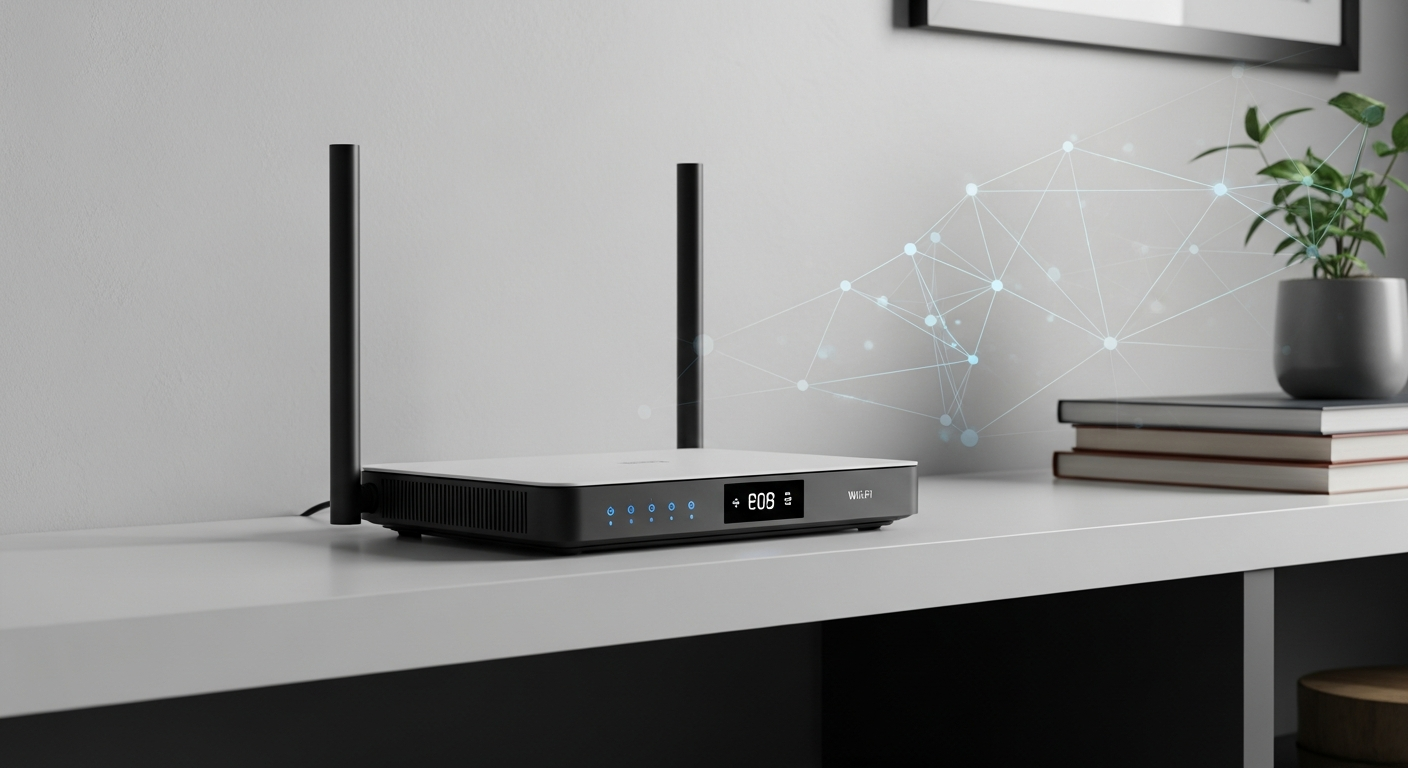
Is your internet acting up? Don't worry, it happens to everyone! This guide will help you understand why your internet might not be working and give you simple steps to get back online.
1. What does "no internet" mean?
"No internet" means your devices, like your phone or computer, can't connect to the vast network of information we call the internet. You won't be able to browse websites, check social media, stream videos, or send emails. It's like a road closure preventing you from reaching your destination.
2. How do I check if my internet is down?
First, check if other devices in your home, like another phone or a smart TV, also can't connect. If multiple devices are affected, it's likely a problem with your internet service. If only one device has an issue, that specific device might be the problem.
3. What's the first thing to do when the internet stops?
The very first thing you should do is restart your devices. Turn off your computer, phone, or tablet, wait a few seconds, and then turn them back on. This simple step often fixes minor glitches and can restore your connection.
Quick Internet Fix Flow
4. How do I restart my modem?
To restart your modem, find the power cable plugged into it. Unplug it completely from the wall outlet or the modem itself. Wait about 30 seconds, then plug the power cable back in. Give the modem a few minutes to fully power up and reconnect, which you can usually tell by its indicator lights.
5. How do I restart my router?
Restarting your router is similar to restarting your modem. Locate the power cable for your router and unplug it. Wait for about 30 seconds. Then, plug the power cable back in. It will take a few minutes for the router to boot up and start broadcasting your Wi-Fi signal again.
6. What's the difference between a modem and a router?
Think of your modem as the translator that brings the internet signal from outside your home into a language your devices understand. Your router then takes that signal and shares it with all your devices, either through Wi-Fi (wireless) or by cables. Some devices combine both functions into one "gateway" unit.
7. How do I know if it's my internet provider's fault?
After restarting your devices, modem, and router, if you still have no internet, the problem might be with your internet service provider (ISP). You can check their website or social media from your phone (using mobile data) to see if there are reported outages in your area. Sometimes, a quick call to a neighbor can also confirm if their internet is down too.
Modem vs. Router
Modem
- Connects to the internet line (cable, fiber, DSL)
- Translates internet signal for home network
- Often has fewer lights
- Typically has 1-2 network ports
Router
- Connects to the modem
- Creates your home Wi-Fi network
- Shares internet with multiple devices
- Often has antennas and many ports
8. When should I call my ISP?
You should call your ISP (Internet Service Provider) if you've tried all the basic troubleshooting steps – restarting devices, modem, and router – and still have no internet. Also, call if their outage map confirms a problem in your area, or if your modem's lights are showing unusual patterns, like a red light when it should be green.
9. What information do I need to give them?
When you call, have your account number or the primary account holder's name and address ready. Be prepared to describe the problem clearly, including what steps you've already taken (like restarting equipment) and what lights you see on your modem and router. This helps them diagnose the issue faster.
10. How can I prevent future internet outages?
While you can't prevent all outages, you can reduce their frequency. Keep your modem and router in a well-ventilated area, away from other electronics that might cause interference. Consider a battery backup (UPS) to protect against power flickers. Regularly check for firmware updates for your router, and if your equipment is very old, consider upgrading it.