
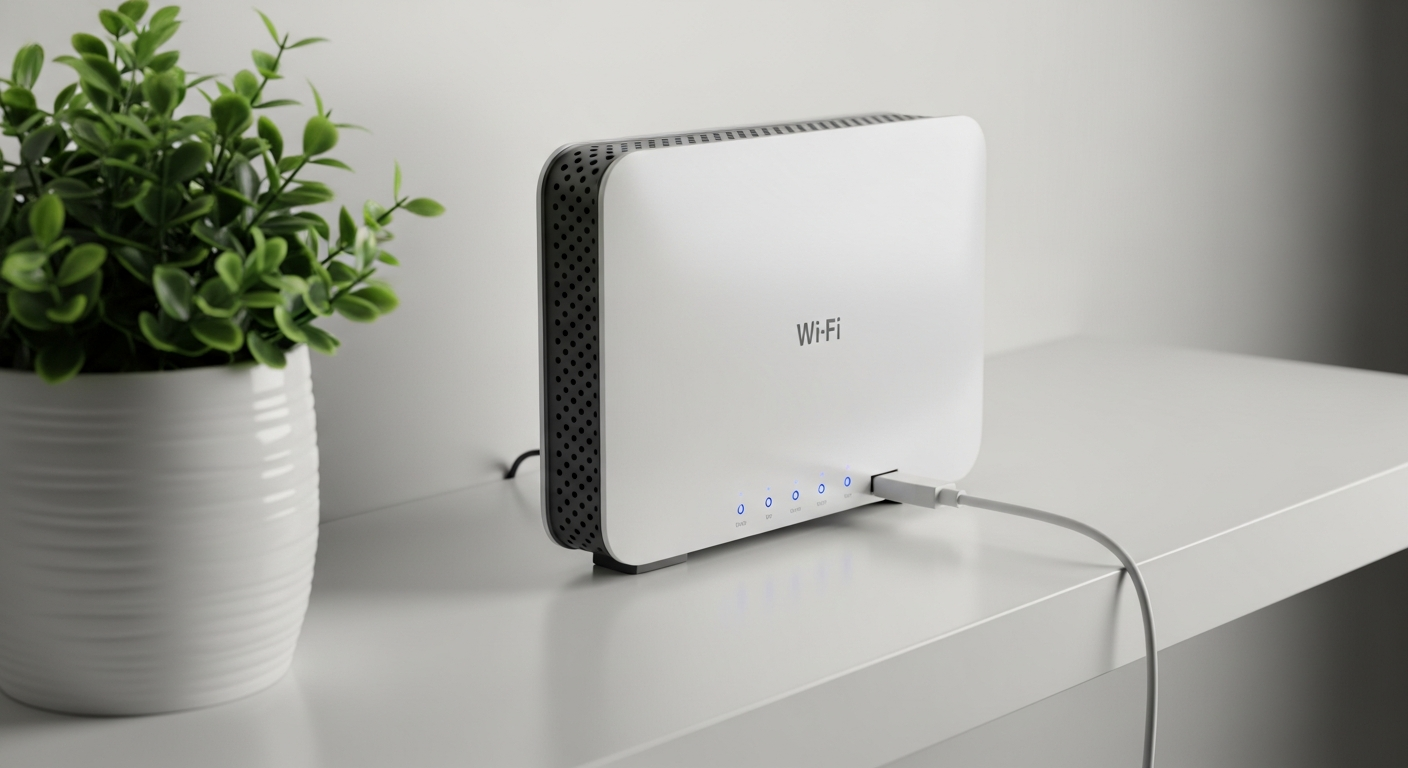
Having trouble with your internet? Don't worry, it happens to everyone! This guide will walk you through simple steps to figure out what's wrong and get you back online.
1. What's the first thing to check if the internet is down?
The very first step is often the easiest: check if your devices are actually connected to Wi-Fi. Look for the Wi-Fi symbol on your phone, tablet, or computer. If it's not there, or shows an "X," your device might just be disconnected from your home network.
Also, try visiting a few different websites or apps. Sometimes, only one website might be having issues, not your entire internet connection. If multiple sites don't load, then you likely have a broader internet problem.
2. How do I restart my modem and router?
Restarting your modem and router is like giving them a fresh start. First, find your modem (often has lights and connects to a wall jack) and your router (often has antennas, broadcasts Wi-Fi). Unplug the power cords from both devices.
Wait about 30 seconds. Then, plug the modem back in first and wait for its lights to settle (usually 1-2 minutes). After that, plug your router back in and wait another 1-2 minutes for its lights to stabilize. This simple reset fixes many common internet issues.
3. Is it a Wi-Fi or internet service problem?
This is a key distinction. If your devices can connect to your Wi-Fi network (you see the Wi-Fi symbol) but still can't access websites, it's likely an internet service problem. This means your Wi-Fi is working, but the internet signal isn't reaching your home.
If your devices can't even connect to your Wi-Fi network, or the Wi-Fi name doesn't appear, then it's a Wi-Fi problem. This could be due to your router or device settings.
Wi-Fi Problem
- Can't see your Wi-Fi network name
- Devices won't connect to Wi-Fi
- Wi-Fi symbol has an 'X' or is missing
- Only one device can't connect
Internet Problem
- Connected to Wi-Fi, but no websites load
- All devices can't access the internet
- Modem lights are red or flashing unusually
- "No Internet Access" message appears
4. How do I check if my internet provider is down?
Sometimes the problem isn't with your equipment but with your internet service provider (ISP). You can check their status in a few ways. Use your mobile data to visit their official website or social media pages (like X or Facebook).
Many providers have a "service status" page. You can also use third-party websites like "DownDetector.com" to see if others in your area are reporting outages. If there's a widespread outage, you'll likely see reports there.
5. What do the lights on my modem mean?
The lights on your modem are like status indicators. While they vary by brand, generally you want to see solid green or blue lights. A solid "Power" light means it's on. A "DS/US" (Downstream/Upstream) or "Send/Receive" light should be solid or slowly blinking, indicating data flow.
A "WAN" or "Internet" light should also be solid, showing a connection to your provider. If any lights are red, orange, or rapidly blinking when they shouldn't be, it often signals a problem. Refer to your modem's manual for exact meanings.
6. Should I check my cables?
Absolutely! Loose or damaged cables are a common cause of internet problems. Make sure all cables connected to your modem and router are plugged in snugly. This includes the power cords and the Ethernet cable that connects your modem to your router (if you have separate devices).
Also, check the cable coming from the wall into your modem (often a coaxial cable, like for TV, or an Ethernet cable). Ensure it's not bent, frayed, or disconnected. A quick wiggle and re-seat can sometimes work wonders.
7. How do I test my internet connection directly?
To see if your router is the issue, you can temporarily bypass it. Find an Ethernet cable (looks like a wider phone cable). Unplug the Ethernet cable that goes from your modem to your router. Then, plug one end of this Ethernet cable directly into your modem and the other end into your computer's Ethernet port.
Restart your computer and modem. If your computer gets internet access, your modem is working, and the problem is likely with your router or Wi-Fi settings. If not, the issue is closer to your modem or provider.
Internet Troubleshooting Flow
8. When should I call my internet provider?
After trying the basic troubleshooting steps (restarting, checking cables, looking at lights, and confirming it's not just your device), it's time to call your internet provider. Especially if you've confirmed an outage in your area or if direct connection to the modem still doesn't work.
Be ready to tell them what steps you've already taken. This helps them quickly narrow down the problem and avoid repeating steps you've already tried. They can run diagnostics on their end.
9. Could my device be the problem?
Yes, sometimes the issue is with your phone, computer, or tablet, not your internet. If only one device can't connect, try restarting that specific device. Also, ensure its Wi-Fi is turned on and that it's connected to the correct network.
Try "forgetting" the Wi-Fi network on your device and then reconnecting. This forces your device to get fresh connection information. If other devices work fine, it's almost certainly your device.
10. What is an IP address and how does it relate?
An IP address (Internet Protocol address) is like a unique street address for your device on the internet or your home network. It allows devices to find and talk to each other. When your internet is working, your modem and router get IP addresses from your provider, and they give IP addresses to your devices.
If your internet is down, it often means your modem or router isn't getting a valid IP address from your provider, or your devices aren't getting one from your router. While you don't usually need to fix IP addresses directly, knowing they are essential for communication helps understand why a reset can be effective.