
Frustrated with buffering while watching your favorite shows? A strong and stable home Wi-Fi connection is key to enjoying smooth streaming without interruptions. Let's explore how you can boost your Wi-Fi for a better entertainment experience.
1. Why is good Wi-Fi important for streaming?
Streaming services like Netflix, Disney+, and YouTube send large amounts of data to your devices. Good Wi-Fi acts like a fast, clear highway for this data. If your Wi-Fi is slow or patchy, the data gets stuck, causing your video to pause, stutter, or show blurry pictures.
A reliable Wi-Fi connection ensures that your streaming device receives a steady flow of data. This means your movies and shows play smoothly in high definition, without those annoying interruptions that ruin your viewing experience.
2. Where should I place my Wi-Fi router for best coverage?
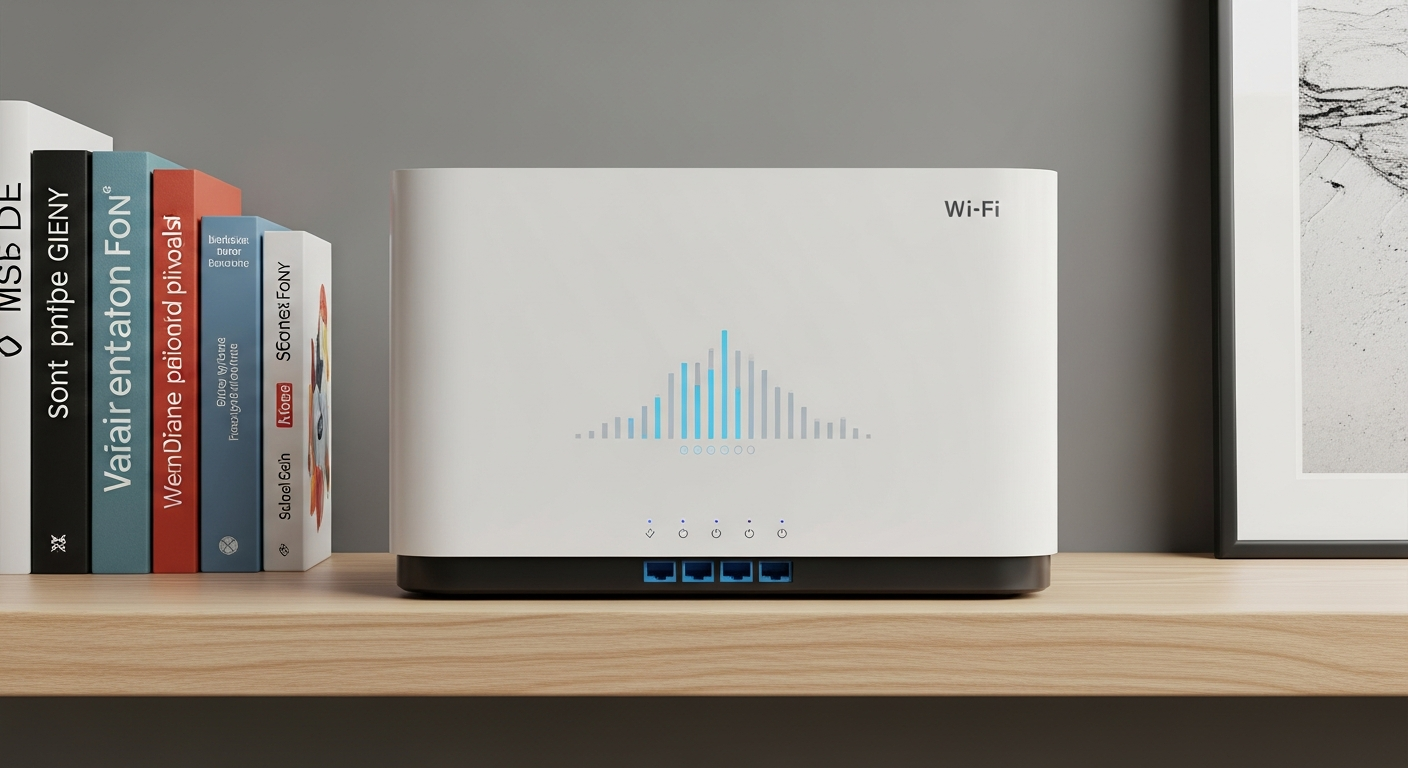
Think of your Wi-Fi signal like a light bulb – it spreads out from a central point. Place your router in a central location in your home, away from walls, large metal objects, and other electronics that can block or interfere with the signal. Higher up, like on a shelf, is often better.
Avoid placing it in a closet, behind a TV, or in a corner of your house. The fewer obstacles between your router and your streaming devices, the stronger and faster your Wi-Fi signal will be, leading to better streaming.
3. What's the difference between 2.4 GHz and 5 GHz Wi-Fi?
These are like two different lanes on a highway. 2.4 GHz travels further and goes through walls better, but it's slower and more crowded. It's good for general browsing or devices far from the router.
5 GHz is much faster and less crowded, perfect for streaming high-quality video, but it doesn't travel as far and struggles with walls. For the best streaming, connect your devices to the 5 GHz band if they are close enough to the router.
2.4 GHz Wi-Fi
- Travels further
- Better through walls
- Slower speeds
- More interference (microwaves, older devices)
5 GHz Wi-Fi
- Shorter range
- Struggles with walls
- Faster speeds
- Less interference
4. Should I upgrade my internet plan for streaming?
Your internet plan determines the maximum speed coming into your home. If you have many people streaming in 4K, gaming, and working online at the same time, a basic plan might not be enough. Check your streaming service's recommended speeds.
For example, 4K streaming often needs at least 25 Mbps per stream. If your current plan is much lower than what your household needs, upgrading could significantly improve your streaming quality and reduce buffering.
5. What are Wi-Fi extenders or mesh systems?
Wi-Fi extenders boost your existing Wi-Fi signal into areas where it's weak, but they can sometimes slow down speeds. Mesh Wi-Fi systems use multiple devices placed around your home to create a single, strong, seamless Wi-Fi network.
Mesh systems are generally better for larger homes or those with many dead zones. They provide more consistent speeds and coverage than traditional extenders, making them ideal for whole-home streaming.
6. How do I check my current internet speed?
You can easily check your internet speed using online speed test websites. Simply search "internet speed test" on Google and click on one of the top results, like Speedtest.net or Fast.com. Run the test on a device connected to your Wi-Fi.
The test will show you your download speed (how fast you receive data) and upload speed (how fast you send data). For streaming, download speed is the most important number to look at.
7. Can other devices slow down my streaming Wi-Fi?
Yes, absolutely! Every device connected to your Wi-Fi uses a portion of its bandwidth. If someone is downloading large files, playing online games, or even video calling, it can "hog" the bandwidth and leave less for your streaming device, causing buffering.
This is especially true if you have many smart home devices, security cameras, or multiple people using the internet simultaneously. Consider disconnecting devices you're not using or using a 5 GHz band for streaming if available.
Wi-Fi Bandwidth Sharing
8. What is Quality of Service (QoS) and how does it help?
Quality of Service (QoS) is a feature on some routers that lets you prioritize certain types of internet traffic. You can tell your router to give streaming video or online gaming priority over, say, a large file download.
This means even if other devices are busy, your streaming device gets enough bandwidth to run smoothly. You usually find QoS settings in your router's administration page, which you access through a web browser.
9. When should I restart my router to improve Wi-Fi?
Restarting your router is like giving it a fresh start and can often fix many common Wi-Fi issues. It clears out temporary glitches and refreshes its connection to your internet provider. If your Wi-Fi feels sluggish or unreliable, try restarting it.
Simply unplug your router from its power source, wait about 10-15 seconds, and then plug it back in. Wait a few minutes for all the lights to come back on and for your Wi-Fi network to reappear before testing it again.
10. Is an Ethernet cable better than Wi-Fi for streaming?
Yes, an Ethernet cable is almost always better for streaming, especially for devices that don't move, like smart TVs or gaming consoles. An Ethernet cable provides a direct, wired connection to your router, which is faster, more stable, and less prone to interference than Wi-Fi.
If your streaming device has an Ethernet port and is close enough to your router, connecting it with a cable will give you the most reliable and highest-quality streaming experience possible, completely eliminating Wi-Fi-related issues.