
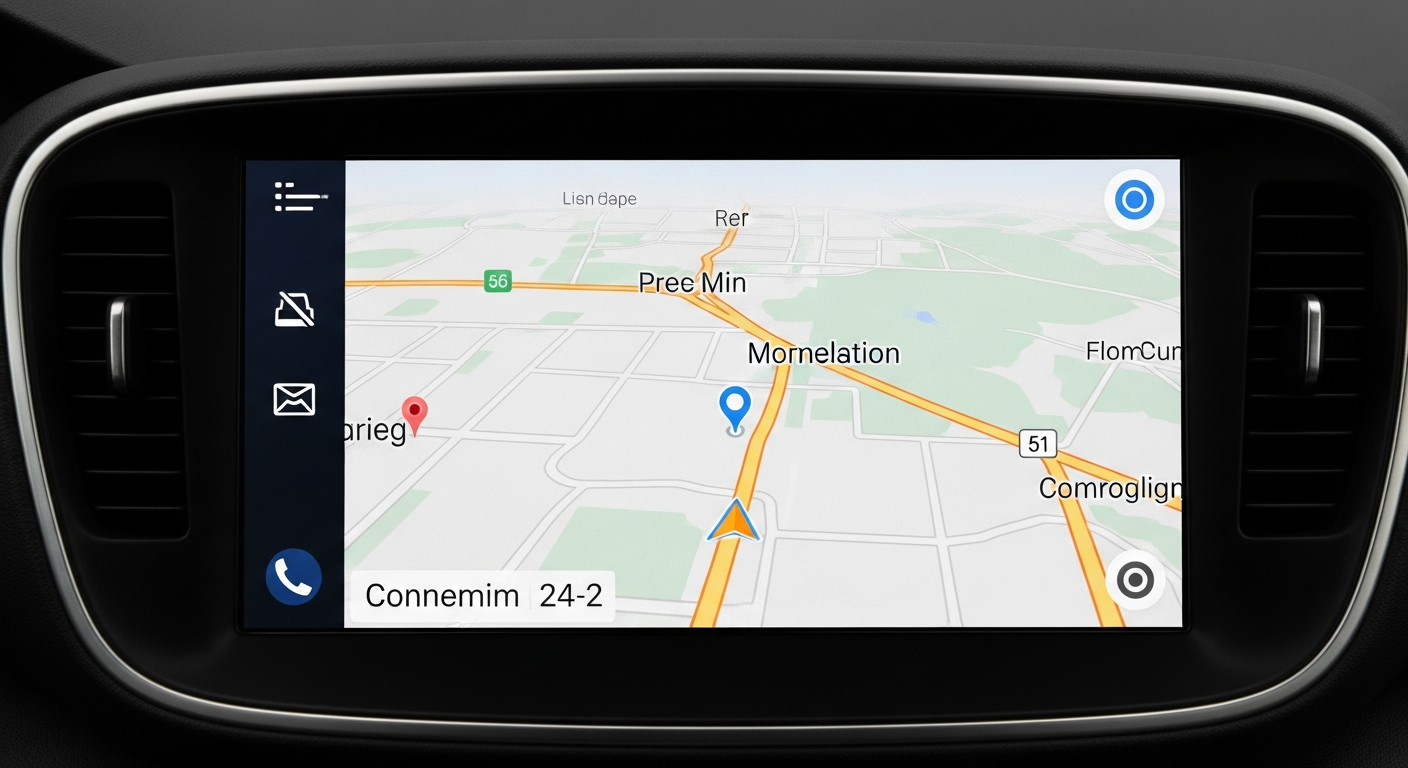
Navigating new places while traveling can feel daunting, but your smartphone is a powerful tool to guide you. This guide will help you understand how to use your phone for stress-free navigation, even if you're new to tech.
1. What is a navigation app?
A navigation app is like having a digital map and a personal guide right on your phone. It uses your phone's location to show you where you are and provides step-by-step directions to get to your destination. Think of it as a modern, talking map.
These apps can show you roads, landmarks, and businesses. Popular examples include Google Maps and Apple Maps, which come pre-installed on many phones.
2. Which navigation app is best for beginners?
For most beginners, Google Maps is an excellent choice. It's widely used, very user-friendly, and works on both Android and Apple phones. It offers comprehensive maps and reliable directions almost everywhere.
If you have an iPhone, Apple Maps is also a great option. It integrates seamlessly with your device and has a clean, easy-to-understand interface. Both are fantastic starting points for your travel adventures.
3. How do I get directions using a navigation app?
First, open your chosen navigation app. You'll usually see a search bar at the top; tap it and type in your destination, like a restaurant address or a landmark name. Once you find your place, tap on it.
Next, look for a button that says "Directions" or has a car icon. Tap it, then choose how you want to travel (driving, walking, public transport). Finally, tap "Start" or "Go" to begin your guided journey. The app will then tell you exactly where to go.
Google Maps
- Wider Coverage: Excellent detail for most places globally.
- Public Transport: Often provides more detailed transit options.
- Cross-Platform: Works on both Android and Apple devices.
- User Reviews: Integrated reviews for businesses.
Apple Maps
- Apple Integration: Seamless experience for iPhone users.
- Clean Interface: Often preferred for its simple, uncluttered look.
- Privacy Focus: Strong emphasis on user privacy.
- Look Around: Offers street-level views in many cities.
4. Can I use navigation apps without internet?
Yes, you absolutely can! Many navigation apps allow you to download maps for specific areas onto your phone beforehand. This is called "offline maps." Once downloaded, you won't need an internet connection (Wi-Fi or mobile data) to get directions in that area.
Using offline maps is great for saving mobile data, especially when traveling internationally, or if you're going to an area with poor phone signal. Just remember to download them while you have Wi-Fi.
5. How do I find places of interest on a map app?
To find places like restaurants, museums, or shops, use the search bar at the top of your map app. You can type in specific names, like "Eiffel Tower," or search for categories such as "coffee shops near me" or "gas stations."
The app will then show you relevant results on the map. You can tap on these points to see more information, like opening hours, reviews, and contact details, before deciding where to go.
6. What do all the symbols on the map mean?
Map apps use various symbols, called icons, to represent different types of places. For example, a fork and knife icon usually means a restaurant, a gas pump means a gas station, and a bed icon might indicate a hotel. Landmarks often have unique symbols or a simple pin.
Most apps are designed to be intuitive, so many symbols are easy to guess. If you're unsure, tapping on the symbol often reveals what it represents, along with more information about that location.
7. How do I switch between walking, driving, or public transport?
When you ask for directions, your navigation app will usually show you different ways to travel. Look for small icons at the top of the directions screen: a car for driving, a person walking for pedestrian routes, and a bus or train for public transportation.
Simply tap the icon for the mode of transport you want to use. The app will then recalculate the route and provide directions specific to that method, including estimated travel times.
Smart Navigation Tips for Travelers
Navigation uses a lot of power. Keep your phone charged or bring a portable charger.
Save mobile data and ensure navigation even without signal by downloading maps beforehand.
Lowering screen brightness can save battery, but ensure it's still readable for safety.
For driving, a car mount keeps your phone visible and secure, reducing distractions.
8. Can navigation apps tell me about traffic?
Yes, most modern navigation apps are excellent at providing real-time traffic information. They use color-coding on the map to show traffic conditions: green usually means clear roads, yellow indicates moderate traffic, and red means heavy congestion or delays.
These apps can also suggest alternative routes to help you avoid traffic jams and get to your destination faster. This feature relies on an active internet connection to get the latest updates.
9. How do I save a location in a navigation app?
Saving a location is very handy for places you visit often or want to remember. First, find the location on your map. Then, tap on the place's name or its info card that usually appears at the bottom of the screen.
Look for an option like "Save," "Favorite," or a star icon. Tapping this will add the location to your saved places, making it easy to find and get directions to again without retyping the address.
10. What if my phone battery dies while navigating?
A dying phone battery is a common concern while navigating. Always start your journey with a fully charged phone. It's also highly recommended to carry a portable charger, often called a power bank, to recharge your phone on the go.
To conserve battery, close other unnecessary apps, reduce screen brightness, and consider downloading offline maps before you leave. If your phone does die, look for physical maps, ask locals for directions, or find a place to charge your device.