
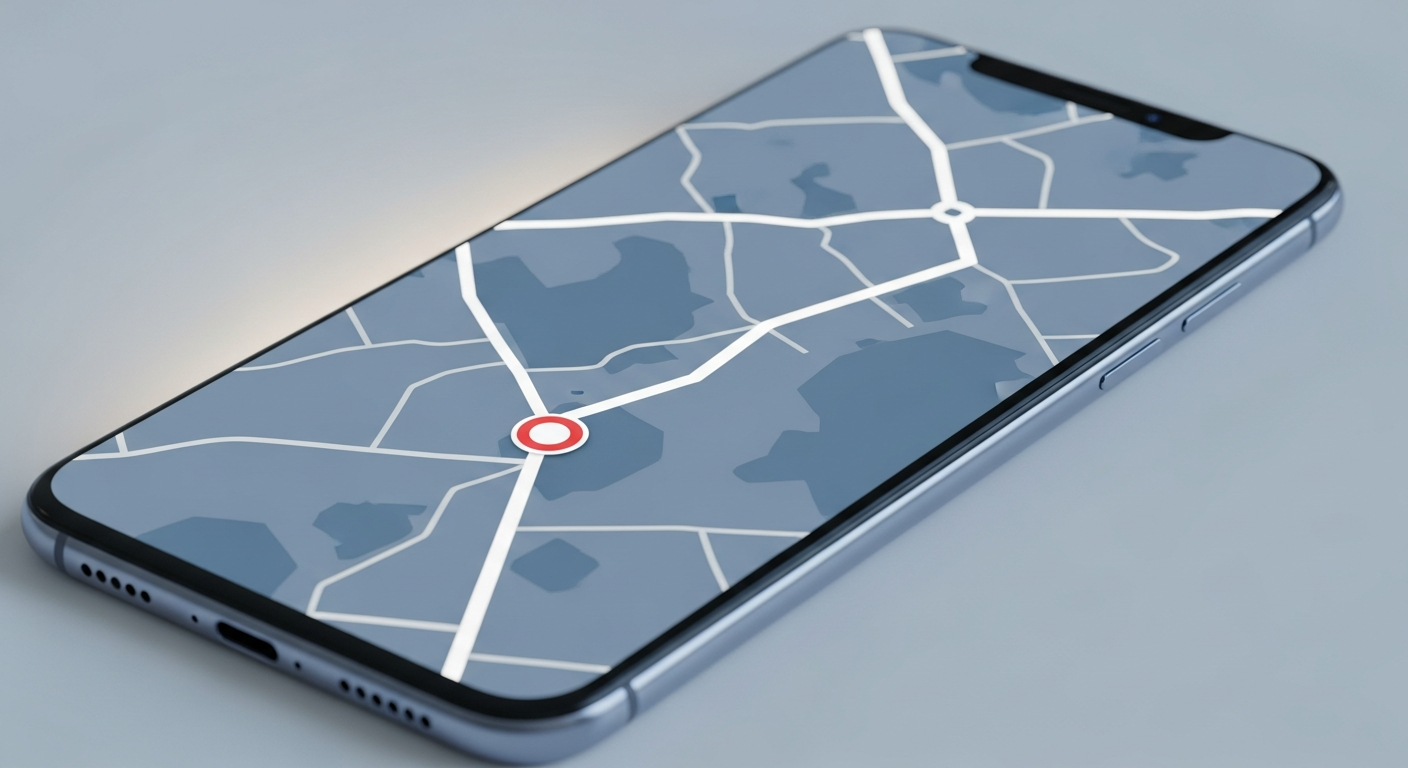
Welcome to the world of digital navigation! This guide will help you use Google Maps and Apple Maps to find your way around, even if you've never used a map app before.
These apps turn your phone into a powerful guide, making it easy to get where you need to go.
1. How do I open Google Maps or Apple Maps?
To open Google Maps, look for an icon that looks like a small map with a red pin, usually labeled "Maps" or "Google Maps." For Apple Maps, find the icon that looks like a gray map with a white pin, also labeled "Maps." Tap on either icon to open the app.
2. How do I search for a destination?
Once the app is open, you'll see a search bar at the top of the screen. Tap on it and type in the address, name of a place (like "Eiffel Tower"), or type of business (like "coffee shop"). After typing, a list of suggestions will appear; tap the correct one to select it.
3. What does the blue dot mean?
The blue dot on the map shows your current location. As you move, the blue dot moves with you, indicating where you are in real-time. Sometimes there's also a blue cone or circle around it, which shows the direction your phone is currently facing.
Google Maps
- Worldwide Coverage: Excellent for global travel.
- User Contributions: Rich with photos, reviews, and business info.
- Public Transport: Often has more detailed public transit options.
- Street View: Lets you see ground-level photos of locations.
Apple Maps
- Privacy Focus: Strong emphasis on user privacy.
- Integrated with Apple: Seamless experience for iPhone/iPad users.
- Look Around: High-quality, smooth street-level views (in supported areas).
- Detailed City Experience: Beautiful 3D models of major landmarks.
4. How do I get directions to a place?
After searching for a destination and selecting it, you'll usually see a button that says "Directions" or has a car icon. Tap this button. The app will then show you a suggested route. You can usually choose between driving, walking, public transport, or cycling options.
5. Can I choose walking or public transport?
Yes! After tapping "Directions," look for icons at the top of the route screen. These typically include a car, a person walking, a bus/train, and a bicycle. Tap the icon for your preferred mode of travel, and the app will adjust the route and estimated time accordingly.
6. How do I save a favorite place?
To save a place, first search for it. Once the location is displayed on the map, look for an option like "Save," a star icon, or "Add to Favorites." Tapping this will usually let you add it to a list, making it easy to find again without retyping the address.
7. What if I make a wrong turn?
Don't worry! Both Google Maps and Apple Maps are designed to recalculate your route automatically. If you miss a turn or go off course, the app will quickly adjust and give you new directions to get back on track or find an alternative path to your destination.
Simple Navigation Flow
8. How do I find nearby restaurants?
You can find nearby places by using the search bar. Instead of an address, type "restaurants near me," "coffee shops," or "gas stations." The app will show you a list or map of options. Many apps also have quick-search buttons for common categories like "Restaurants" or "Groceries" directly on the main screen.
9. Can I share my location with someone?
Yes, both apps allow you to share your current location. In Google Maps, tap your blue dot and look for "Share location." In Apple Maps, tap your blue dot and choose "Share My Location." You can usually choose how long to share and with whom, often through text messages or other apps.
10. How do I stop navigation?
To stop navigation, look for a clear "End," "Exit," or "X" button, often located at the bottom or top of the screen during active navigation. Tapping this will stop the voice directions and route guidance, returning you to the main map view. The app might also ask for feedback on your trip.