
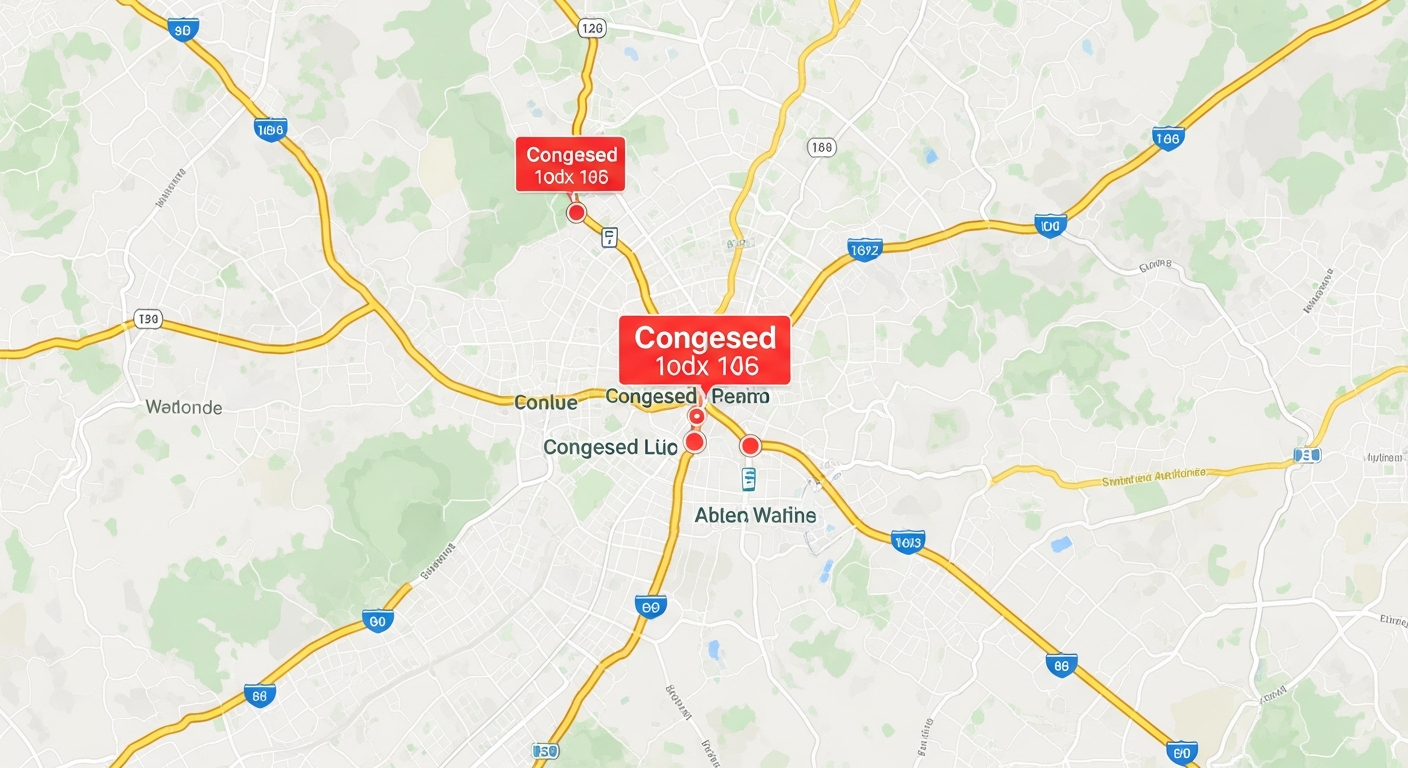
Planning a trip can be exciting, but getting lost is no fun. Navigation apps like Google Maps are digital guides that help you find your way around, making travel much easier.
1. What is a navigation app and why do I need one for travel?
A navigation app is like having a digital map and a personal tour guide right on your phone. It uses your phone's location to show you where you are and helps you find your way to new places. You need one for travel to avoid getting lost, find the quickest routes, and discover nearby points of interest.
These apps offer real-time directions, traffic updates, and even suggest places to eat or visit. They take the stress out of navigating unfamiliar areas, letting you focus on enjoying your journey.
2. How do I download and install a navigation app like Google Maps?
To get Google Maps, first, find the "App Store" on an iPhone (it has a blue icon with a white 'A') or the "Google Play Store" on an Android phone (it has a colorful triangle icon). Tap on it to open.
Next, use the search bar at the top and type "Google Maps." When you see the app, tap the "Get" or "Install" button. Your phone will download and install it automatically. Once done, you'll see a new icon on your home screen or in your app list.
3. What are the first steps to search for a destination?
Open the Google Maps app by tapping its icon. At the very top of the screen, you'll see a search bar that says "Search here." Tap on this bar.
Now, type in the name of the place you want to go, an address, or even a type of business like "coffee shop near me." As you type, the app might suggest options; tap the correct one or tap the search button on your keyboard. The app will then show you the location on the map.
Searching for a Destination
4. How do I get turn-by-turn directions for driving?
After you've searched for your destination and it appears on the map, you'll usually see a "Directions" button, often blue, at the bottom of the screen. Tap this button.
The app will then show you different route options. Make sure the car icon is selected for driving. Tap the "Start" button, which is usually green, to begin your journey. The app will then give you spoken, turn-by-turn instructions as you drive.
5. Can I use these apps for walking, cycling, or public transport?
Yes, absolutely! After you search for a destination and tap "Directions," you'll see different icons at the top of the screen, usually representing a car, a person walking, a bicycle, and a bus/train. Tap the icon that matches how you want to travel.
The app will then calculate routes specific to that mode of transport. For public transport, it often shows bus numbers, train lines, and schedules. For walking and cycling, it tries to find pedestrian-friendly paths or bike lanes.
6. How do I save a specific location or address?
To save a location, search for it first. Once it appears on the map, tap on its name or the small information card that pops up at the bottom of the screen. This will open more details about the place.
Look for a "Save" button, often with a bookmark icon. Tap "Save," and you can then choose to add it to a list like "Favorites," "Want to go," or create a new list. This makes it easy to find again later without retyping the address.
7. What do the different route options mean (e.g., fastest, shortest)?
When you ask for directions, Google Maps often shows a few different routes. "Fastest" means the route that will get you there in the least amount of time, usually considering current traffic. "Shortest" means the route with the fewest miles or kilometers, which might not always be the fastest if it goes through congested areas.
Sometimes you'll see other options like "Most fuel-efficient," which tries to find a route that saves gas, or routes that avoid tolls. The app highlights the recommended route, but you can tap on others to compare them.
Route Options Explained
Fastest Route
- Prioritizes speed
- Considers real-time traffic
- May be longer distance
- Ideal for time-sensitive travel
Shortest Route
- Prioritizes distance
- May not consider traffic
- Could take longer
- Good for scenic drives or fuel saving if traffic is light
8. How can I avoid tolls or highways in my route?
After you've searched for your destination and tapped "Directions," but before you tap "Start," look for three dots or a "Options" button, usually in the top right corner of the route screen. Tap this.
A menu will appear with options like "Route options." Tap this, and you'll see checkboxes for "Avoid tolls," "Avoid highways," or "Avoid ferries." Check the boxes for what you want to avoid, then tap "Done" or "Apply." The app will recalculate your route.
9. Is it possible to see real-time traffic updates?
Yes, Google Maps is excellent for real-time traffic. When you open the app, you'll often see colored lines on roads: green means clear traffic, orange means moderate congestion, and red means heavy traffic or delays.
If you don't see traffic, tap the layers icon (it looks like two overlapping squares, usually in the top right). From the menu, select "Traffic." This will overlay current traffic conditions directly onto your map, helping you choose the best time or route for your journey.
10. What should I do if the app gives wrong directions?
Navigation apps are usually very accurate, but sometimes things can go wrong. First, check your phone's GPS signal; if it's weak, the app might not know your exact location. Try restarting the app or your phone.
If the directions are consistently wrong for a specific place, it might be an issue with the map data. You can often report incorrect information directly within the app by tapping on the location and looking for a "Suggest an edit" or "Report a problem" option. In the short term, trust your common sense and road signs if they clearly contradict the app.