
How to Easily Upload and Save Your Files to Cloud Storage?
Cloud storage lets you save your important files online, making them accessible from anywhere. This guide will walk you through the simplest ways to get your files safely stored in the cloud.
1. What's the simplest way to upload a file to cloud storage?
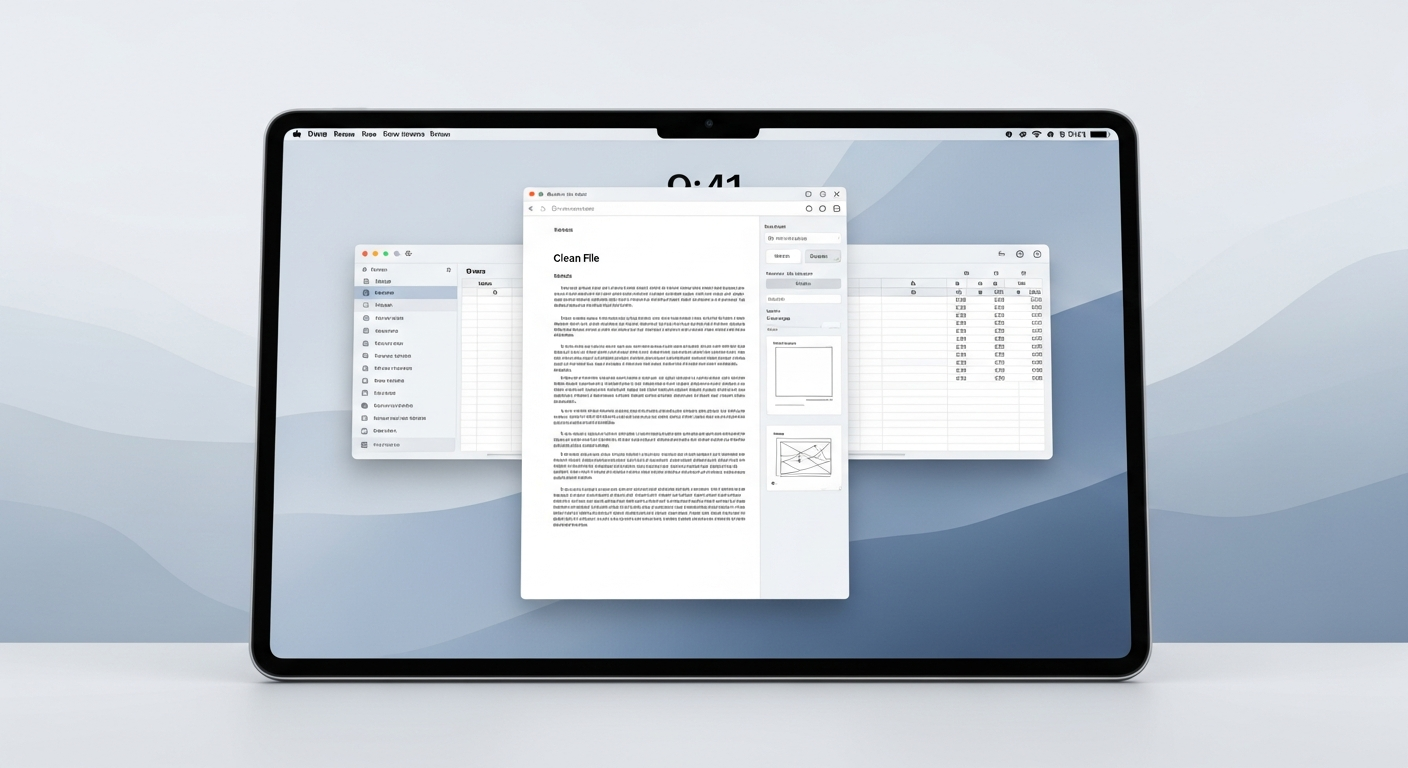
The easiest method is often "drag and drop." Open your cloud storage website or app, find the folder where you want your file, then click and hold the file on your computer and drag it directly into that cloud folder. Let go of the mouse button, and your file will start uploading.
2. Can I upload multiple files at once?
Yes, absolutely! Most cloud storage services allow you to select several files at once. You can hold down the "Ctrl" key (on Windows) or "Command" key (on Mac) and click on each file you want to upload, then drag them all together or use the "Upload" button.
3. How do I upload a whole folder?
You can usually upload an entire folder in the same way you upload a single file. Just drag the folder from your computer into your cloud storage. The service will then upload all the files and subfolders inside it, keeping the original structure intact.
Drag & Drop
- Pros: Very intuitive, quick for a few items, visual confirmation.
- Cons: Can be tricky with many files/folders, might accidentally drop in wrong spot.
Upload Button
- Pros: Precise file selection, good for many items, less chance of error.
- Cons: Requires more clicks, opens a separate browsing window.
4. What if my internet connection is slow during upload?
If your internet is slow, uploads will take longer. Most cloud services are designed to handle this and will continue uploading in the background. If your connection drops completely, many services will pause and resume the upload once your internet is back, so you don't lose progress.
5. How can I tell if my files have uploaded successfully?
Most cloud storage services provide visual cues. You'll often see a progress bar during the upload. Once complete, a notification might pop up, or the file will simply appear in your cloud folder without any "uploading" status next to it. You can also refresh the page to confirm.
6. Is there a size limit for files I can upload?
Generally, no, not for individual files. Most popular cloud services allow you to upload very large files, often many gigabytes in size. However, your overall storage plan will have a total limit for all your files combined. Check your specific cloud provider's terms for details.
7. Can I upload files from my phone or tablet?
Absolutely! All major cloud storage providers offer mobile apps for phones and tablets. You can easily upload photos, videos, documents, and other files directly from your device's storage or camera roll using the app's upload feature.
Uploading from Your Phone
- Open Cloud App: Launch your chosen cloud storage app (e.g., Google Drive, Dropbox).
- Tap "Upload": Look for a "+" icon or an "Upload" button.
- Select Files: Browse your phone's gallery or files to pick what you want to upload.
- Confirm: Tap "Upload" or "Done" to start the process.
- Verify: Check the app to see your files appear in the cloud.
8. What's the difference between "drag and drop" and using an "upload" button?
"Drag and drop" is a visual way to move files by clicking and dragging them from one window to another. An "upload" button, on the other hand, opens a separate window where you navigate through your computer's folders to select the files you want to send to the cloud. Both achieve the same goal.
9. How do I organize files as I upload them?
Before uploading, you can create folders in your cloud storage to keep things tidy. Then, when you upload, either drag files directly into the correct folder or use the "Upload" button and select the specific folder as the destination. You can also move files around after they've been uploaded.
10. What happens if I upload a file with the same name?
Cloud services usually give you a choice. They might ask if you want to "Keep Both" (creating a new file with a slightly different name, like "MyDocument (1).docx") or "Replace" the existing file (overwriting the old version with the new one). Be careful when replacing, as the old version will be gone.