
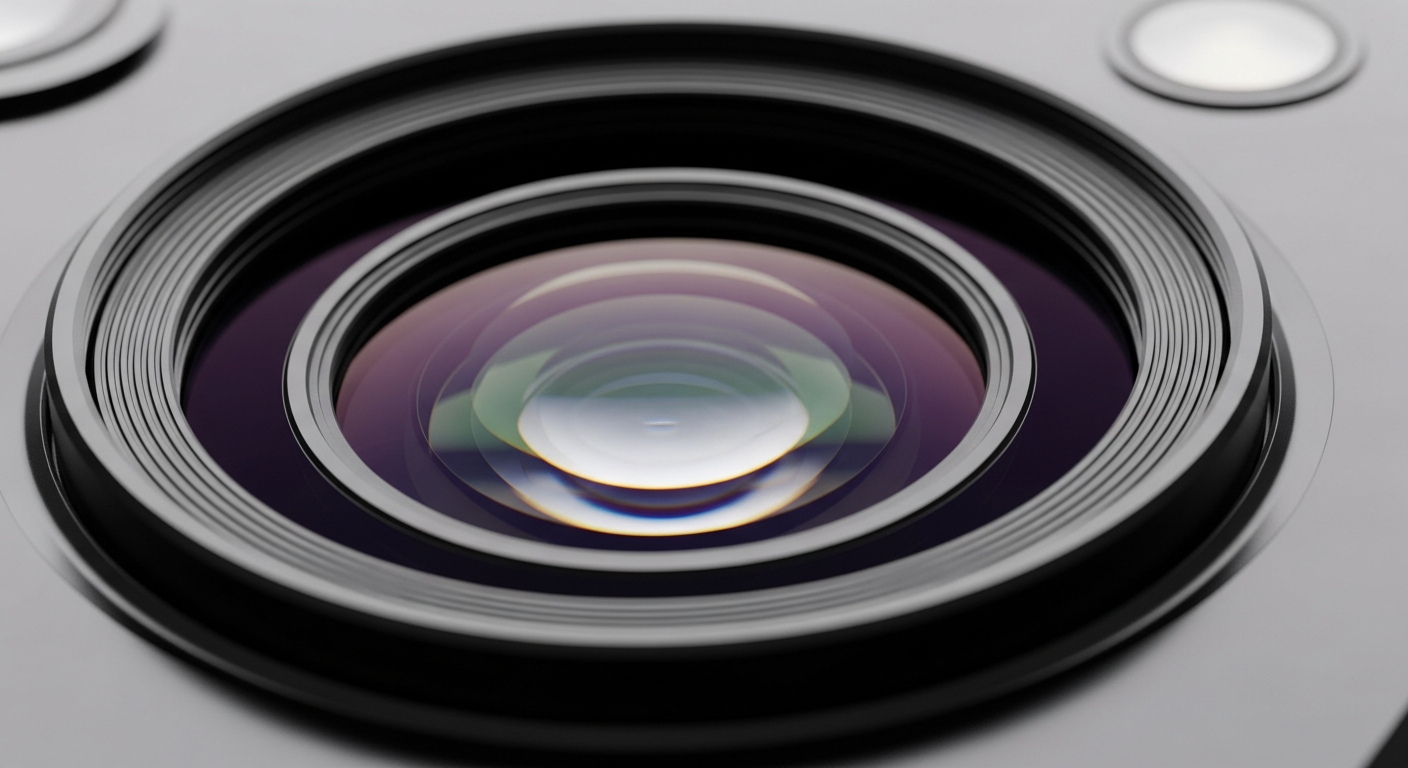
Want to take amazing photos and videos without buying a fancy camera? Your smartphone is a powerful tool, and with a few simple tricks, you can capture stunning memories.
This guide will help you unlock your phone's full potential, even if you've never thought about photography before!
1. How do I use the rule of thirds on my phone?
The "rule of thirds" is a simple guide for making your photos look balanced and interesting. Imagine your screen has two horizontal and two vertical lines, dividing it into nine equal boxes (like a tic-tac-toe board). Many phones have a grid setting you can turn on in your camera app.
Instead of placing your main subject directly in the center, try to put it along these lines or at the points where they cross. This often creates a more pleasing and dynamic picture.
2. What's the best lighting for smartphone photos?
Good lighting is key! The best light is usually soft, natural light, like near a window or outdoors on a cloudy day. Avoid harsh midday sun, which can create strong shadows and bright spots.
When indoors, use natural light if possible. If you must use artificial light, try to have it come from the front or side of your subject, not directly from behind, which can make your subject look like a silhouette.
3. Should I use my phone's zoom?
Generally, it's best to avoid using your phone's digital zoom. When you "pinch to zoom" on your screen, your phone isn't actually getting closer; it's just cropping and enlarging the image, which makes it look blurry or pixelated.
Instead, try to physically move closer to your subject if you can. If you can't, take the photo without zooming and crop it later using an editing app. Some newer phones have "optical zoom" which uses special lenses and is much better.
Digital Zoom
- Magnifies part of the image
- Often results in blurry or grainy photos
- Available on all smartphones
- Best to avoid if possible
Optical Zoom
- Uses special lenses to get closer
- Keeps photos sharp and clear
- Only on some advanced smartphones
- Excellent for distant subjects
4. How do I avoid blurry photos?
Blurry photos often happen when your phone moves while taking the picture, or when the subject moves too fast. To avoid this, hold your phone very still with both hands. You can also lean against something stable or use a small tripod.
Tap on your screen to tell your phone what to focus on. For moving subjects, try to anticipate their movement or use your phone's "burst mode" (holding down the shutter button) to take many photos quickly and pick the best one.
5. What are portrait mode and night mode?
These are special settings on many smartphones that help you take better photos in specific situations. "Portrait mode" makes your subject sharp and clear while blurring the background, creating a professional-looking effect often called "bokeh." It's great for photos of people or pets.
"Night mode" helps your phone capture more light in dark environments. It takes several photos and combines them to create a brighter, clearer image with less graininess. Use it when taking pictures in low-light conditions, but remember to hold your phone very still.
6. How can I record stable videos?
Shaky videos are hard to watch. To keep your videos steady, hold your phone with two hands and keep your elbows tucked in close to your body. Move slowly and smoothly, avoiding sudden jerks.
Many phones have built-in "image stabilization" that helps reduce shakiness; make sure it's turned on in your camera settings. For even smoother results, consider a small smartphone tripod or a "gimbal," which is a device that keeps your phone perfectly level as you move.
7. What free apps can improve my phone photos?
There are many excellent free apps to edit and enhance your photos. Google Photos offers basic editing tools and great organization. Snapseed (also by Google) provides more advanced adjustments like selective editing and healing tools.
Lightroom Mobile (free version) is another powerful option for color correction and exposure tweaks. For quick fixes and fun filters, try apps like VSCO or Fotor. Experiment to find what works best for your style!
Smartphone Photo Workflow
8. How do I clean my phone camera lens?
A dirty lens is a common cause of blurry or hazy photos. Your phone is often in your pocket or bag, picking up dust and fingerprints. To clean it, gently wipe the lens with a soft, clean microfiber cloth.
Do not use harsh chemicals, paper towels, or your shirt, as these can scratch the lens. If there's stubborn grime, a tiny drop of lens cleaning solution on the microfiber cloth can help, but avoid spraying directly onto the phone.
9. When should I use HDR?
HDR stands for High Dynamic Range. It's a setting that helps your phone capture more detail in both the very bright and very dark parts of a scene. Your phone takes multiple photos at different brightness levels and combines them into one.
Use HDR when you have scenes with high contrast, like a bright sky and a dark foreground, or when shooting landscapes. Avoid HDR for moving subjects, as it can cause ghosting, or when you want a dramatic, high-contrast look.
10. How do I backup my smartphone photos?
Losing your precious photos is heartbreaking, so backing them up is crucial. Cloud services like Google Photos, Apple iCloud Photos, or Dropbox automatically upload your photos to the internet, keeping them safe even if your phone is lost or broken.
You can also manually transfer photos to your computer using a USB cable. Make sure to check your cloud service settings to ensure photos are backing up regularly, especially over Wi-Fi, to save on mobile data.