
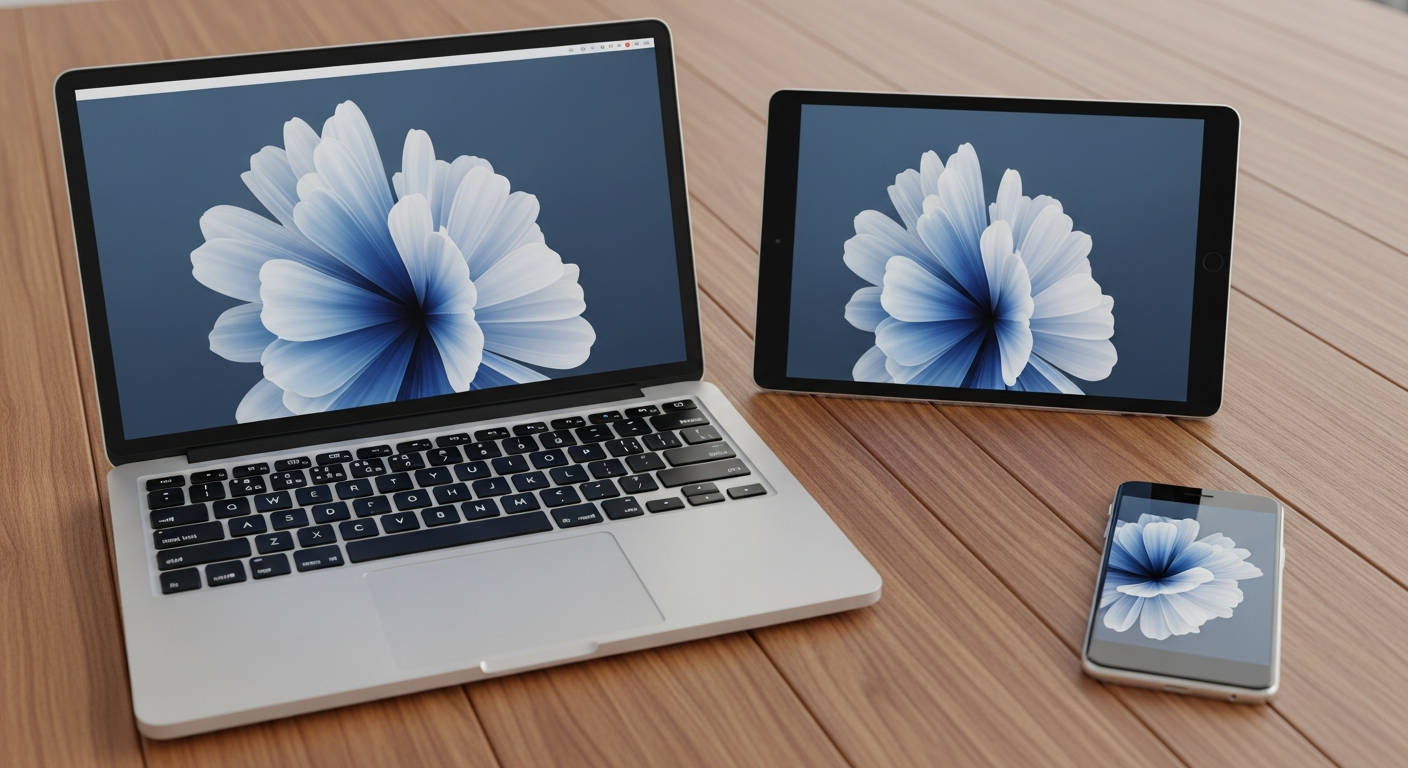
Cloud storage lets you keep your files safe online and access them from anywhere. This guide will help you understand how to "sync" your files, making sure they're always up-to-date across all your devices.
1. What does "syncing" mean in cloud storage?
Syncing means keeping identical copies of your files in multiple places automatically. When you save a document to a synced folder on your computer, a copy is also sent to your cloud storage. If you change that document, the cloud copy updates too, and vice versa.
Think of it like having a magic folder. Anything you put in it, or change in it, instantly gets copied and updated everywhere else you've set up that magic folder, like on your phone or another computer.
2. How do I set up file syncing on my computer?
First, you need to install the cloud storage app (like Google Drive, Dropbox, or OneDrive) on your computer. Once installed, it will create a special folder on your computer. Any files you drag or save into this folder will automatically begin syncing to your cloud account.
You might need to sign in with your cloud storage account details during the setup process. The app usually guides you through selecting which folders you want to keep in sync.
3. Can I sync files from my phone or tablet?
Yes, absolutely! Most cloud storage providers have dedicated mobile apps for phones and tablets. After installing the app and logging in, you can often set it to automatically upload photos and videos you take.
You can also manually upload other files from your device to the cloud. Any files you create or edit within the cloud app on your mobile device will also be synced, making them available on your computer and other devices.
Syncing
- Automatic: Files update everywhere instantly.
- Two-Way: Changes on one device reflect on all others.
- Local Copies: Files are usually on your device and in the cloud.
- Always Up-to-Date: Your files are consistent across devices.
Uploading
- Manual: You choose specific files to send.
- One-Way: Sends a copy to the cloud, doesn't update your device.
- Cloud Only: Often used to store files only in the cloud.
- Snapshot: Creates a specific version in the cloud.
4. What happens if I edit a file offline?
If you edit a synced file while your computer or device is not connected to the internet, the changes will be saved locally on that device. As soon as your device reconnects to the internet, the cloud storage app will detect the changes and automatically upload them to your cloud account.
This ensures that the updated version of your file becomes available on all your other synced devices. It's a great feature for working on the go without constant internet access.
5. How do I know if my files are successfully synced?
Most cloud storage apps use small icons next to your files and folders to show their sync status. A green checkmark usually means the file is fully synced and up-to-date. A blue arrow or spinning circle might indicate it's currently syncing.
You can also open the cloud storage app itself to see a list of recent activities or check the status of your files. If there's an issue, the app will often notify you with a warning icon or message.
6. What's the difference between syncing and uploading?
Uploading is a one-time action where you send a copy of a file from your device to the cloud. The cloud copy won't automatically update if you change the original file on your device later.
Syncing, however, creates a continuous, two-way link. Any change you make to a synced file, whether on your device or in the cloud, is automatically reflected everywhere. Syncing keeps all your copies identical and up-to-date.
7. Can I choose which folders to sync?
Yes, absolutely! Most cloud storage apps allow you to select specific folders on your computer that you want to sync. You don't have to sync your entire computer or even your entire cloud storage.
This is useful for saving space on your device or for only syncing the most important work files. You can usually find these options in the settings or preferences of your cloud storage desktop app.
How Syncing Works
You make changes to a document in your synced folder.
The app sees the change and sends it to the cloud.
Your file is updated on the cloud server.
Your phone, tablet, or other computers get the new version.
8. How do I access my cloud files from a web browser?
You can access all your cloud files by simply opening your internet browser (like Chrome, Edge, or Safari) and going to your cloud storage provider's website (e.g., drive.google.com, dropbox.com, onedrive.live.com). You'll need to log in with your username and password.
Once logged in, you'll see a view of all your files and folders, just like on your computer. You can open, view, download, or even edit many file types directly in your browser.
9. What if I accidentally delete a synced file?
If you delete a synced file from one device, it will usually be deleted from your cloud storage and all other synced devices as well. However, most cloud services have a "recycle bin" or "trash" feature.
You can typically recover deleted files from this trash folder on the cloud storage website for a certain period (e.g., 30 days). Always double-check before deleting important files!
10. Does syncing use a lot of internet data?
The initial syncing of all your files can use a significant amount of internet data, especially if you have many large files like photos or videos. After the initial sync, it uses much less data because it only uploads or downloads the changes you make.
Most cloud apps have settings to limit data usage, especially on mobile data, or only sync when connected to Wi-Fi. If you have a limited internet plan, be mindful of large file transfers.