
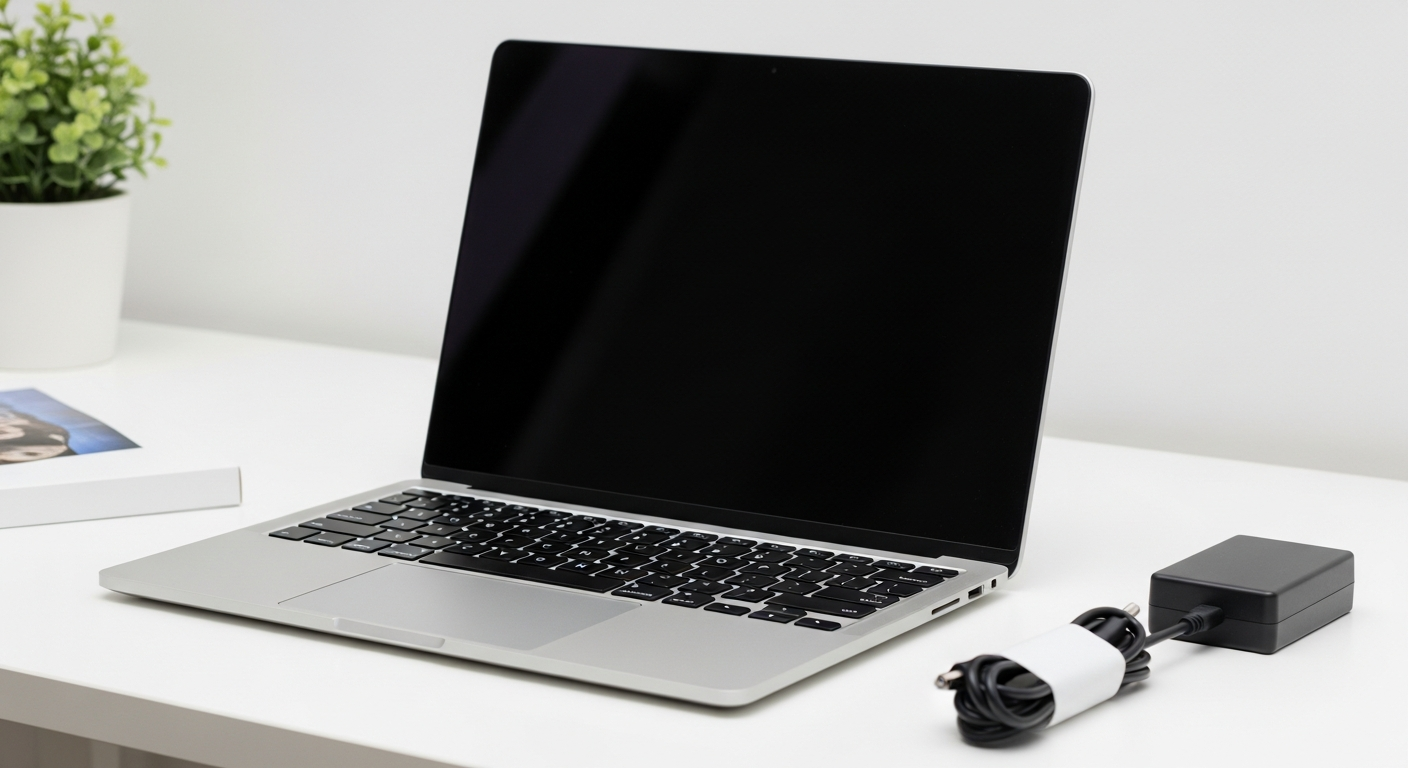
Congratulations on your new computer! Setting it up might seem a bit daunting, but this guide will walk you through each step simply and clearly.
We'll cover everything from plugging it in to organizing your files, so you can start enjoying your new device without any hassle.
1. How do I physically connect all the cables?
First, find the power cable and plug one end into your computer and the other into a wall outlet. For a desktop, you’ll also connect the monitor to the computer using a display cable (like HDMI or DisplayPort). Plug in your keyboard and mouse using their USB cables into any rectangular USB ports on your computer.
2. What's the first thing I should do when I turn it on?
After plugging everything in, press the power button on your computer. It usually has a circle with a line through it. Your computer will then guide you through an initial setup process, asking for your region, language, and keyboard layout. Just follow the on-screen instructions carefully.
3. How do I connect to Wi-Fi for the first time?
During the initial setup, your computer will likely ask you to connect to a network. Look for your home Wi-Fi network name (SSID) in the list. Click on it, then enter your Wi-Fi password. This password is often found on a sticker on your internet router. Once entered, click "Connect."
Laptop Setup
- Plug in power adapter
- Open lid, press power button
- Connect to Wi-Fi wirelessly
- Built-in screen, keyboard, mouse
Desktop Setup
- Connect power to tower & monitor
- Connect monitor to tower (HDMI/DP)
- Connect keyboard & mouse (USB)
- Press tower power button
4. Do I need to create an account?
Yes, you will need to create a user account. This account protects your personal files and settings. For Windows computers, you'll usually use a Microsoft account. For Apple computers, it's an Apple ID. If you don't have one, the setup process will guide you to create a new one. Remember your password!
5. How do I install basic software like a web browser?
Your computer comes with a basic web browser (like Microsoft Edge or Apple Safari) already installed. Use this browser to download other popular browsers like Google Chrome or Mozilla Firefox from their official websites. Most software comes as a small file you download and then double-click to run the installer, following the prompts.
6. What are system updates and should I do them immediately?
System updates are important improvements and security fixes for your computer's operating system. Yes, you should do them immediately. They protect your computer from new threats and ensure everything runs smoothly. Your computer will usually prompt you when updates are available, often overnight.
7. How do I set up a printer or other accessories?
Most modern printers and accessories connect wirelessly or via a USB cable. For wireless, ensure both your computer and printer are on the same Wi-Fi network. Then, go to your computer's "Settings" (often a gear icon), find "Printers & Scanners" or "Bluetooth & Devices," and follow the prompts to "Add a device."
Adding a New Device
- Connect Device: Plug in USB or ensure Wi-Fi/Bluetooth is on.
- Open Settings: Click Start (Windows) or Apple Menu (Mac), then "Settings."
- Find Devices: Look for "Bluetooth & Devices" or "Printers & Scanners."
- Add Device: Click "Add device" or "Add a printer or scanner."
- Follow Prompts: Select your device and let the computer install necessary software.
8. What antivirus software do I need to install?
Your new computer likely comes with built-in antivirus protection (like Windows Security for Windows or XProtect for Mac). These are generally sufficient for most users. Keep them updated. If you want extra protection, many reputable companies offer paid antivirus software, but it's not strictly necessary for basic use.
9. How do I transfer files from my old computer?
The easiest way is to use an external USB hard drive. Copy your important files (documents, photos, videos) from your old computer to the external drive. Then, plug the external drive into your new computer and copy the files over. Cloud services like Google Drive or OneDrive are also great for smaller amounts of data.
10. What's a good way to organize my desktop?
Keep your desktop clean! Too many icons can slow things down and make it hard to find what you need. Create folders for different types of files (e.g., "Documents," "Photos," "Work"). Drag related files into these folders. You can also pin frequently used programs to your taskbar (Windows) or Dock (Mac) for quick access.